How to Check Inventory Items in RetailLife Business Portal
This tutorial guides you through accessing and managing your inventory within the Business
Portal. You can check inventory items, view store-wise stock quantities, verify exact unit quantities,
review item pricing, and access detailed inventory information to ensure accurate stock management and monitoring.
Go to
retaillife.quicklyservices.com
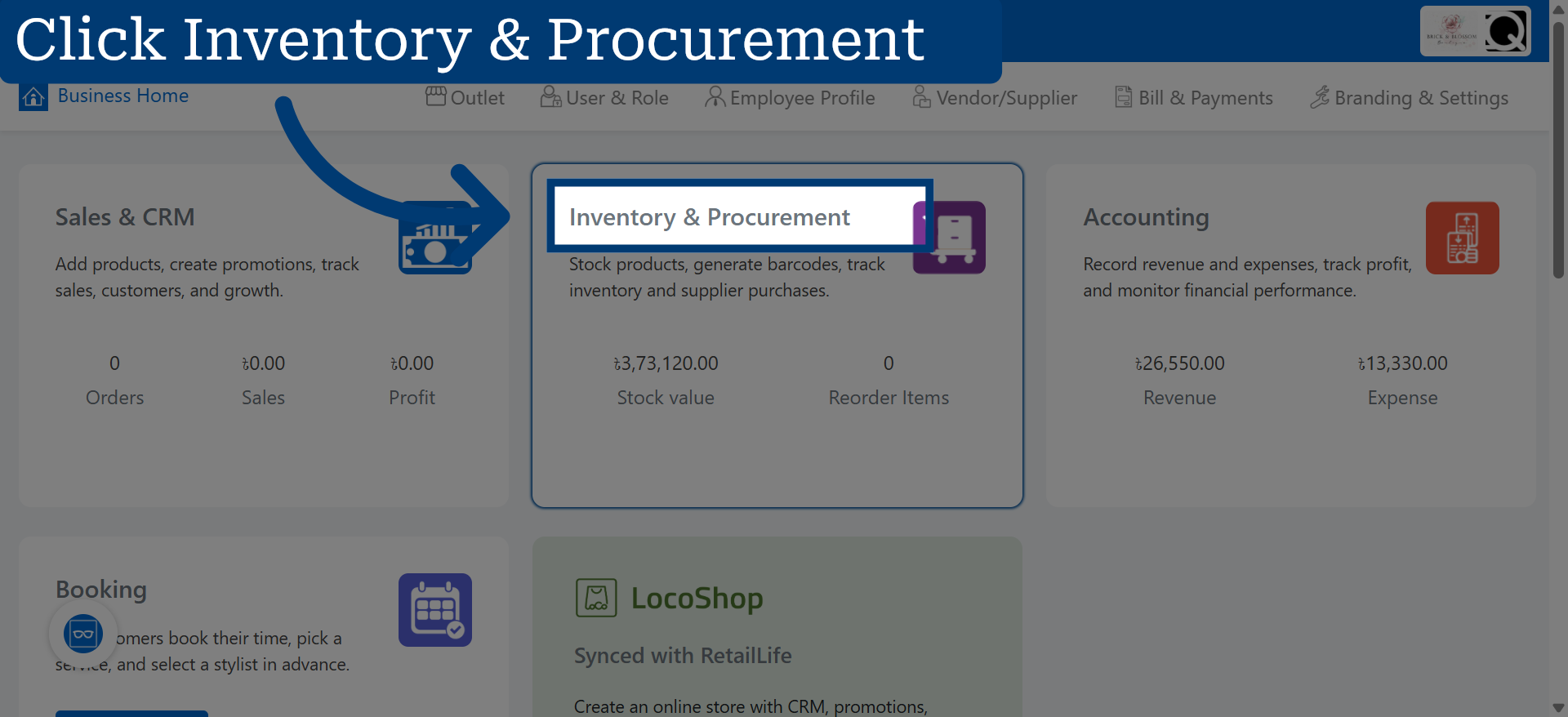
1. Access Inventory & Procurement
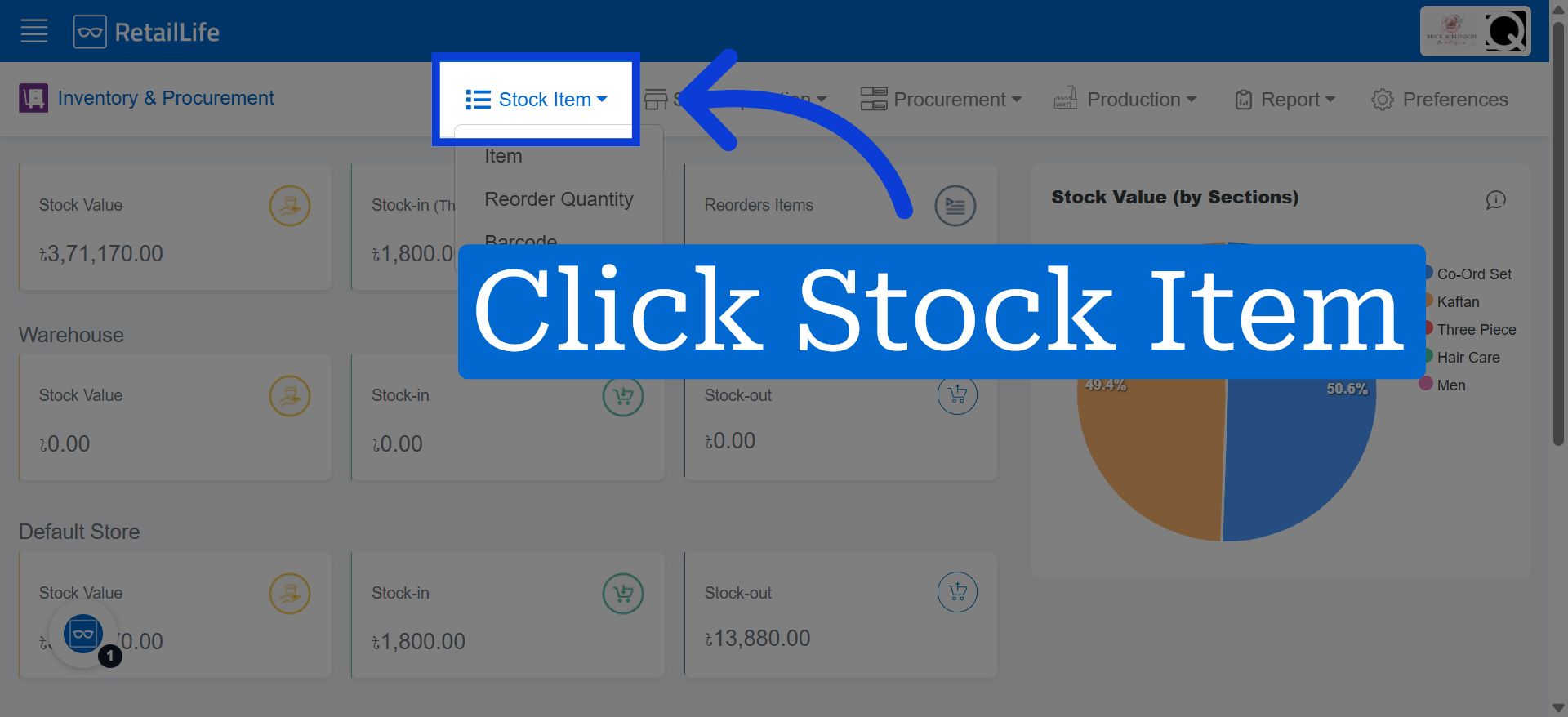
2. Open Stock Item Section
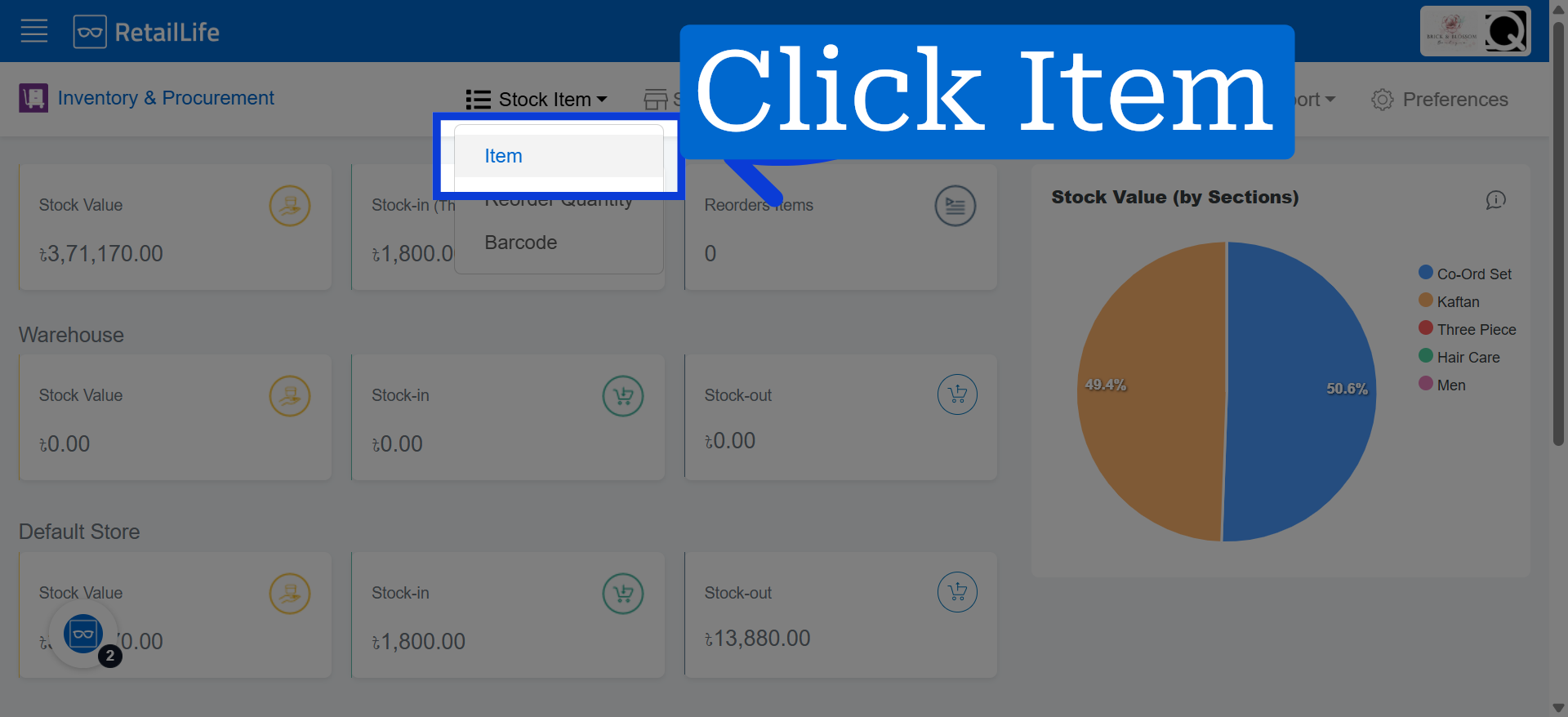
3. Select Item Category
Click "Item" to access the list of items available in your stock.
4. View Inventory Items
This section allows you to view complete product information, including availability, inventory levels, and pricing
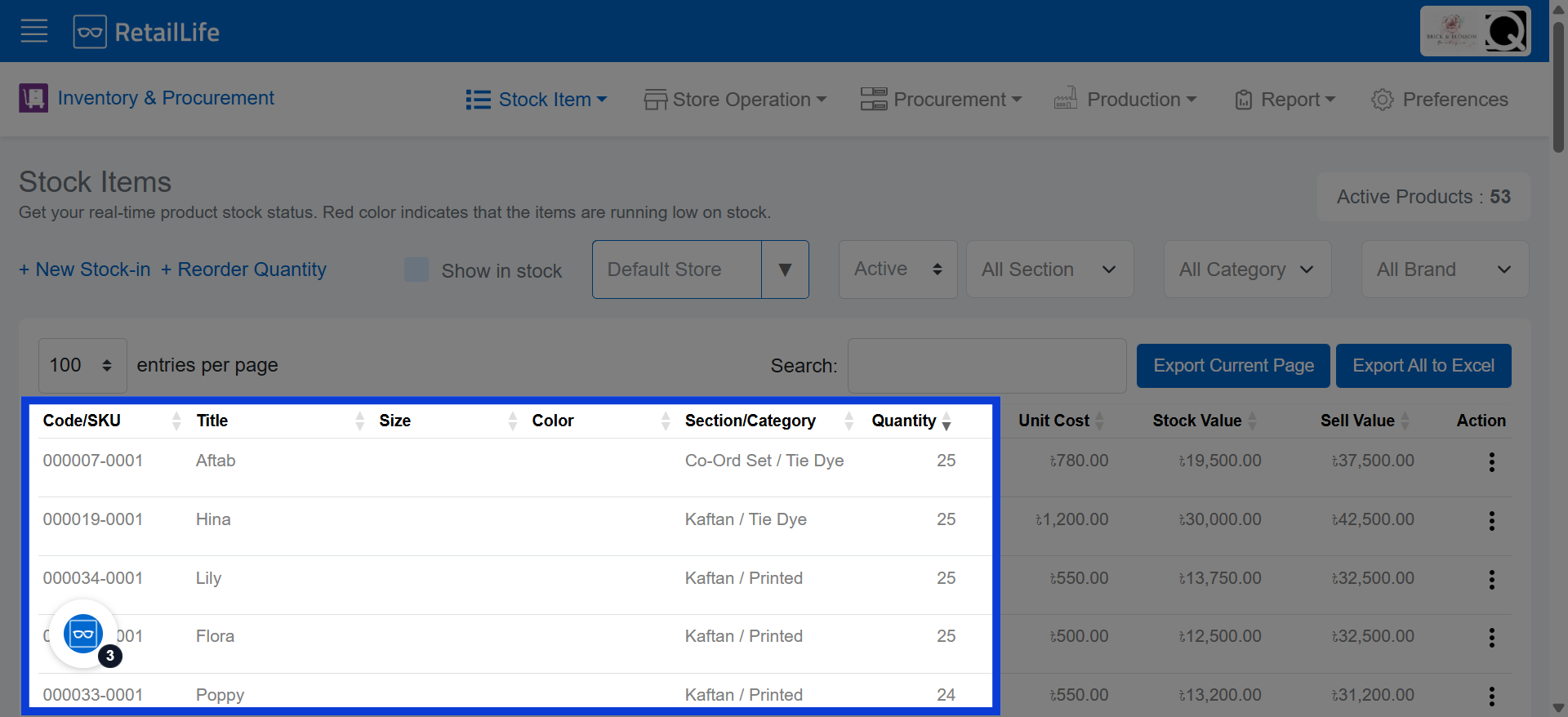
5. Product Search Filters
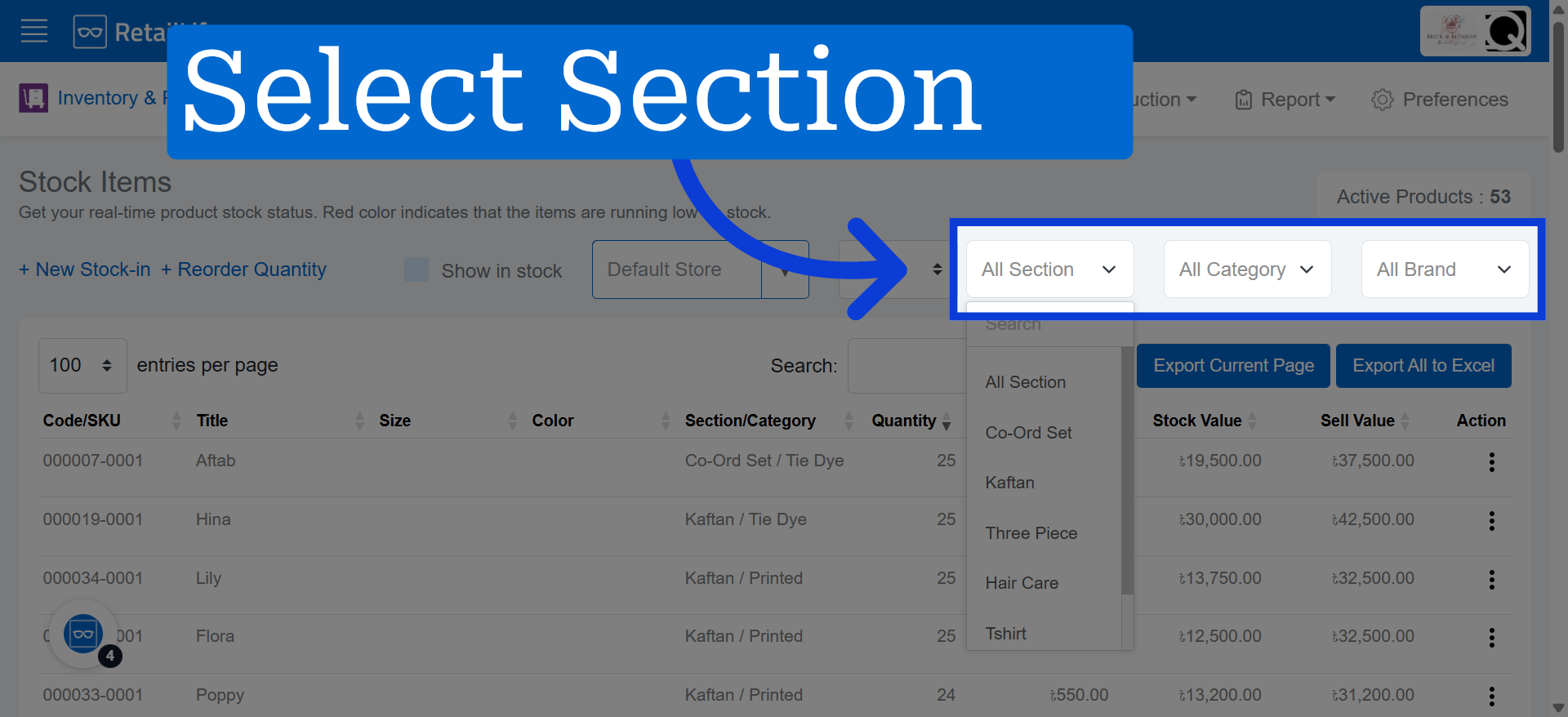
Use search filters to find specific products based on Section, Category, or Brand.