How to Create And Submit Requisitions in RetailLife
A requisition is a formal request used to obtain approval for purchasing goods or services required
for business operations. It helps organizations maintain budget control, ensure compliance with
procurement policies, and streamline the purchasing process. This tutorial explains how to create
and submit a requisition in the RetailLife Business Portal.
Go to
retaillife.quicklyservices.com
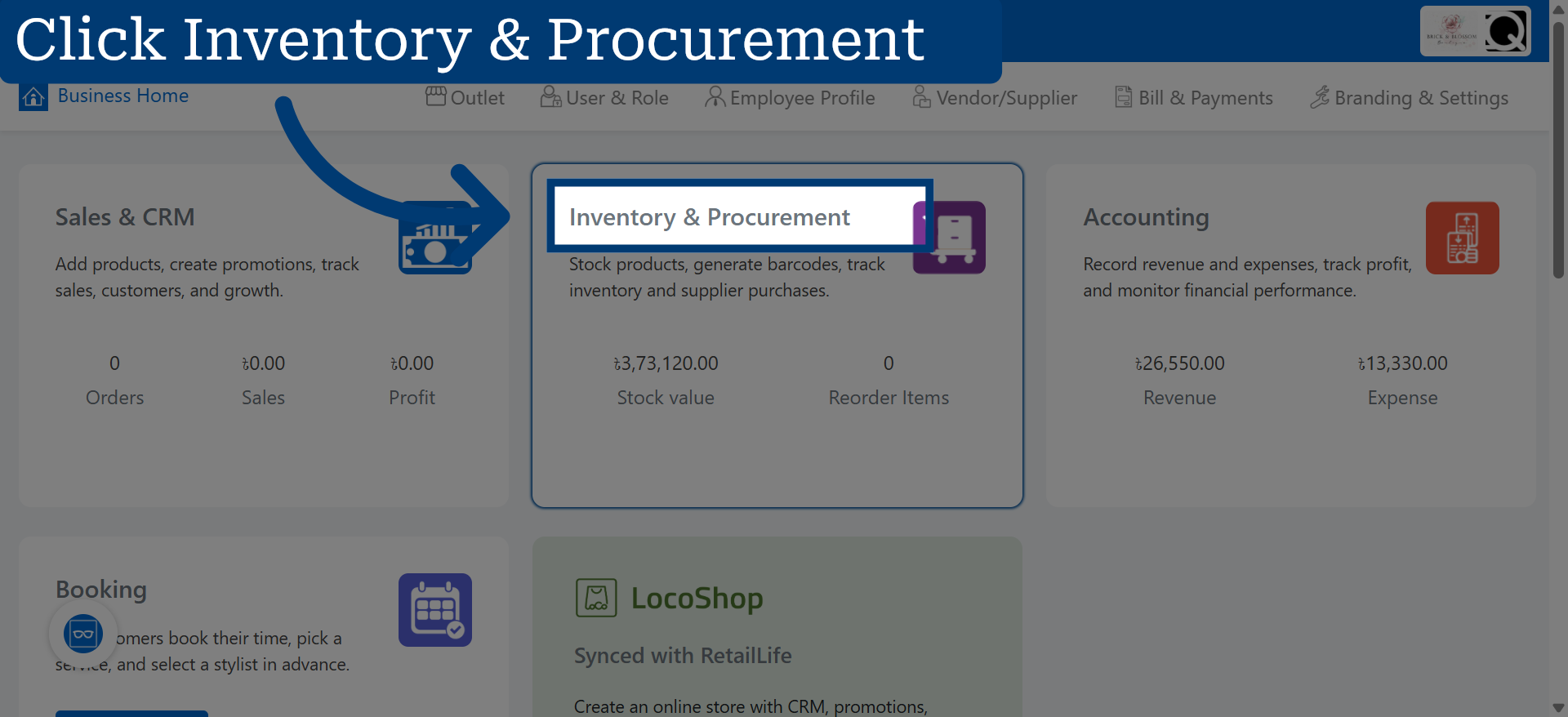
1. Access Inventory & Procurement
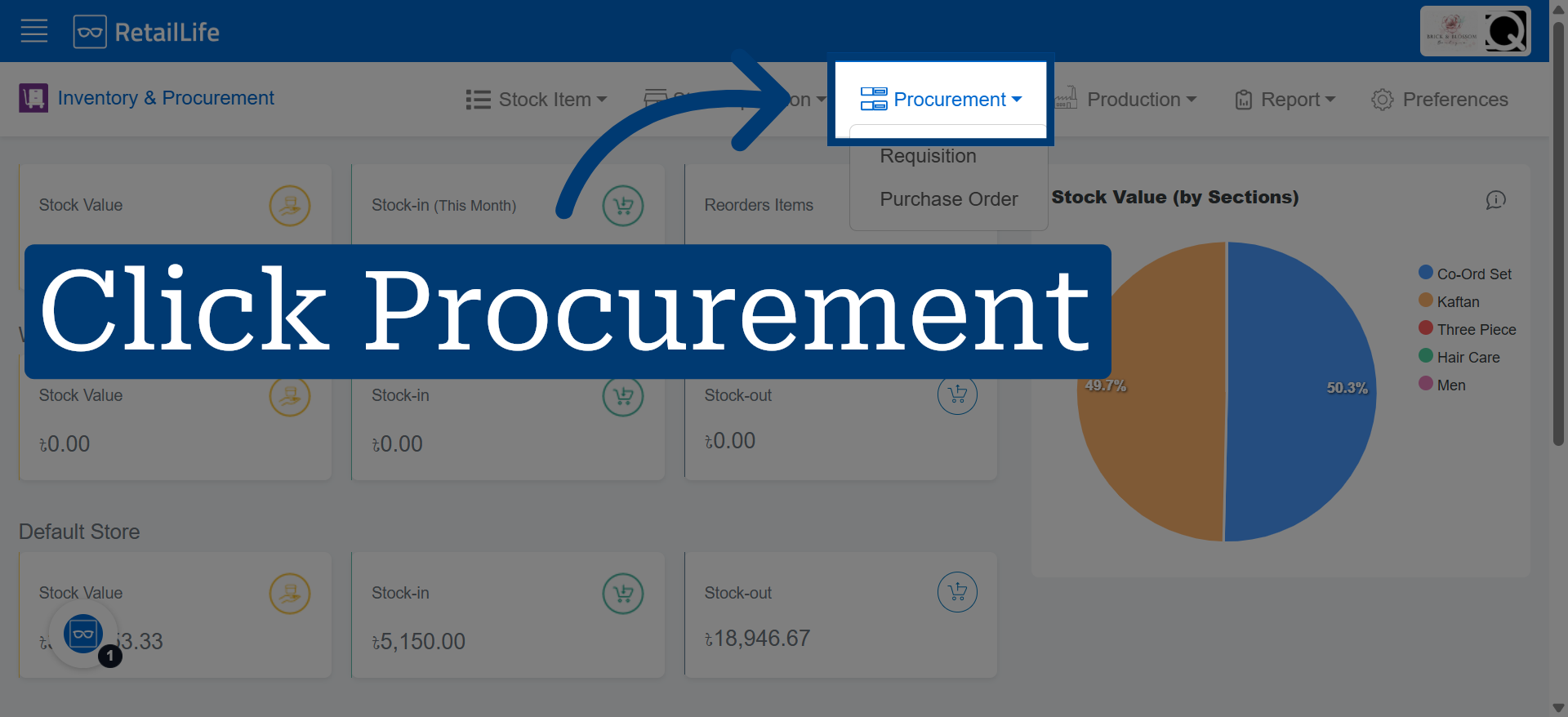
2. Open Procurement
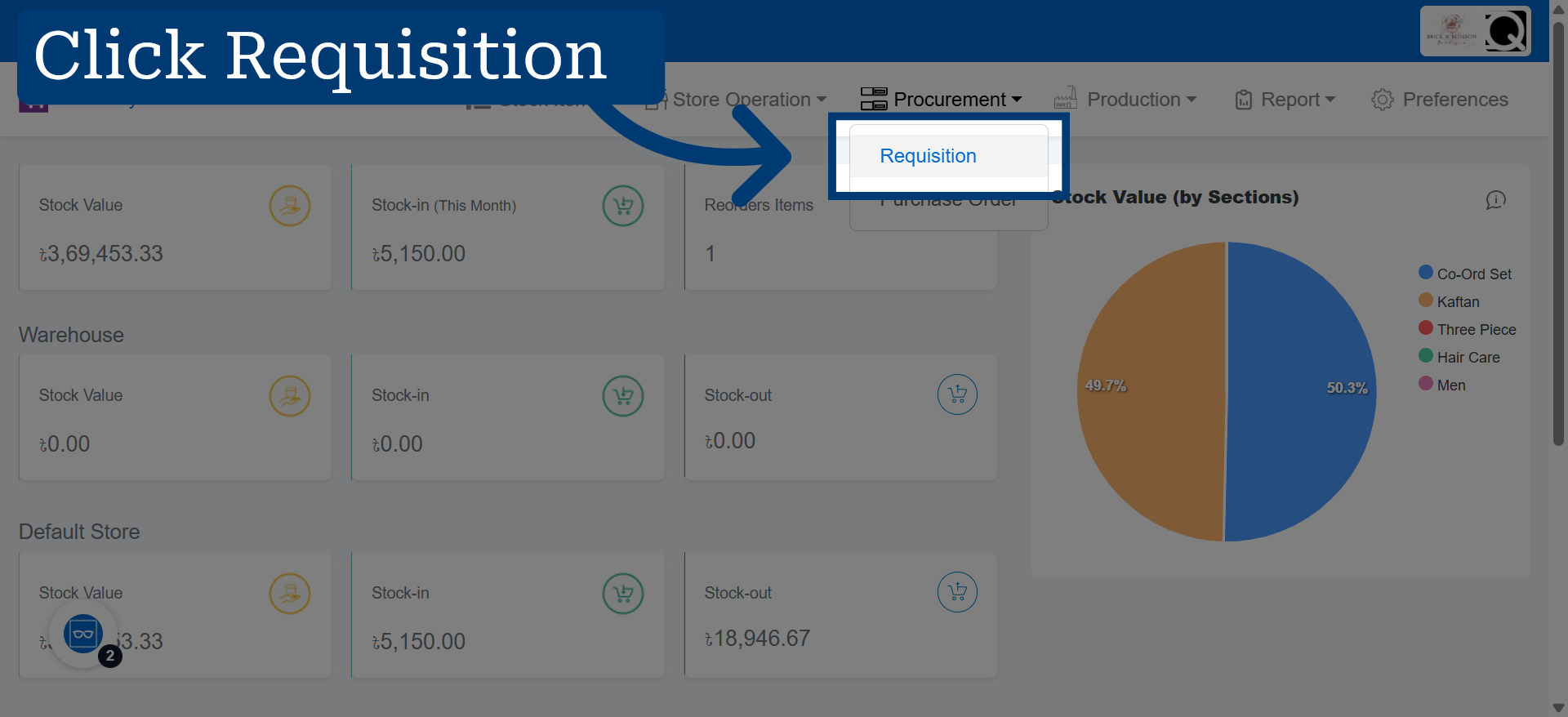
3. Navigate To Requisition
4. Start New Requisition
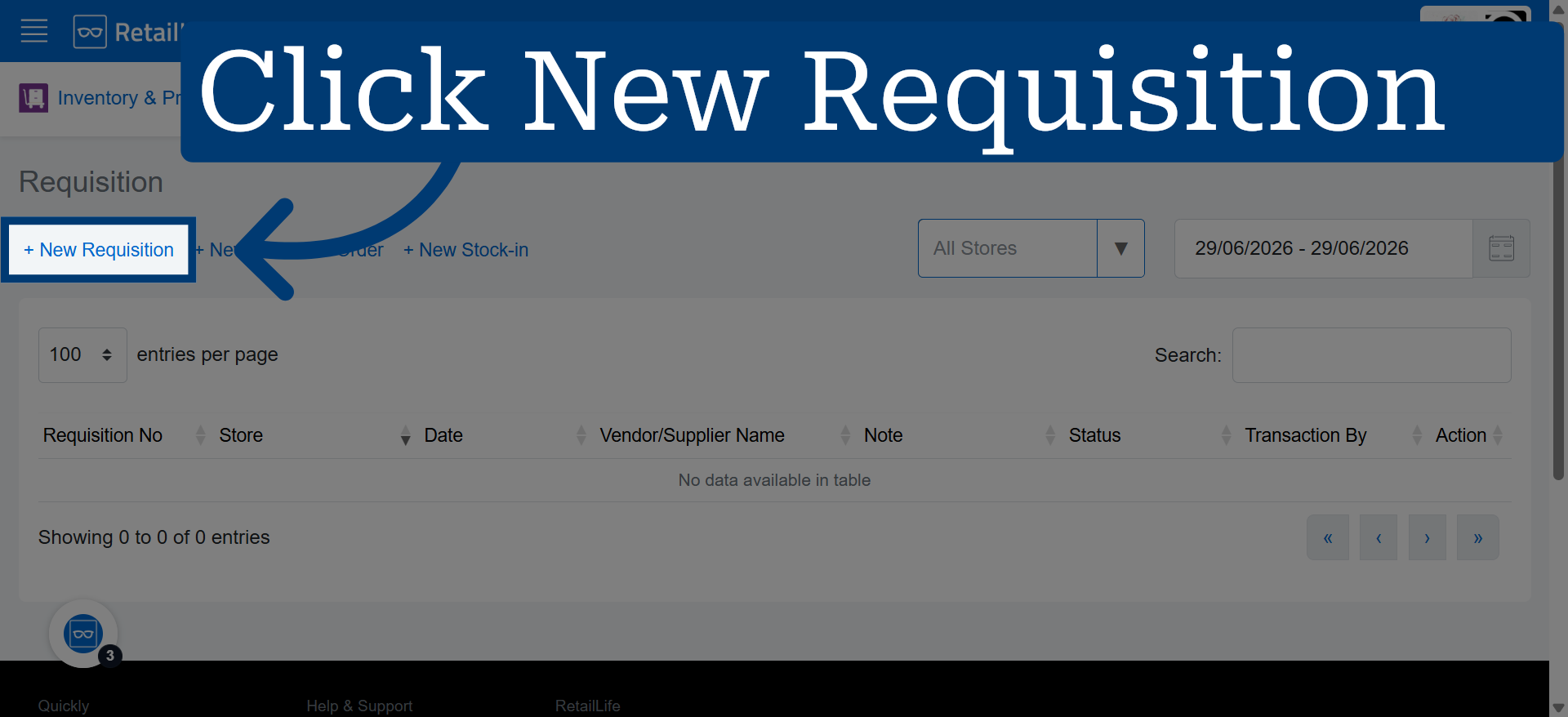
Click "New Requisition" to begin creating a new purchase requisition.
5. Confirm Store Selection
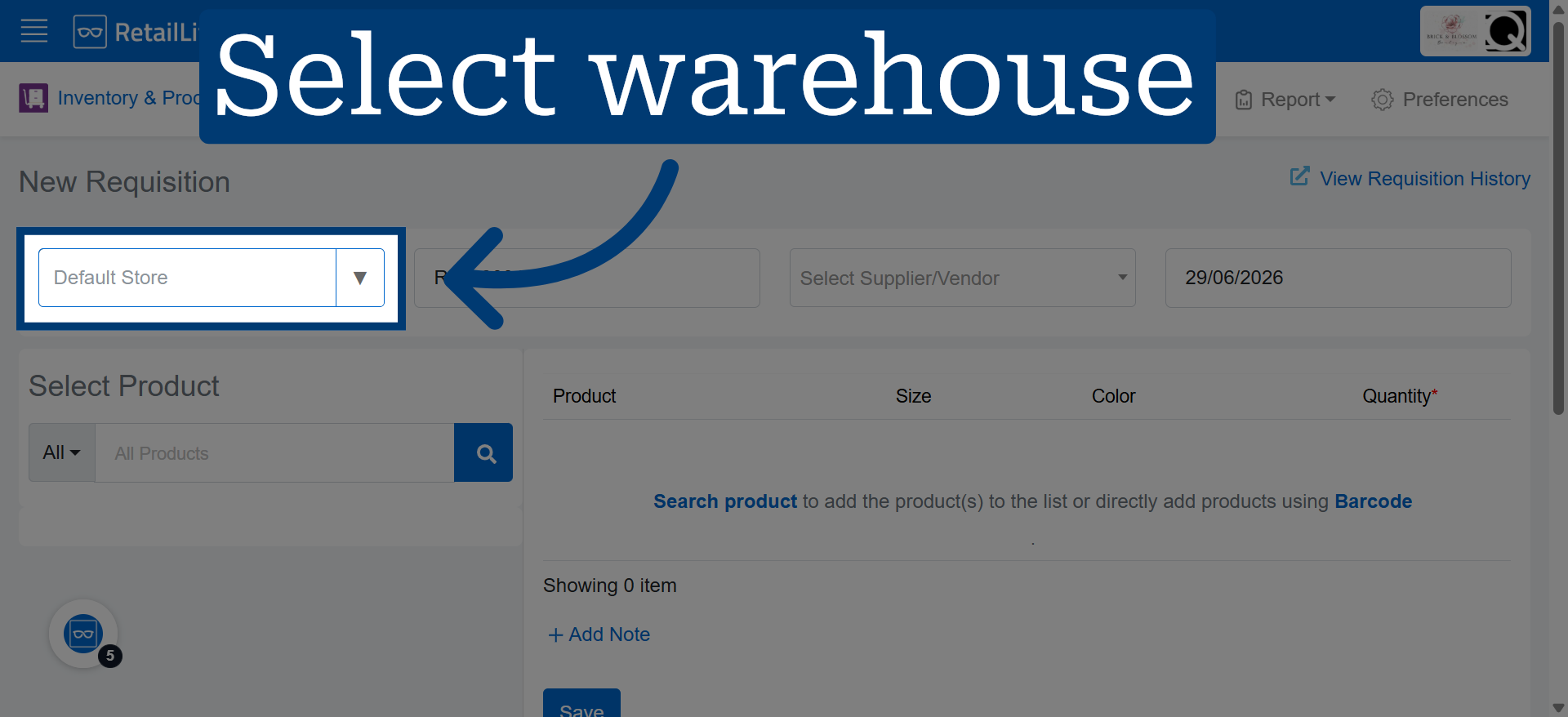
Confirm the store selected for the requisition or choose a different store if needed.
6. Choose Supplier Or Vendor
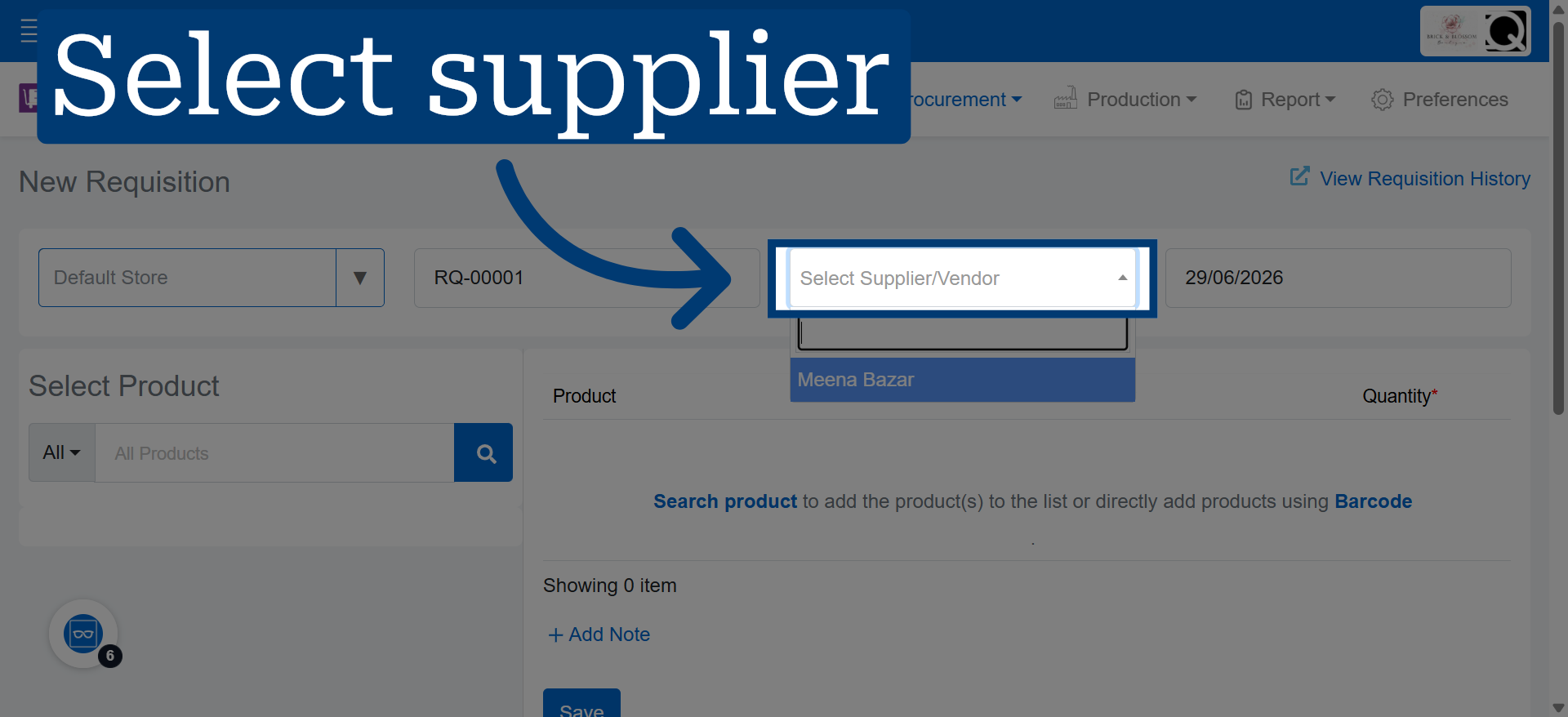
Click "Select Supplier/Vendor" to pick the supplier or vendor for this requisition.
7. Open Procurement
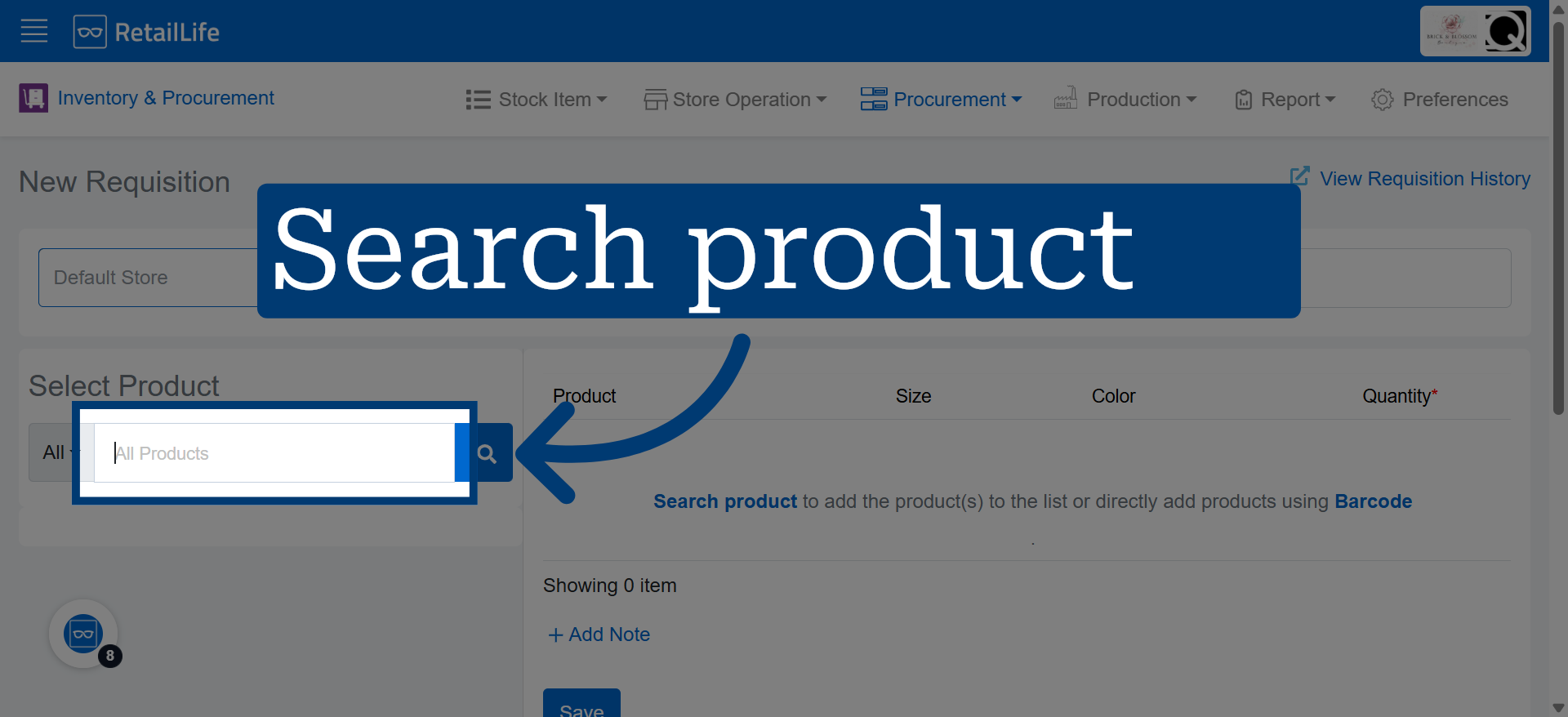
Products can be added manually through search or quickly using barcode scanning.
8. Navigate To Requisition
You can add multiple products to a single requisition by searching for each product manually or by scanning their barcodes.
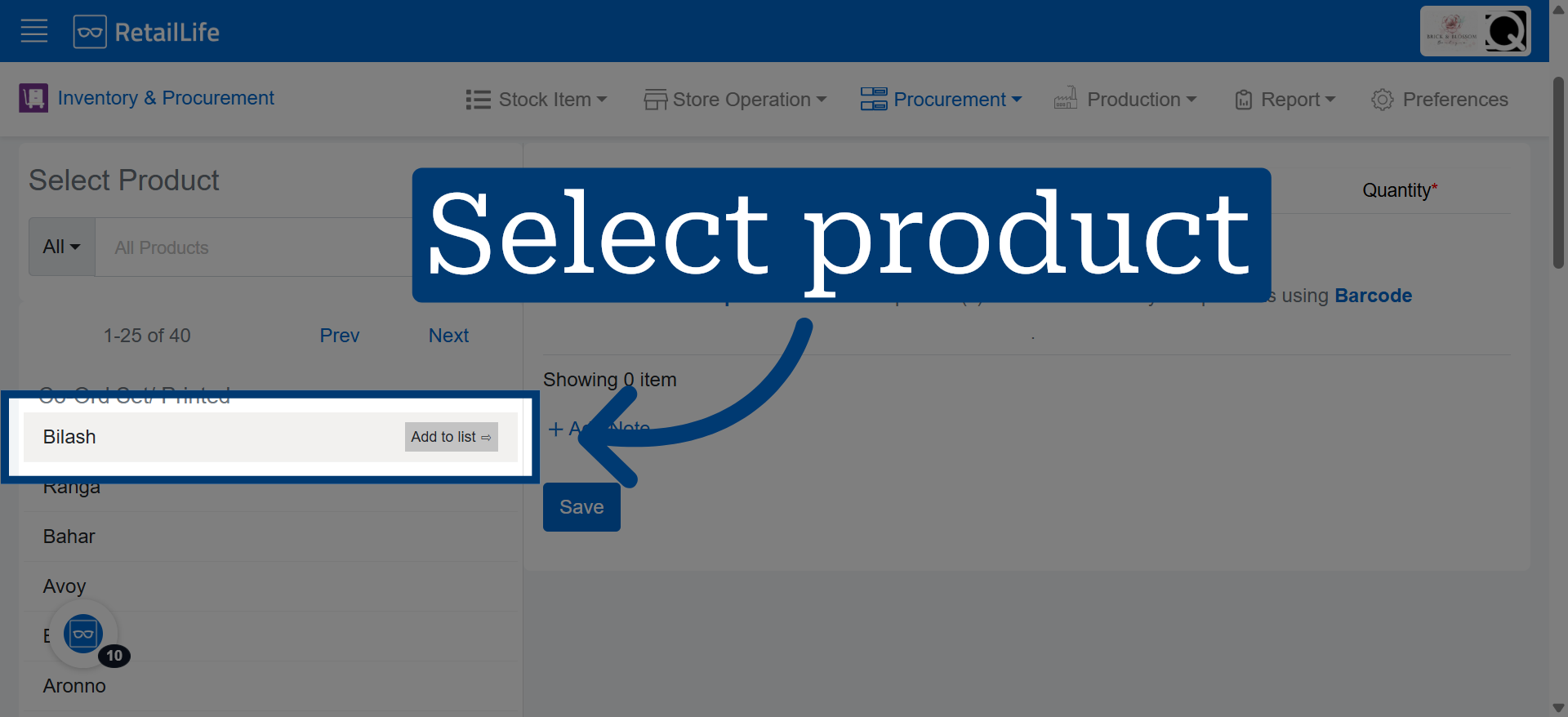
9. Start New Requisition
Click here to enter the quantity for the selected product in your requisition.
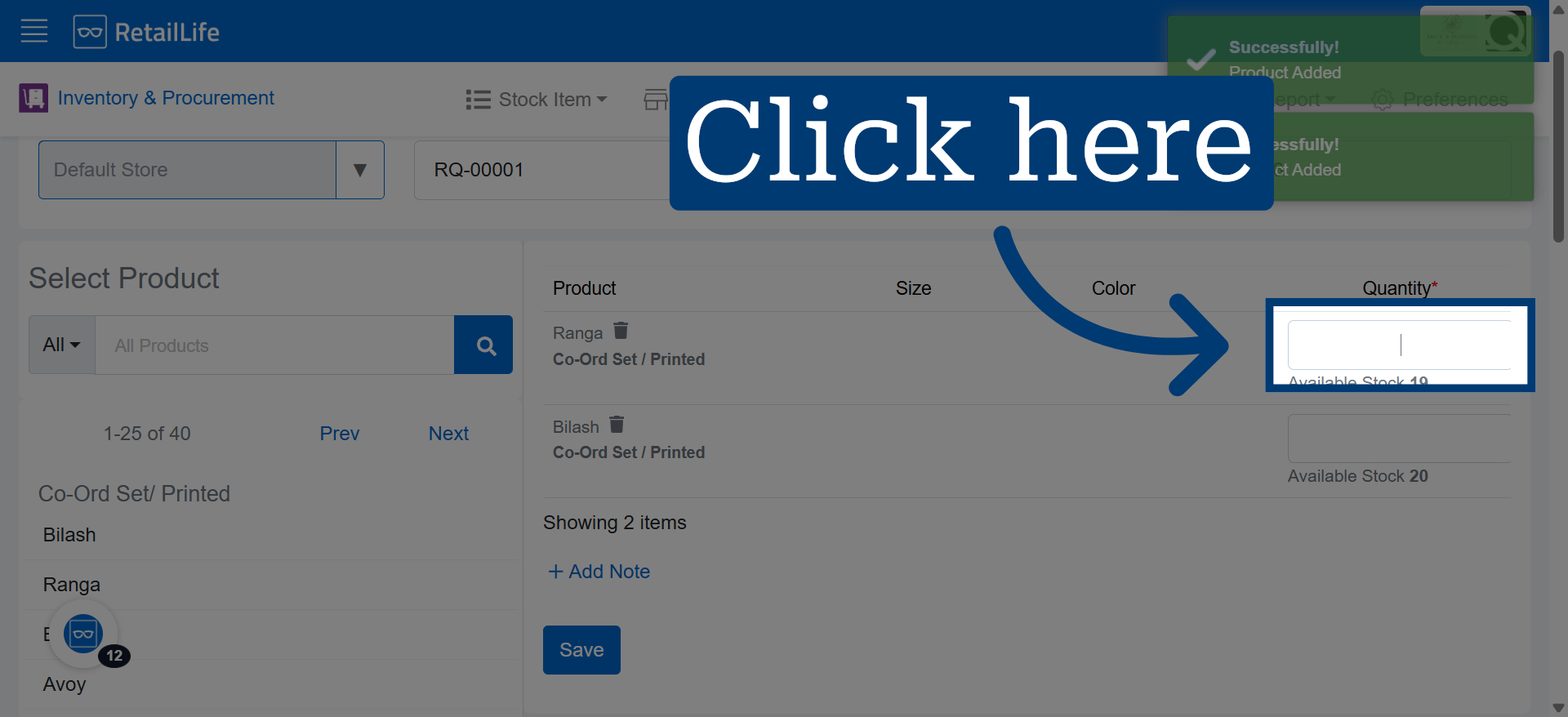
10. Confirm Store Selection
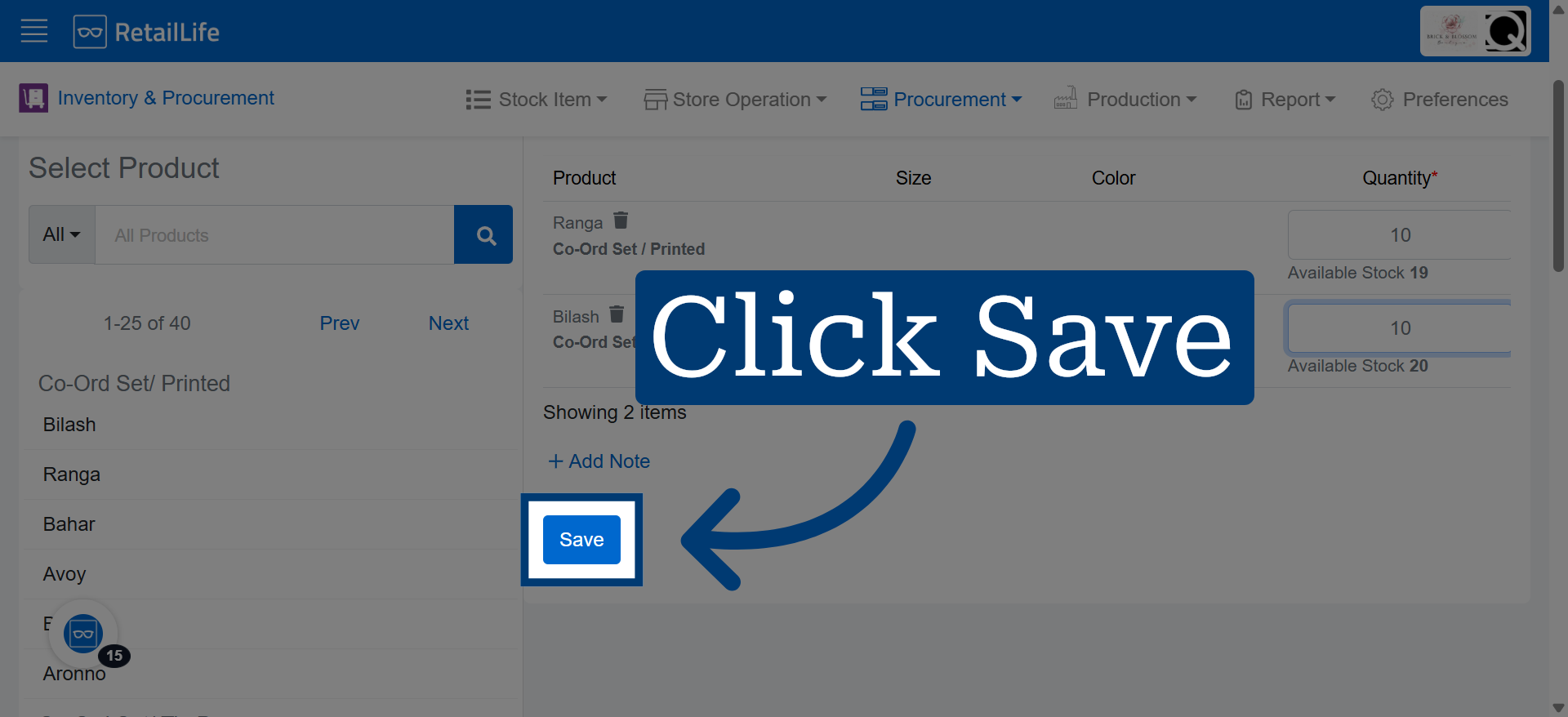
Click "Save" to submit your requisition and finalize the request process.