How to Manage Incoming Transfers in RetailLife Business Portal
This tutorial guides you through managing incoming transfers in the RetailLife Business Portal
after the products have been physically received. Managing incoming transfers helps you verify,
track, and process transferred products efficiently, ensuring accurate inventory records.
If you need help creating a product transfer, refer to the How to Transfer Products Between
Stores tutorial before continuing.
Go to
retaillife.quicklyservices.com
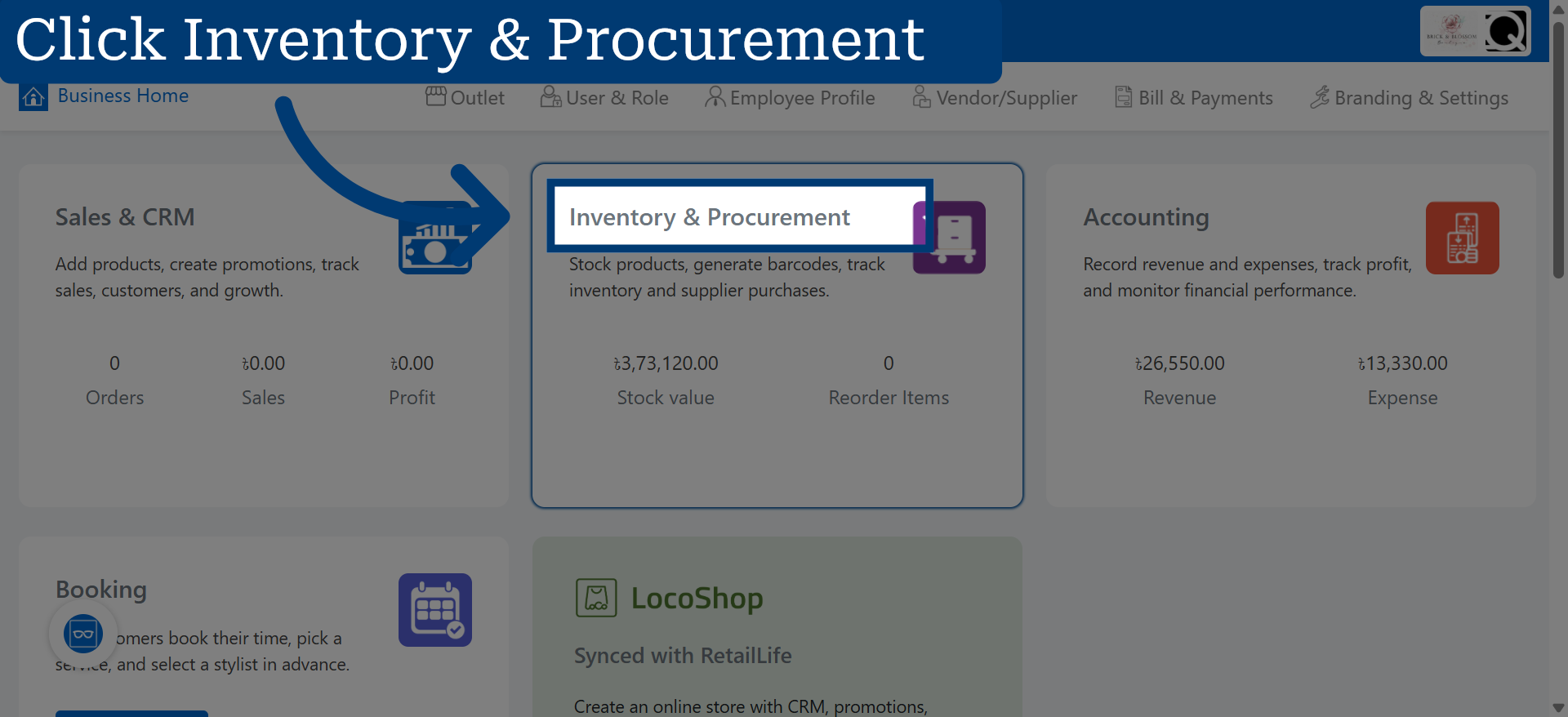
1. Access Inventory & Procurement
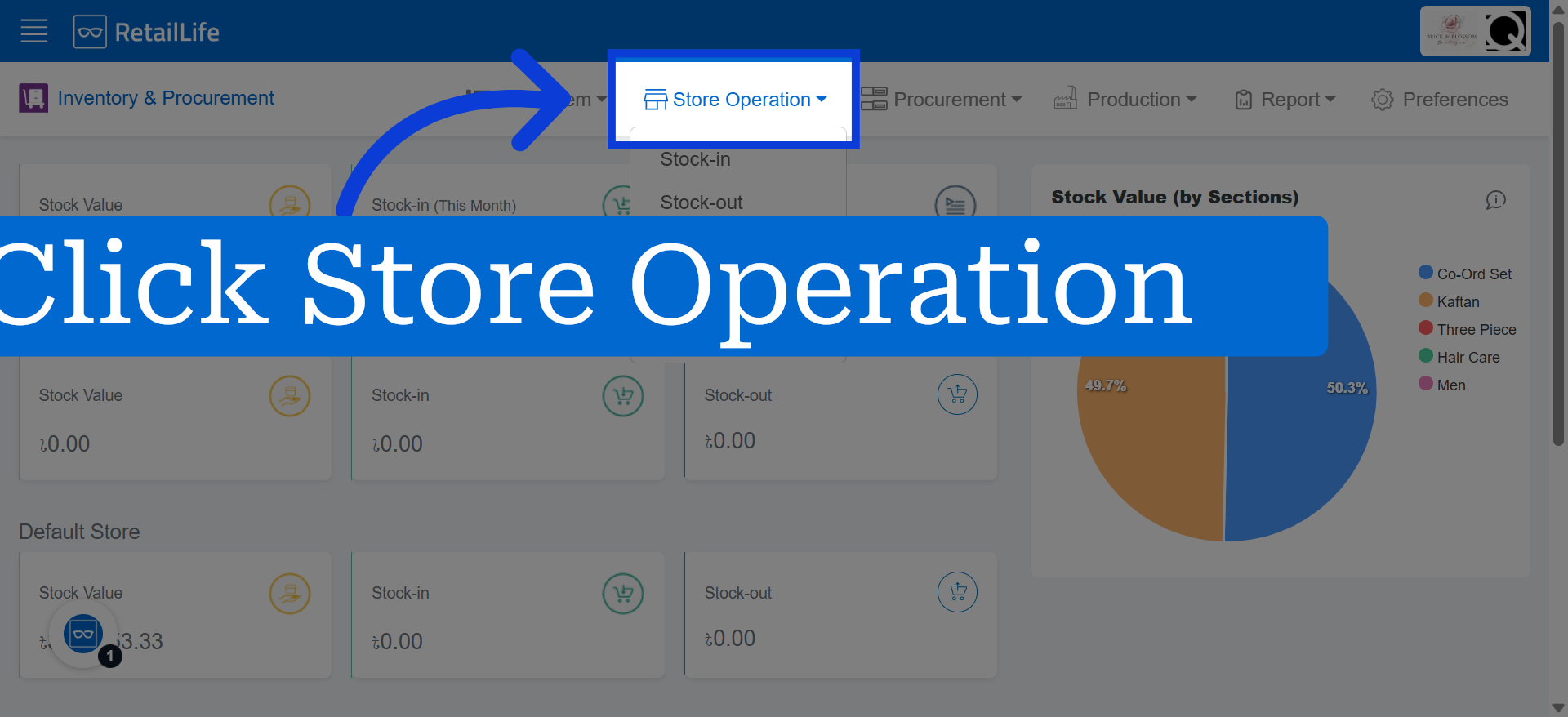
2. Open Store Operation Section
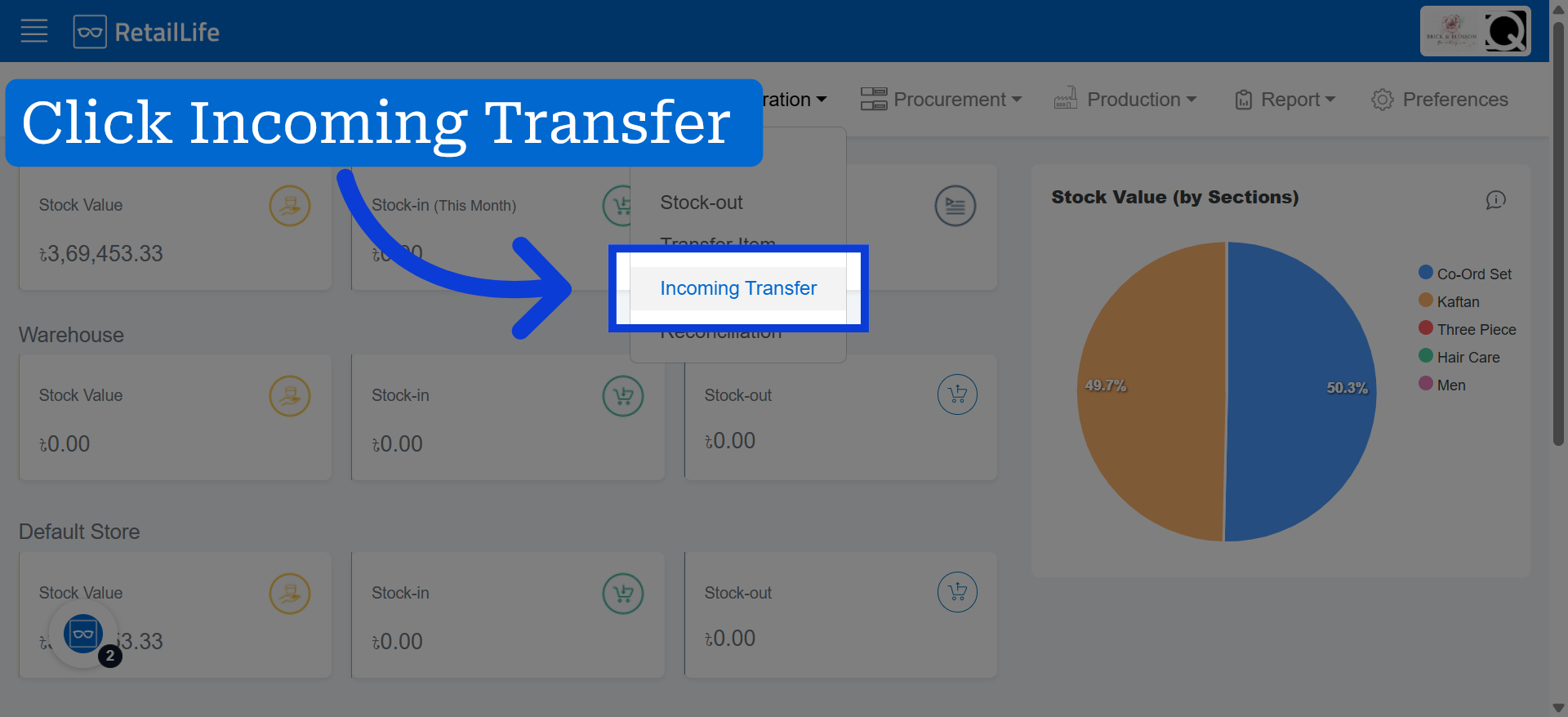
3. Navigate to Incoming Transfer
4. Select Specific Transfer Order
Click to open the details of the specific transfer order you want to receive.
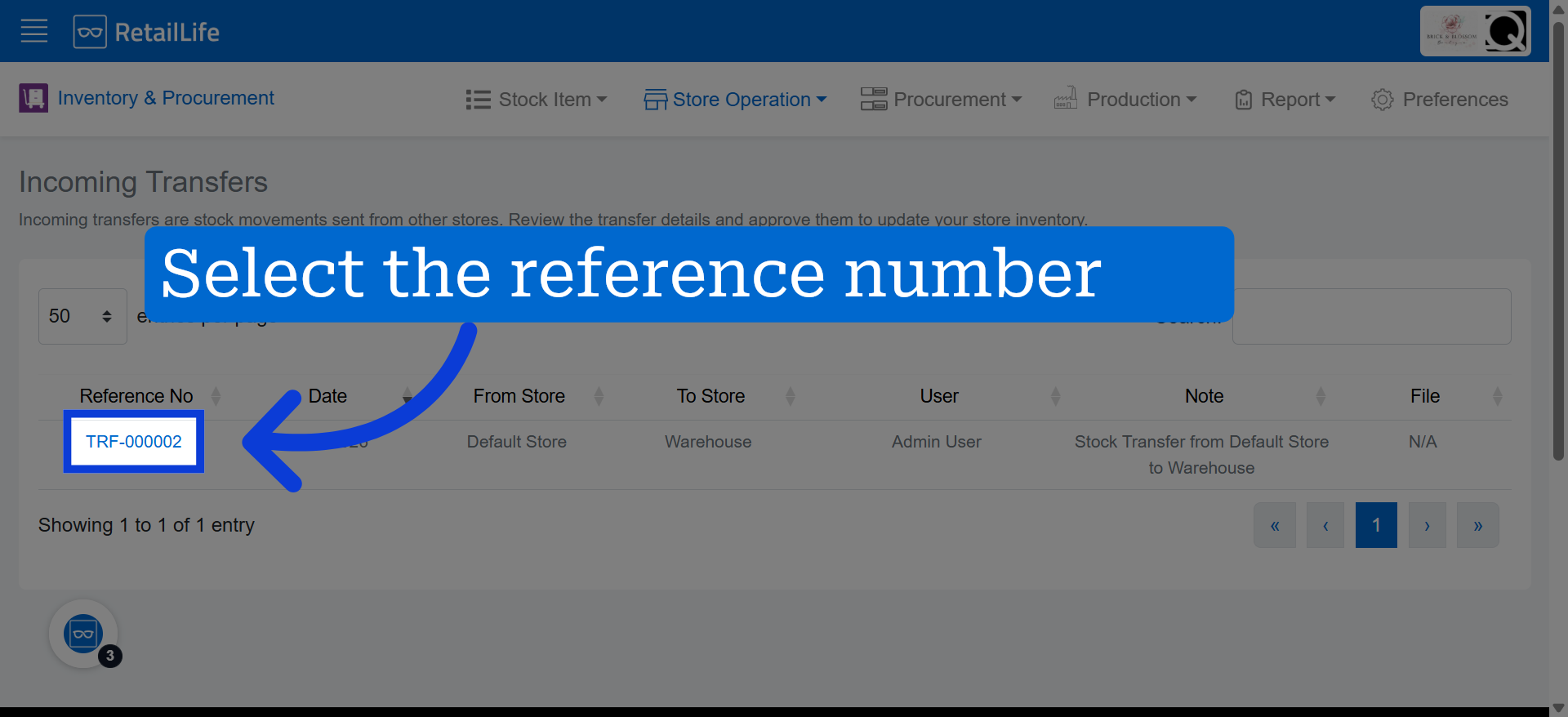
5. Initiate Transfer Receipt
Click "Receive Transfer" to begin the process of receiving the selected transfer order into your inventory.
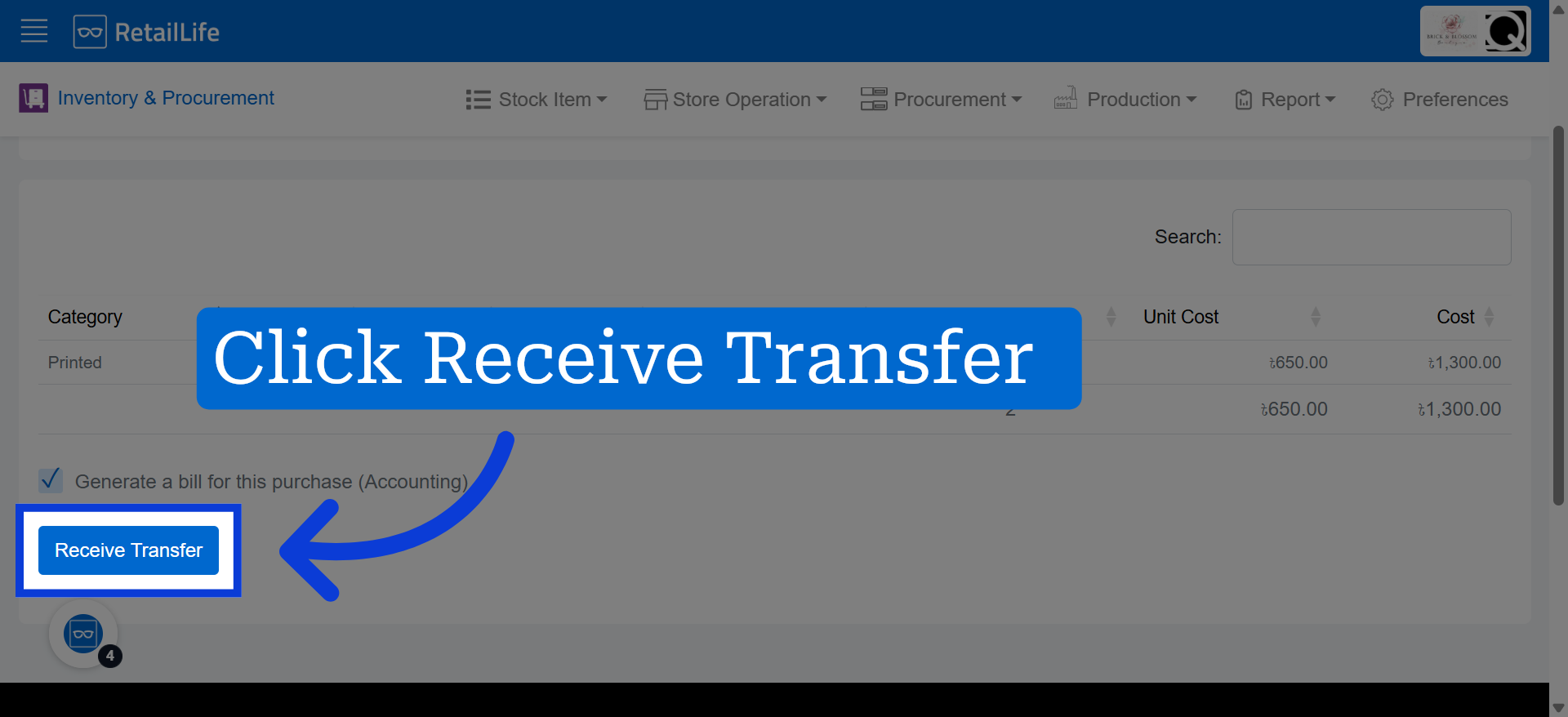
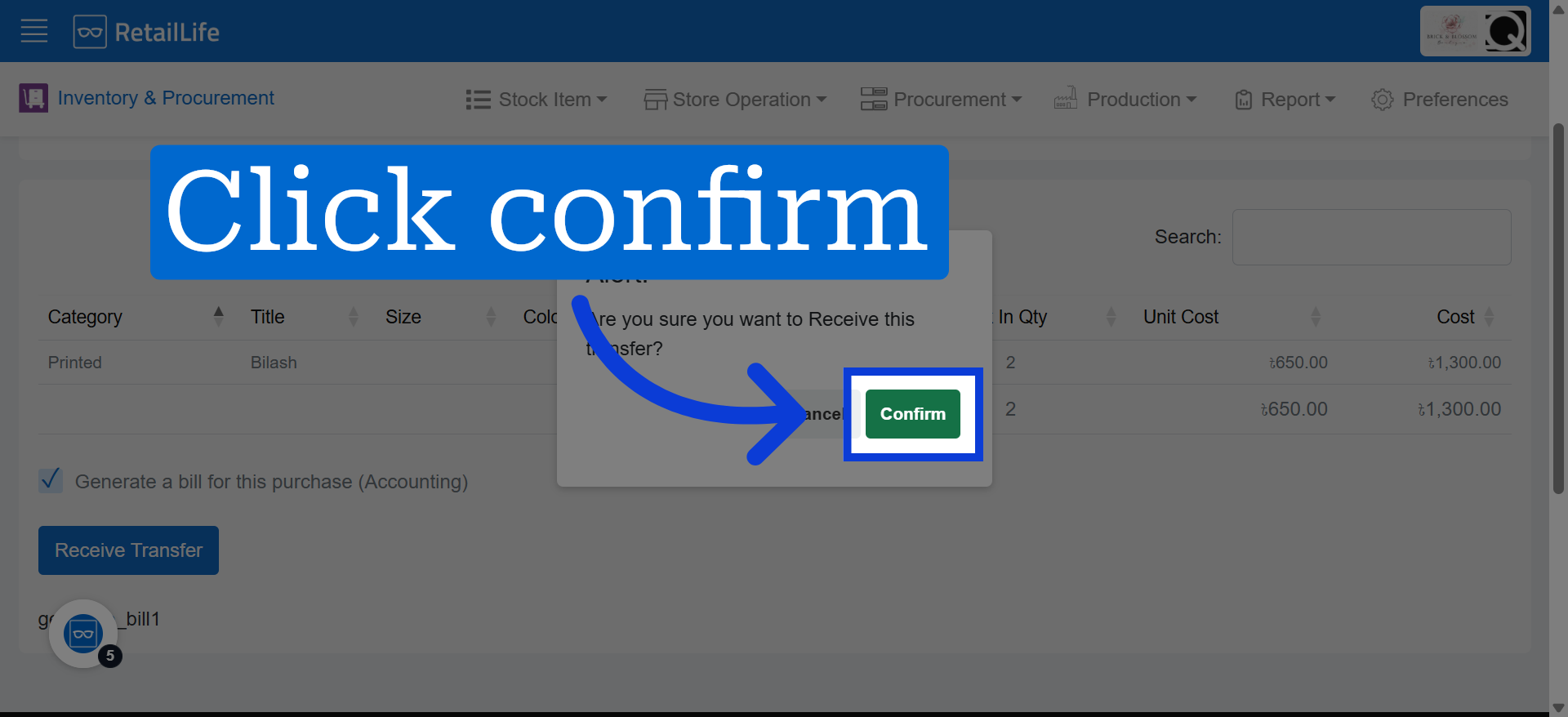
6. Confirm Transfer Reception
Click "confirm" to finalize and record the receipt of the transfer order in the system.