How to Stock-In Items to the Inventory in RetailLife Business Portal
This tutorial guides you through stocking in items in the RetailLife Business Portal. The stock-in
process adds products and their quantities to your inventory, making them available for sales,
tracking, and inventory management.
Go to
retaillife.quicklyservices.com
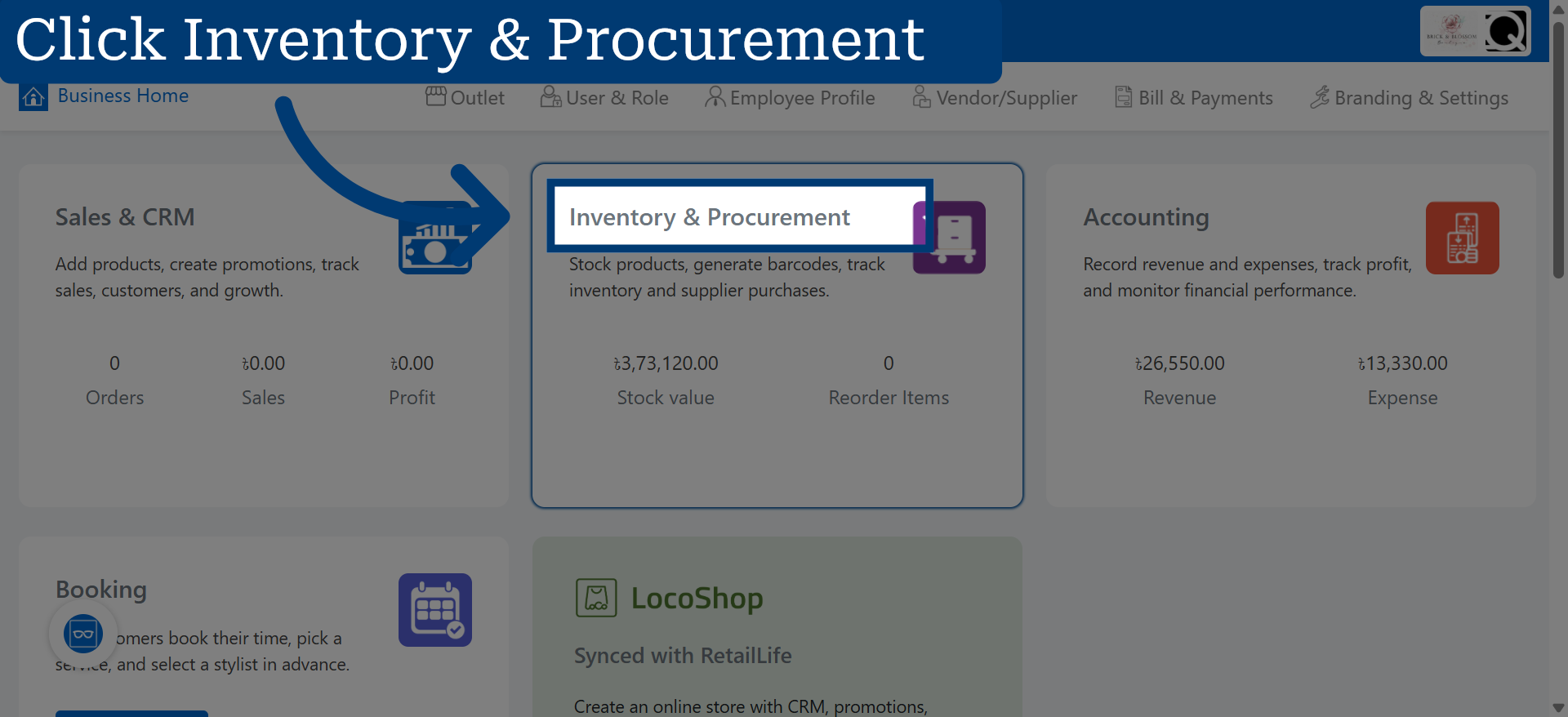
1. Access Inventory & Procurement
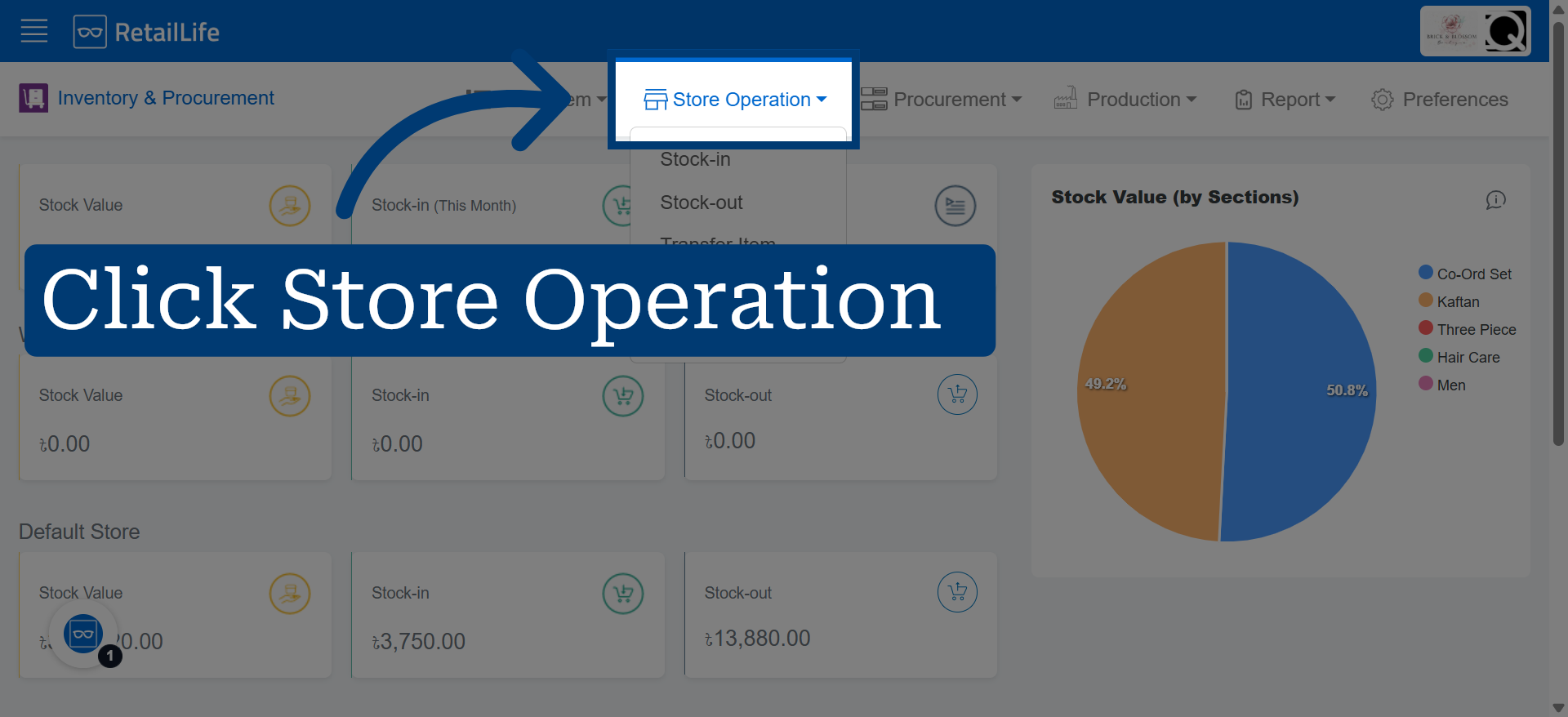
2. Open Store Operation Section
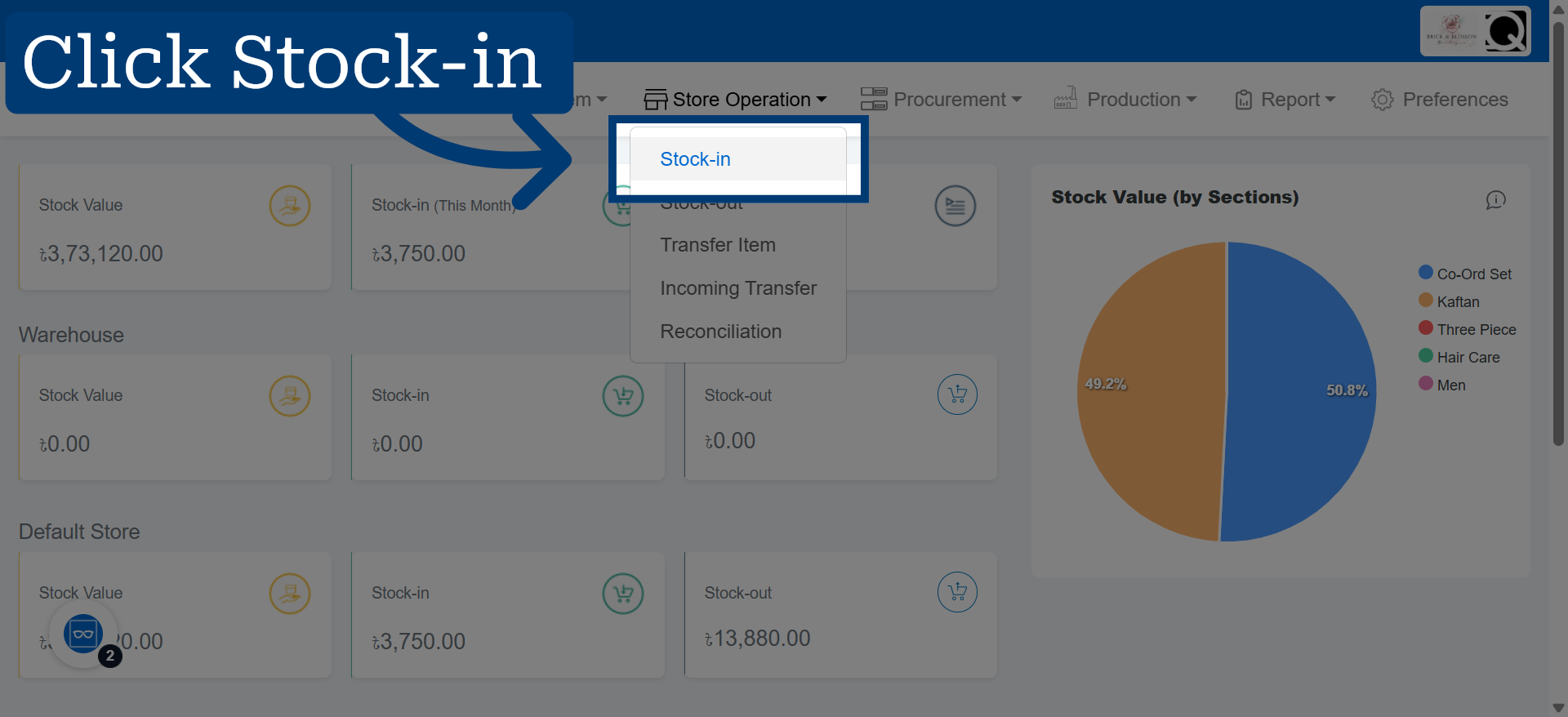
3. Navigate to Stock-In Page
Click Stock-in to start the process of adding new stock entries.
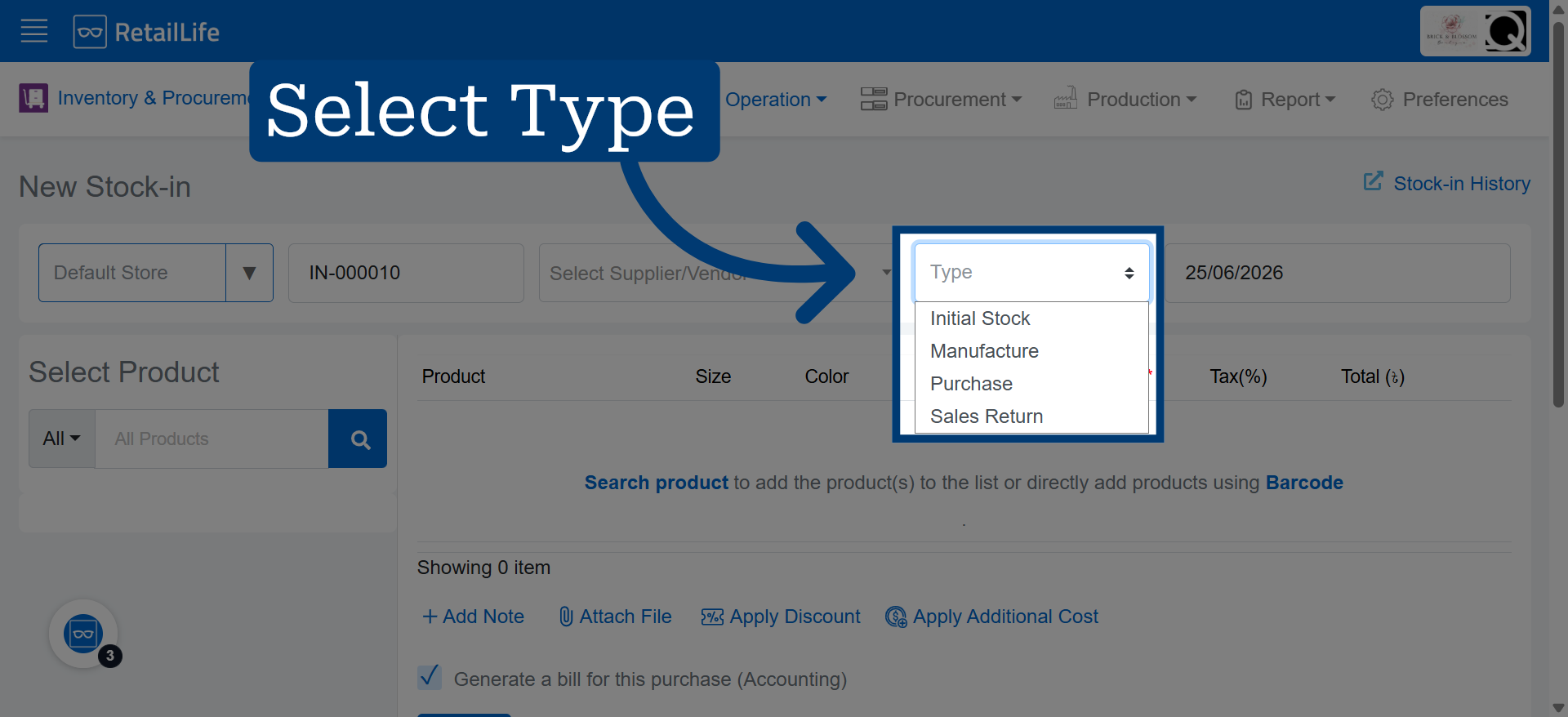
4. Select Initial Stock Type
Click the Type field labeled to specify the stock category.
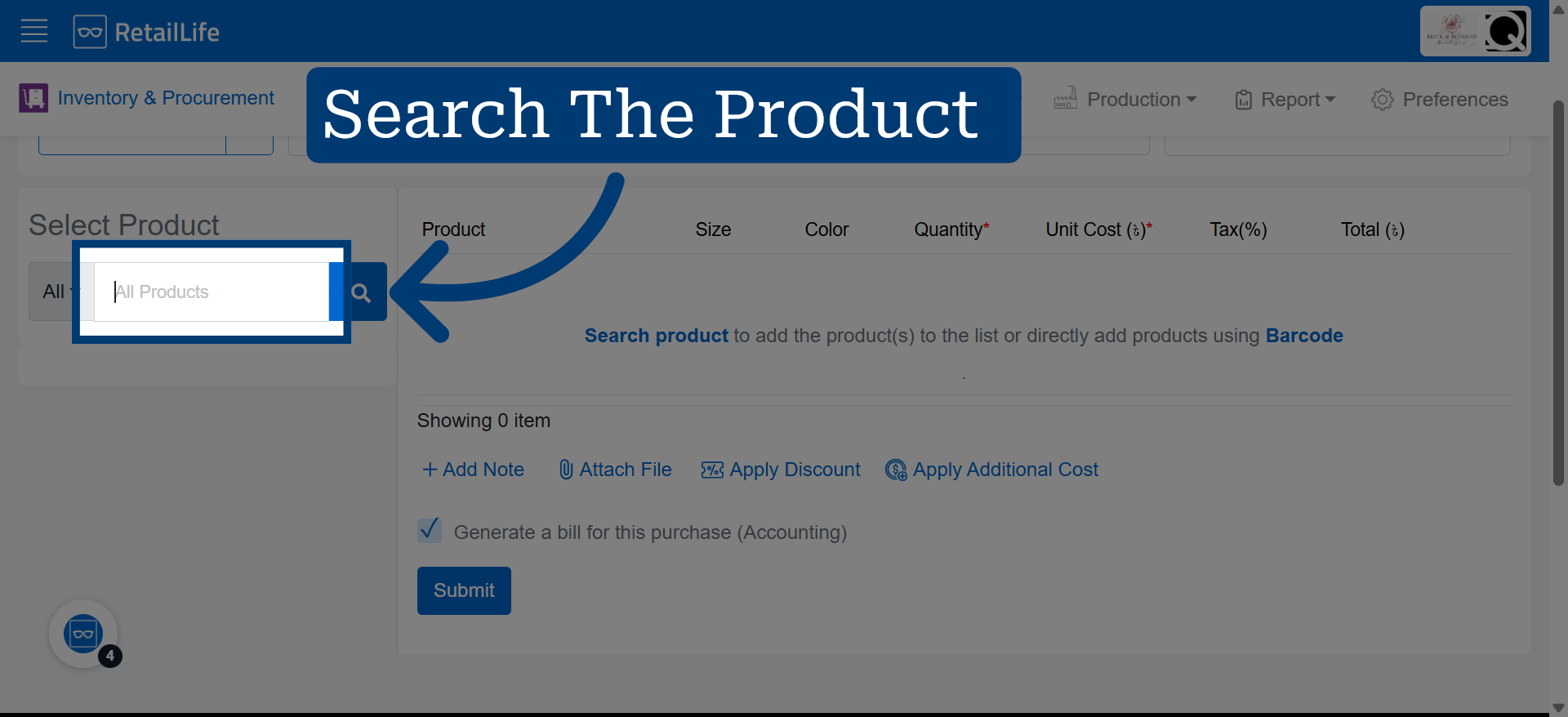
5. Add The Product
Products can be added manually through search or automatically using the barcode scanner.
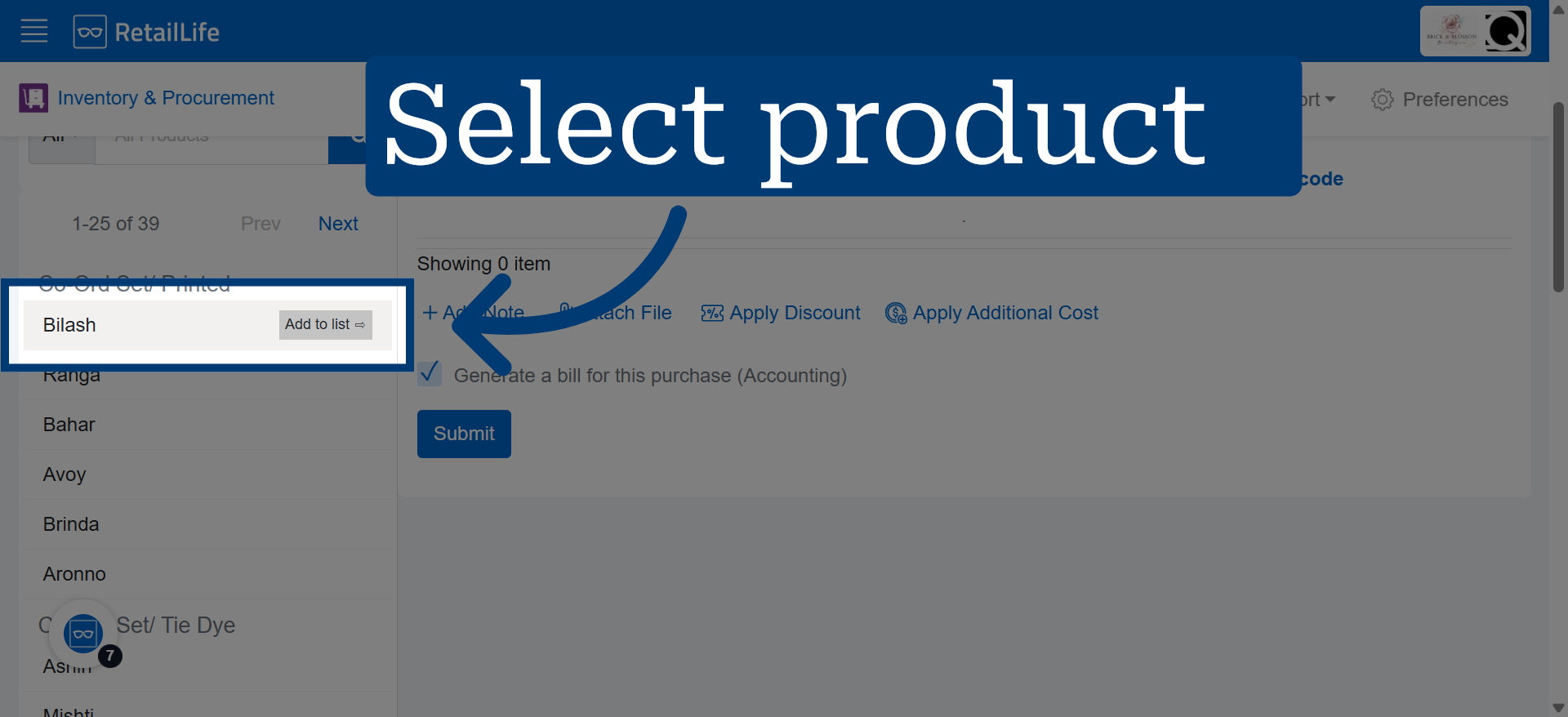
6. Choose The Product
Select the product you want to add to stock by clicking on it
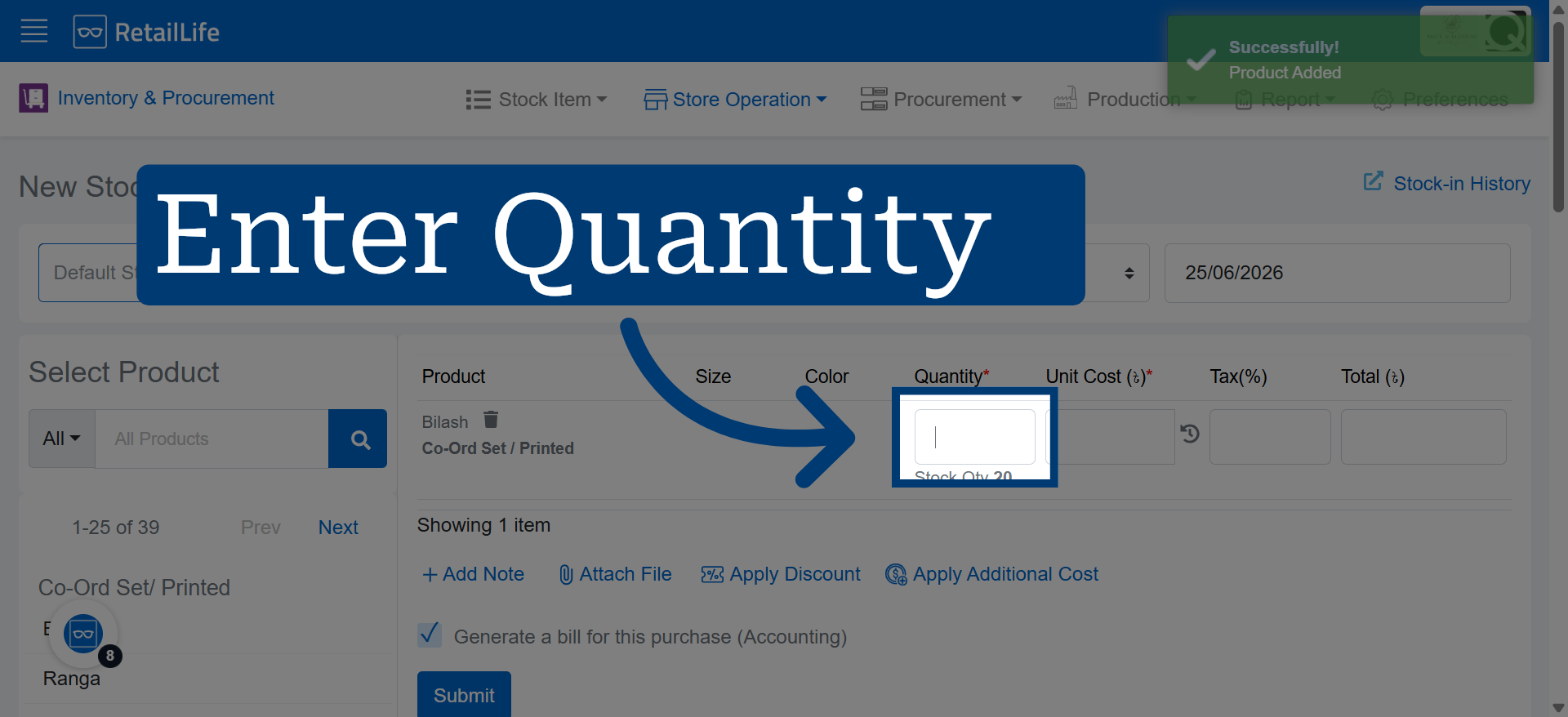
7. Enter Quantity Value
Click here to enter the quantity for the selected product.
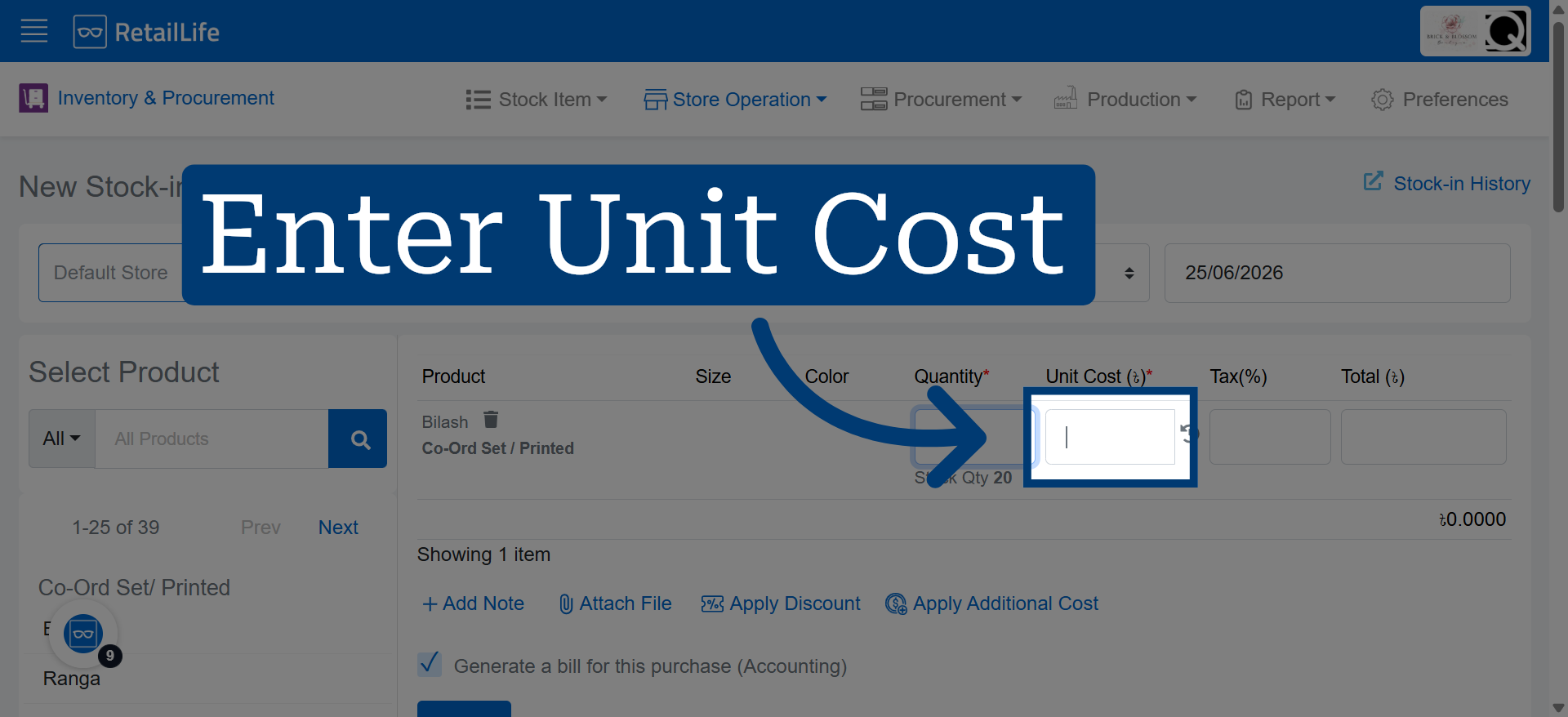
8. Enter the unit cost of the selected product
9. Submit Stock Entry
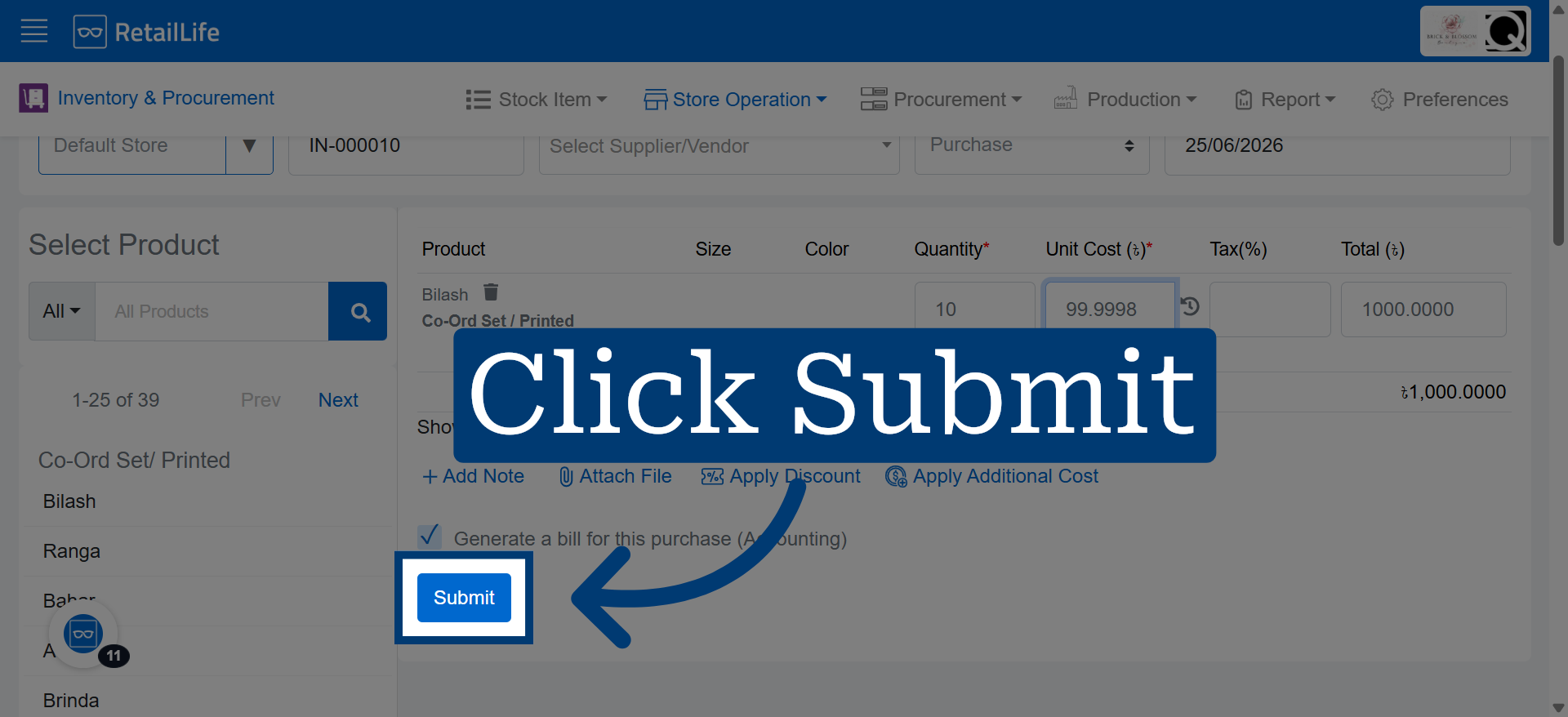
Click "Submit" to save the stock entry information into the system.
10. Publish Stock Update
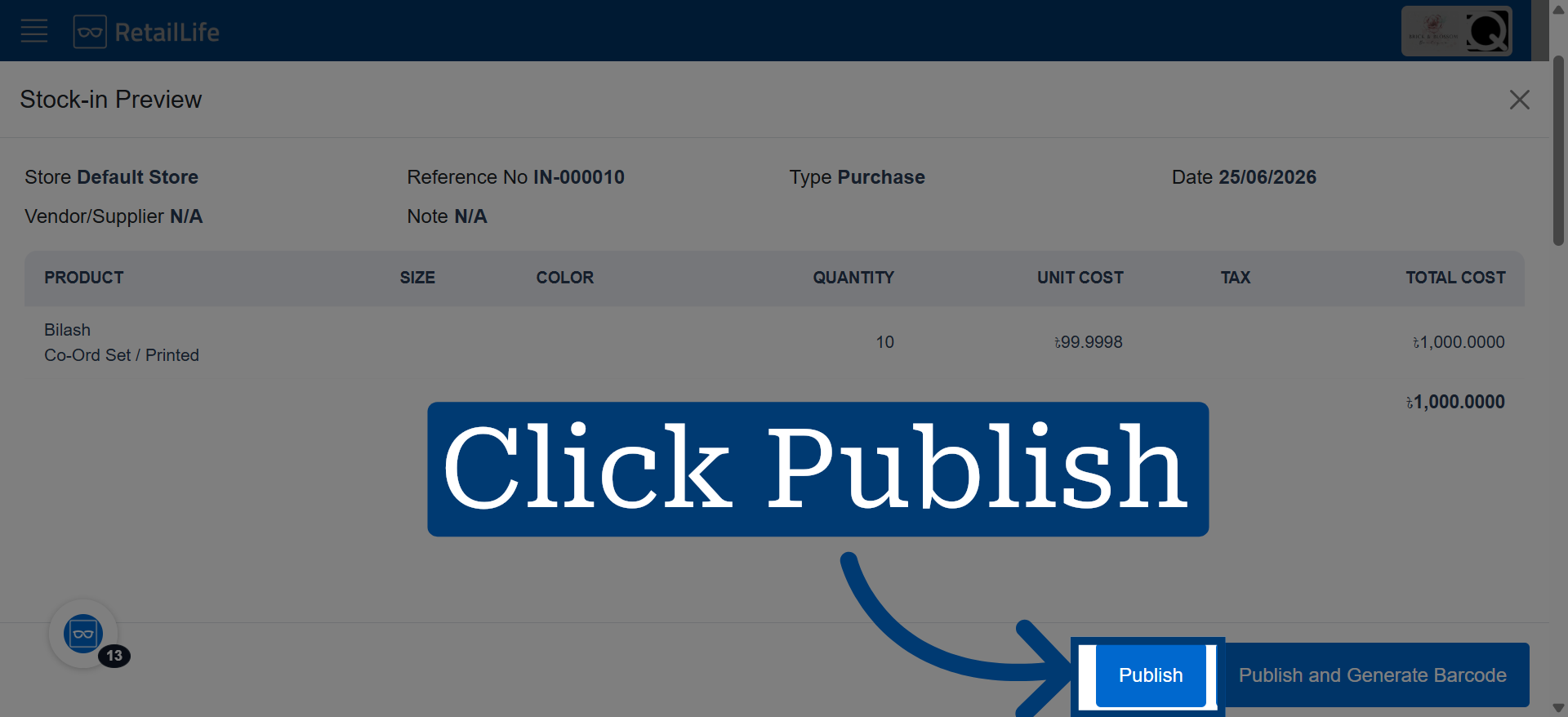
Click "Publish" to finalize and make the stock update effective in the portal.