How to Perform Stock Reconciliation in RetailLife Business Portal
In this tutorial, you will learn how to use stock reconciliation to correct inventory mismatches.
Stock reconciliation helps you align the system's stock records with the actual physical stock count,
ensuring accurate inventory tracking and reporting.
Go to
retaillife.quicklyservices.com
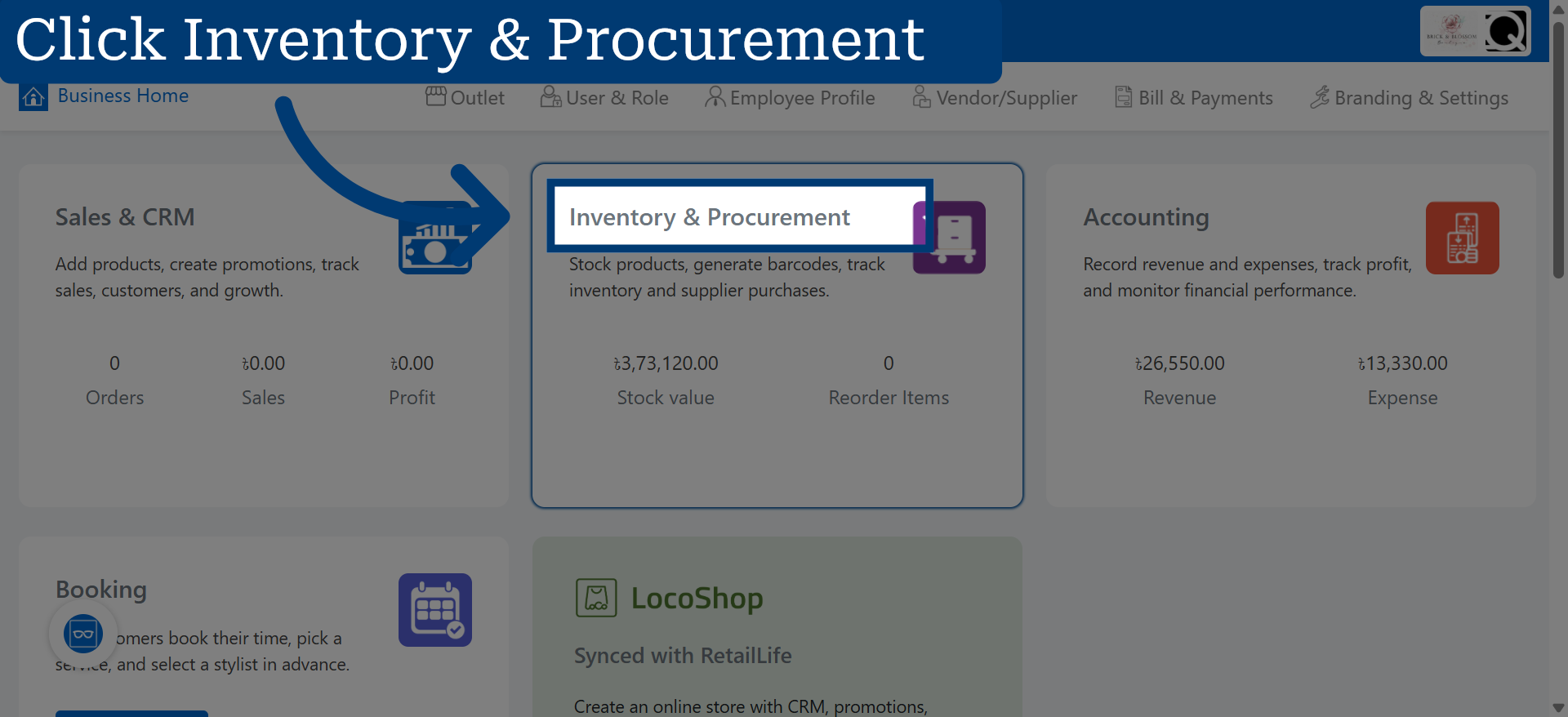
1. Access Inventory & Procurement
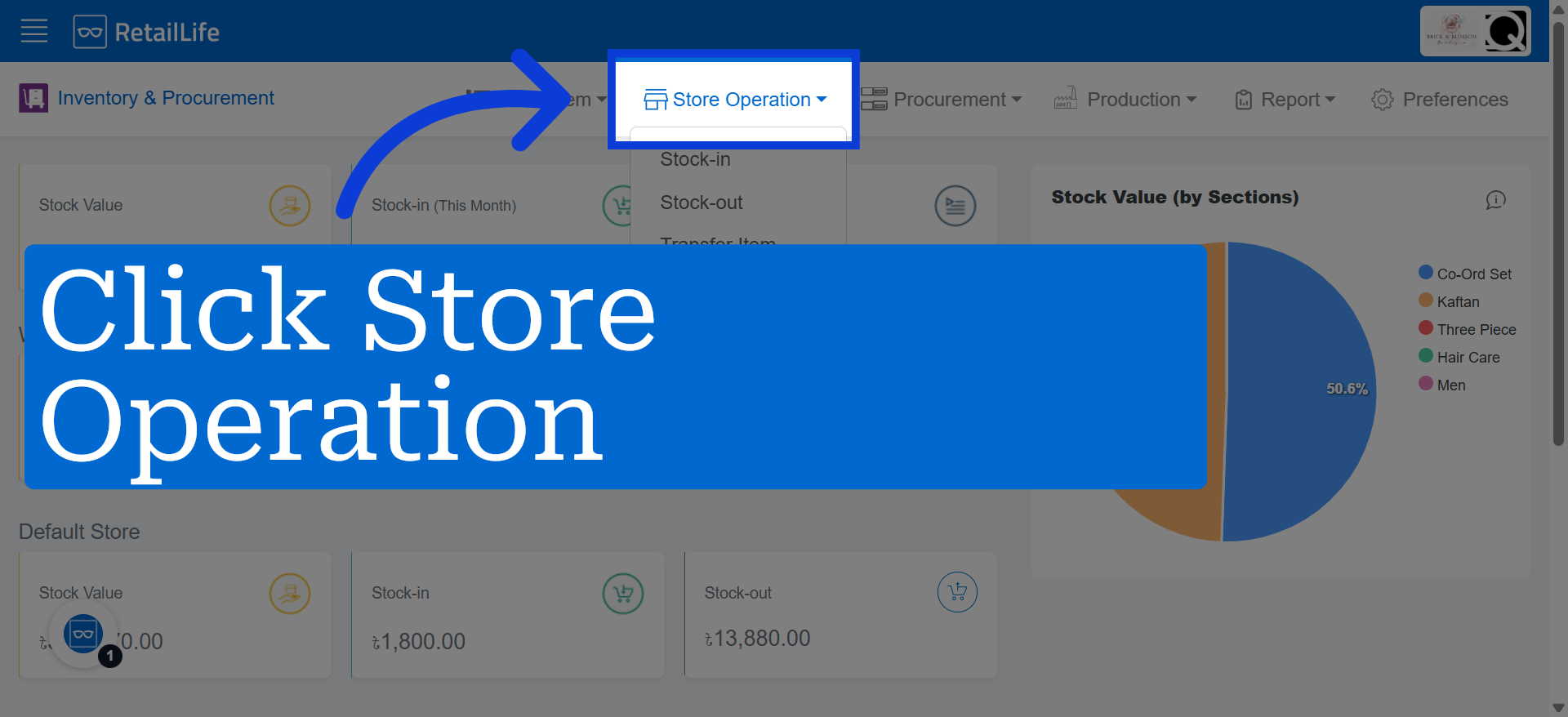
2. Open Store Operation Section
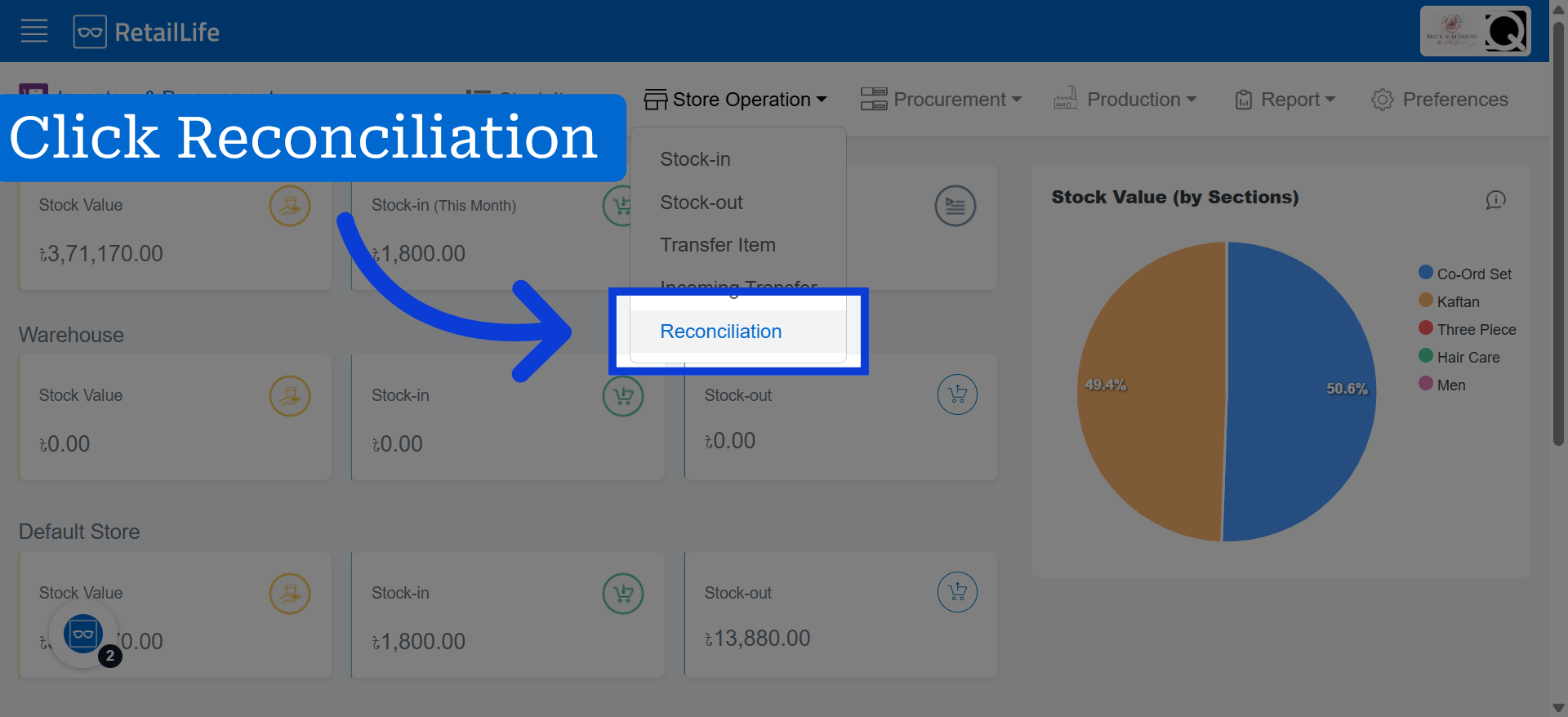
3. Navigate to Reconciliation
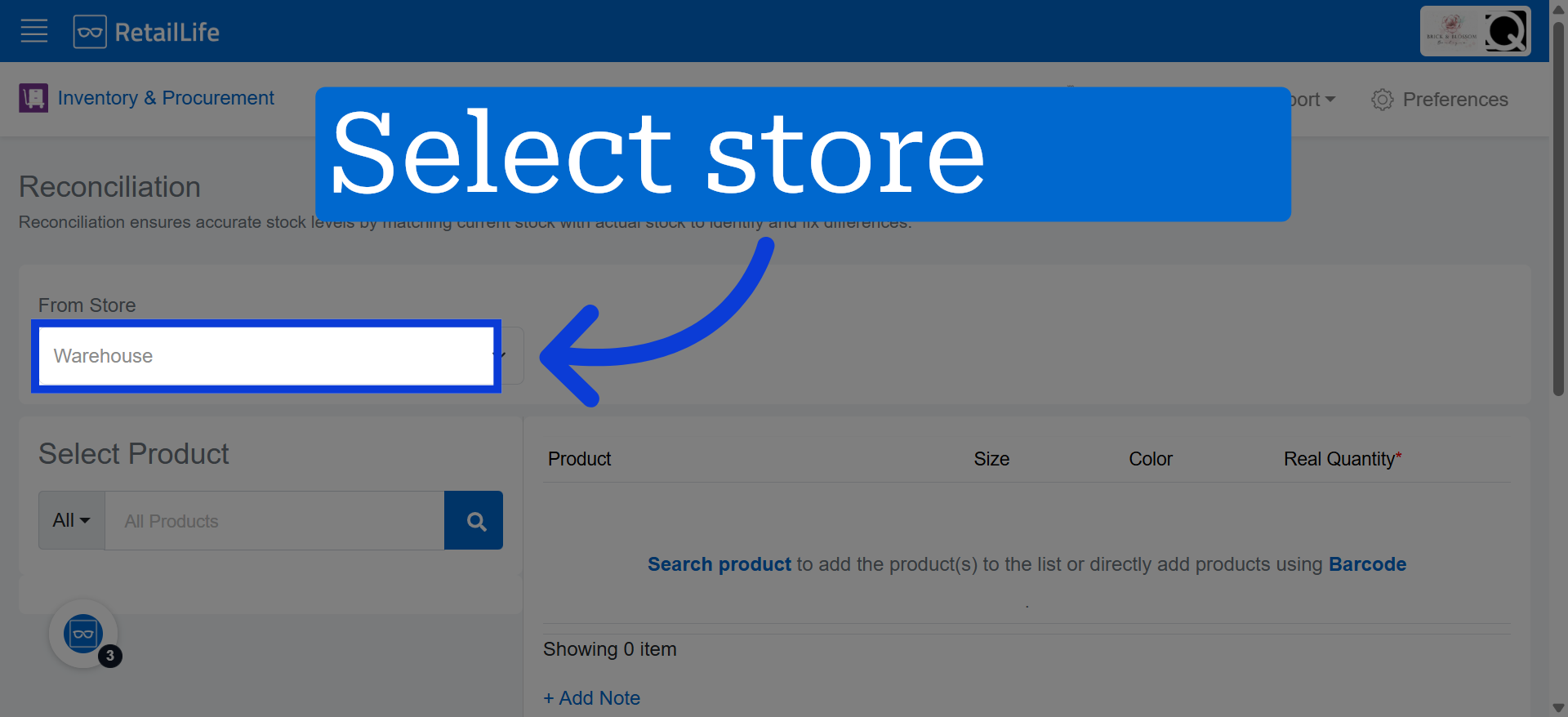
4. Select Warehouse Option
Click 'Select Store' to choose the specific warehouse for reconciliation.
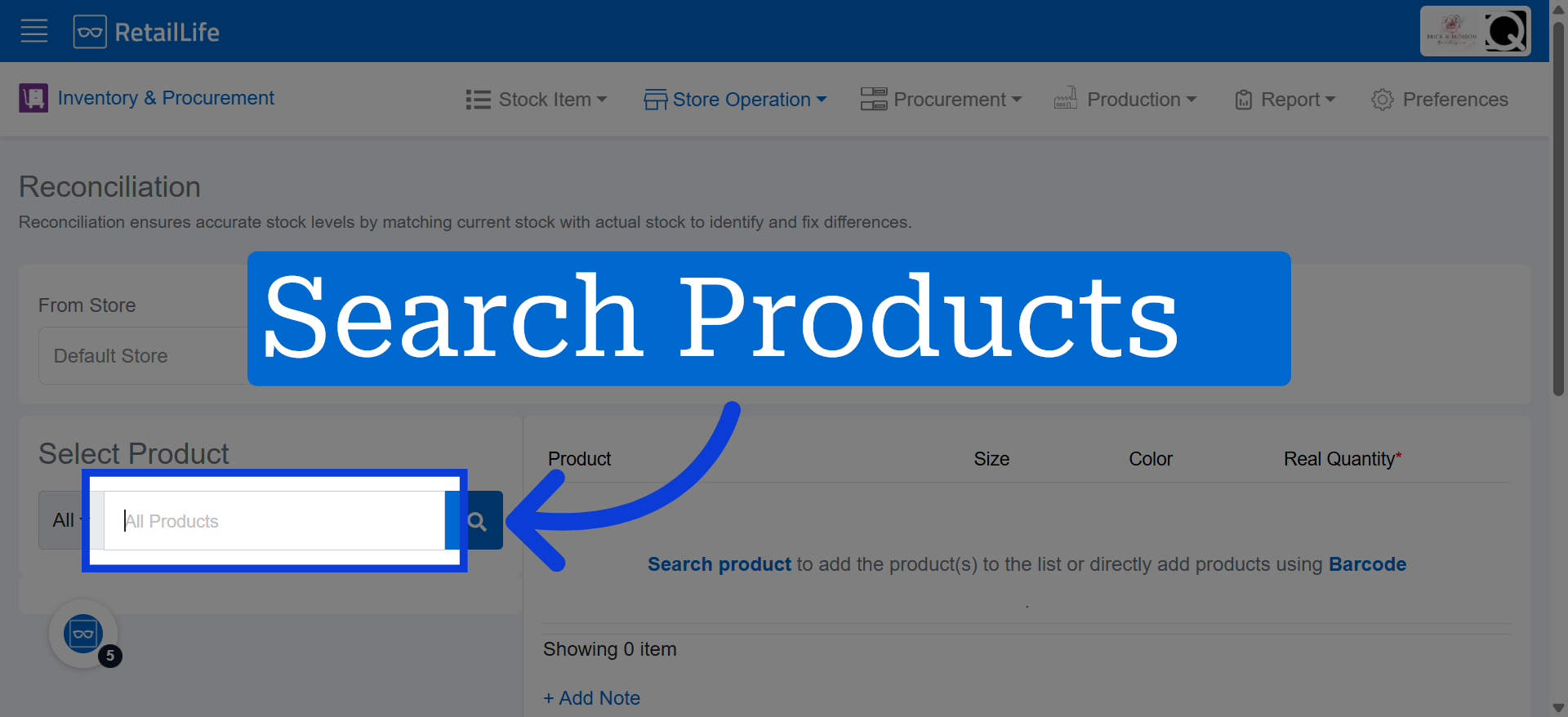
5. Add The Product
Products can be added manually through search or automatically using the barcode scanner.
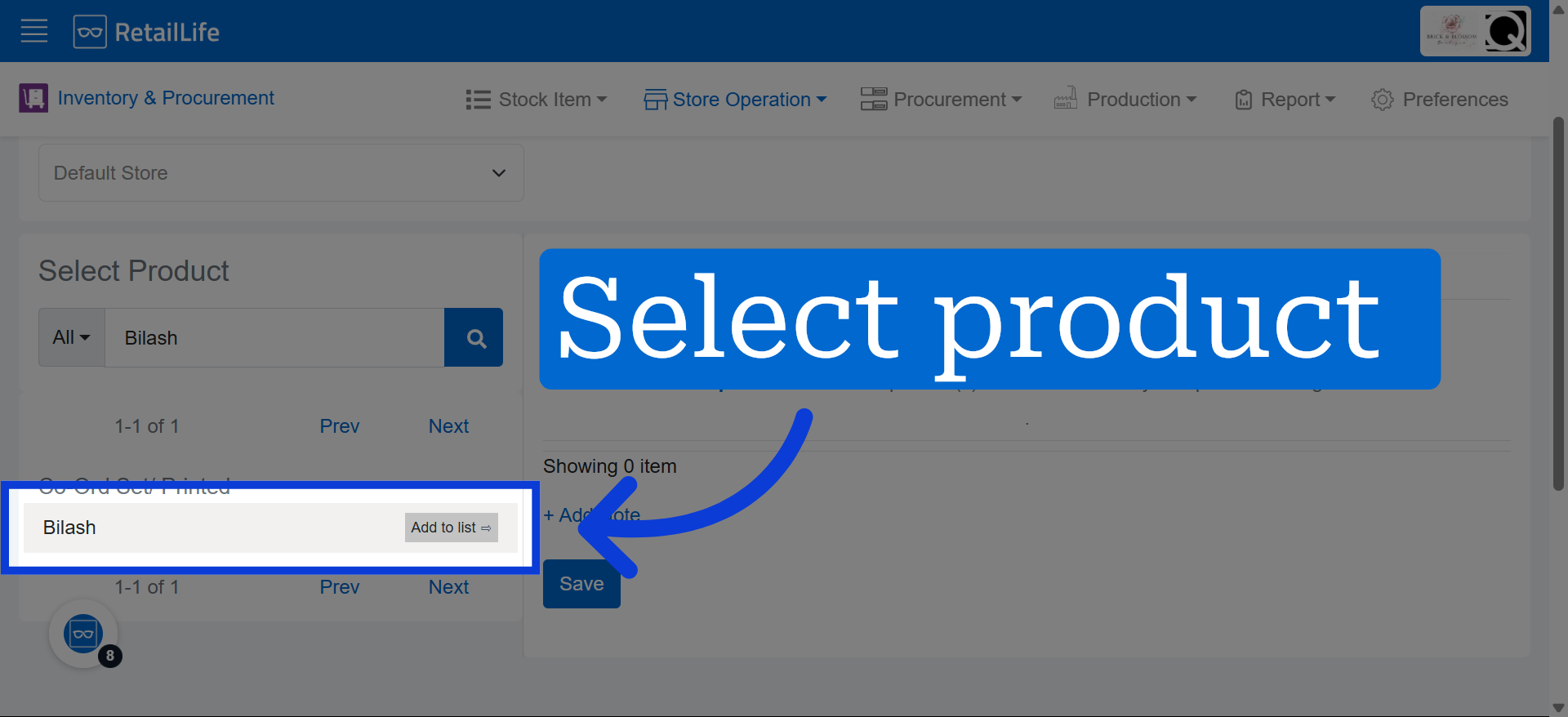
6. Choose The Product
Select the product you want to add for Reconciliation by clicking on it
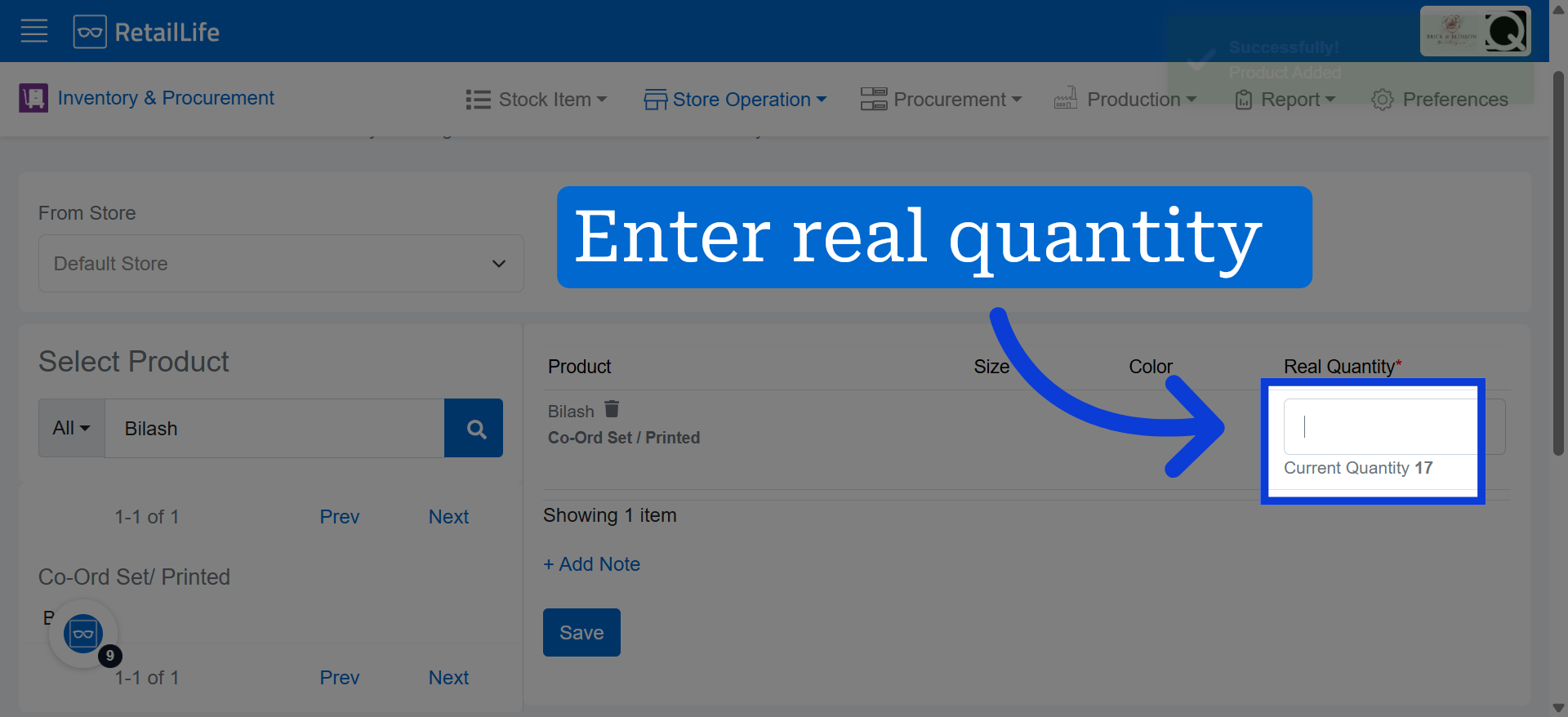
7. Open Quantity Field
Click here to enter the real quantity for the selected product.
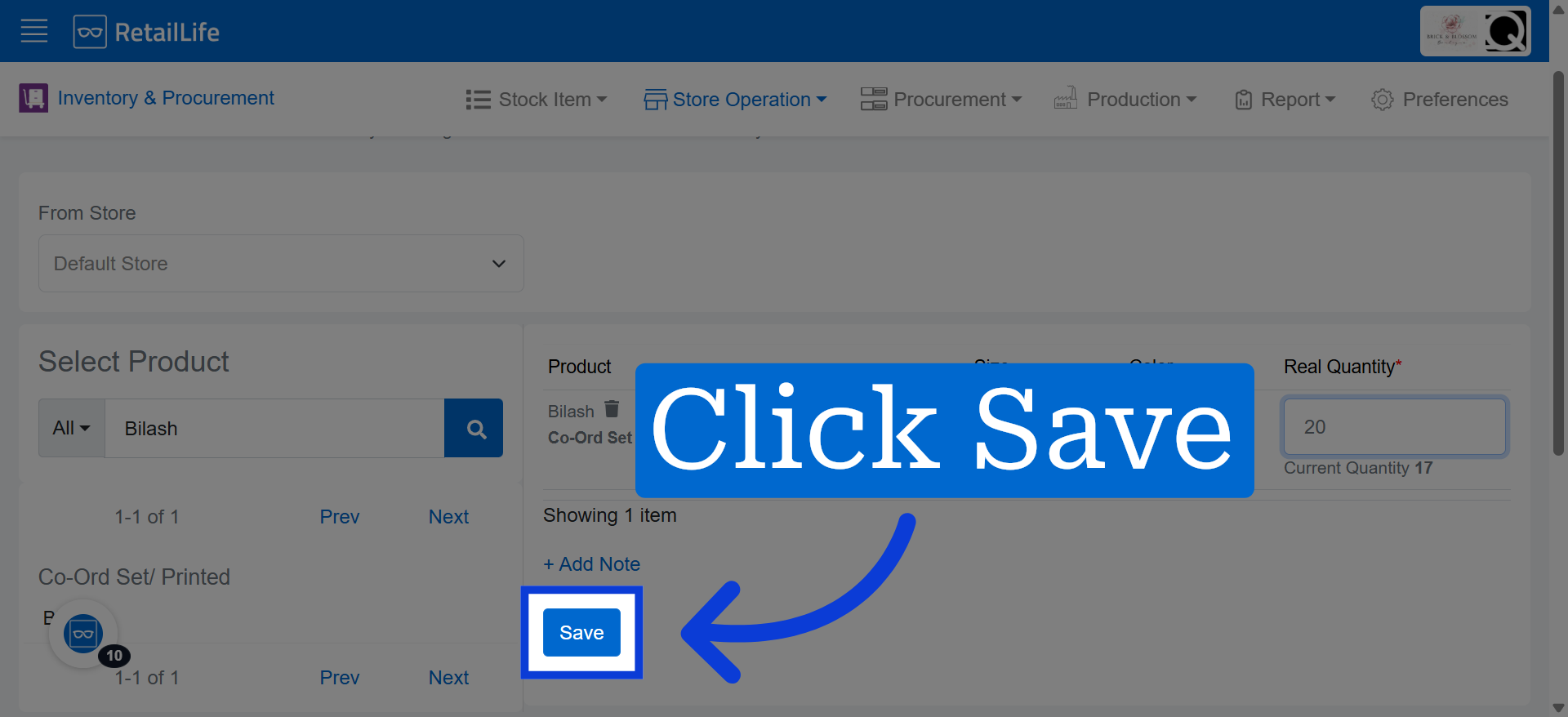
8. Save Inventory Changes
Click "Save" to apply the updated product quantity.
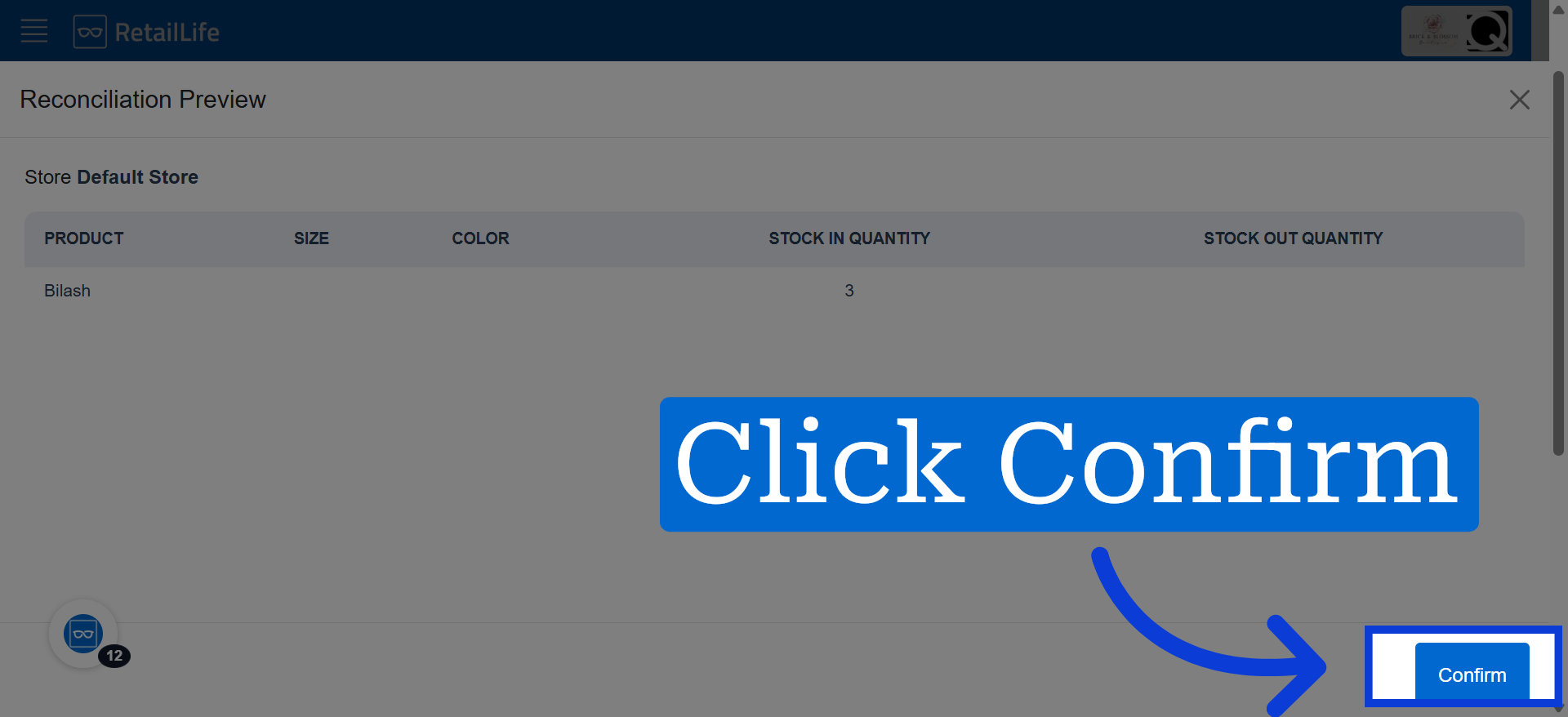
9. Confirm Reconciliation
Click "Confirm" to finalize the inventory reconciliation process.