How to Transfer Products Between Stores
This tutorial guides you through transferring products between multiple stores within the same
business using the RetailLife Business Portal. Store-to-store transfers help maintain accurate inventory levels, ensure product availability across locations, and streamline inventory management
throughout your business.
Go to
retaillife.quicklyservices.com
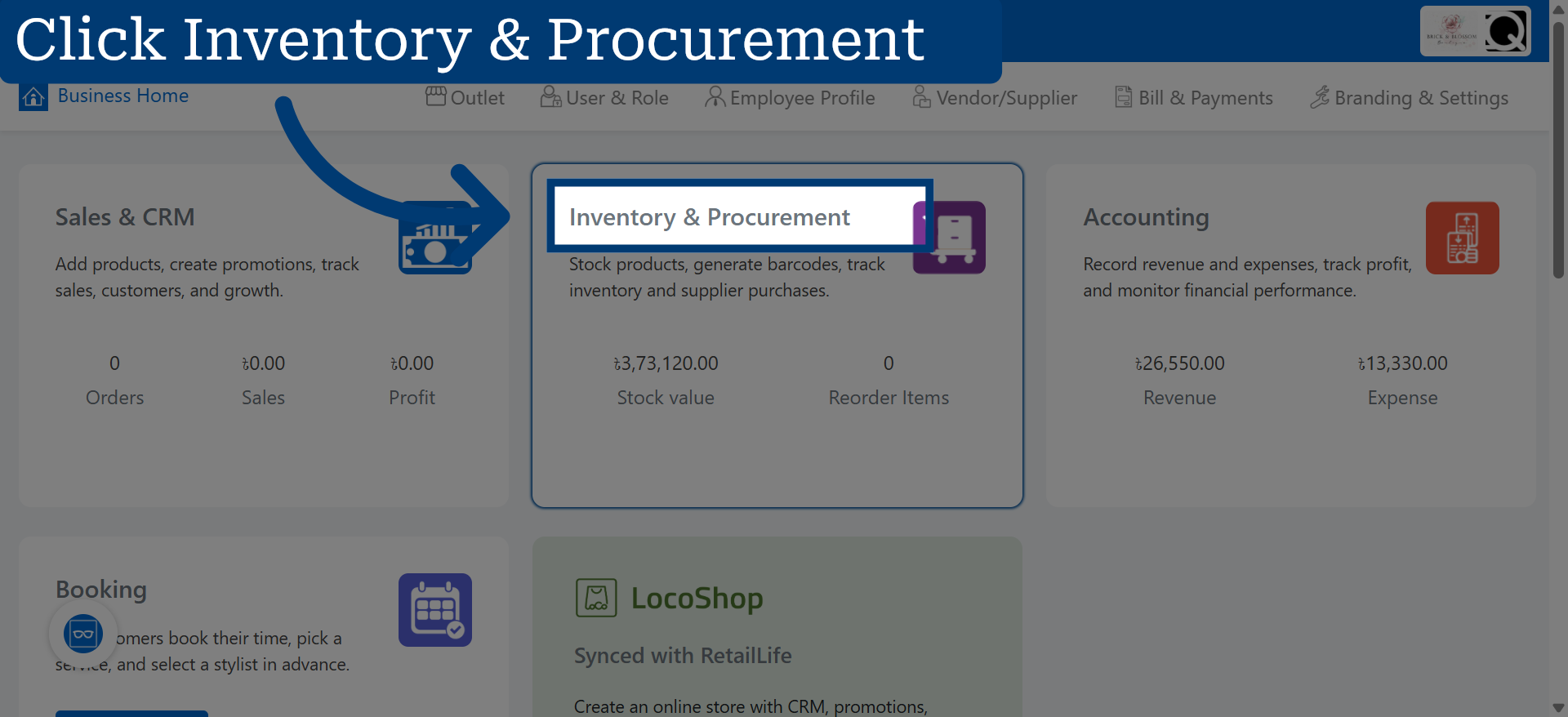
1. Access Inventory & Procurement
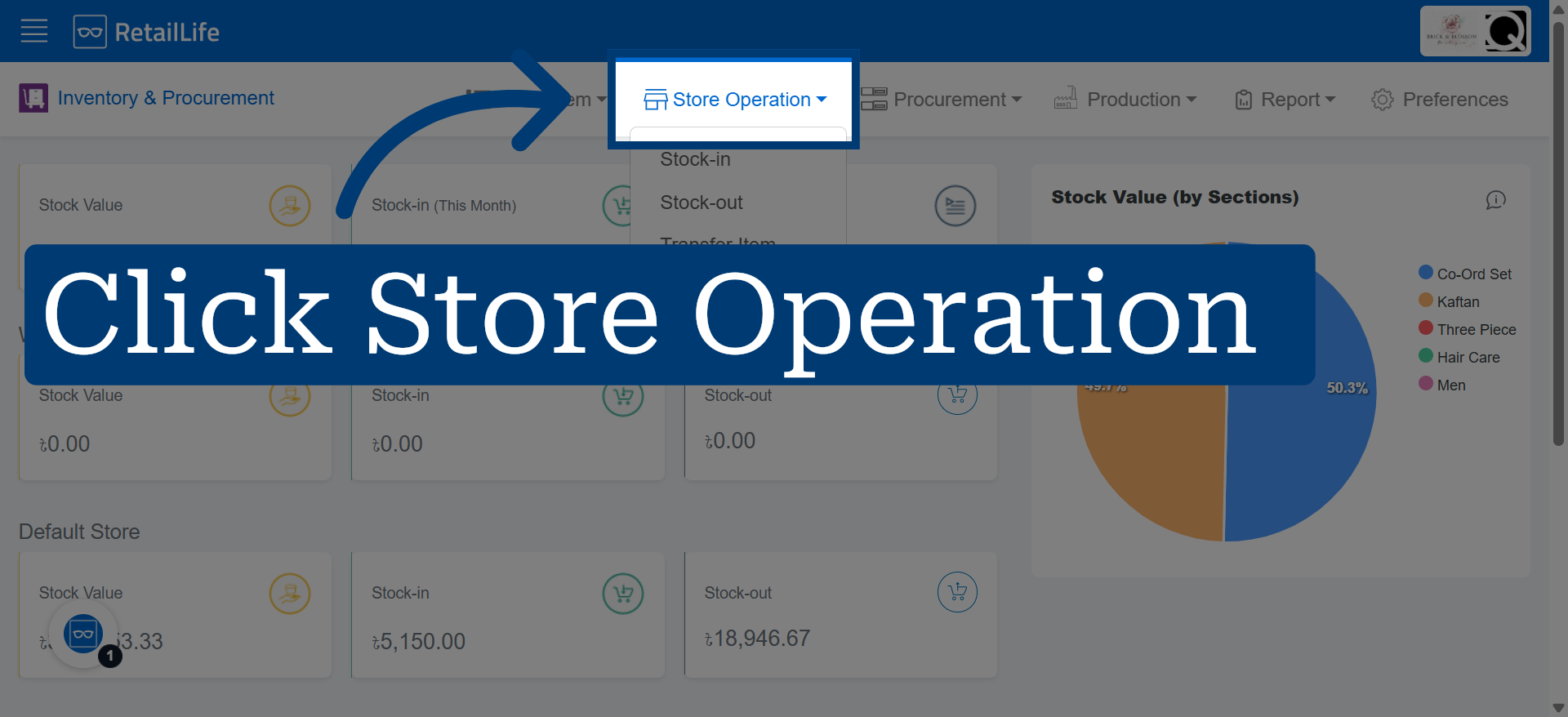
2. Open Store Operation Section
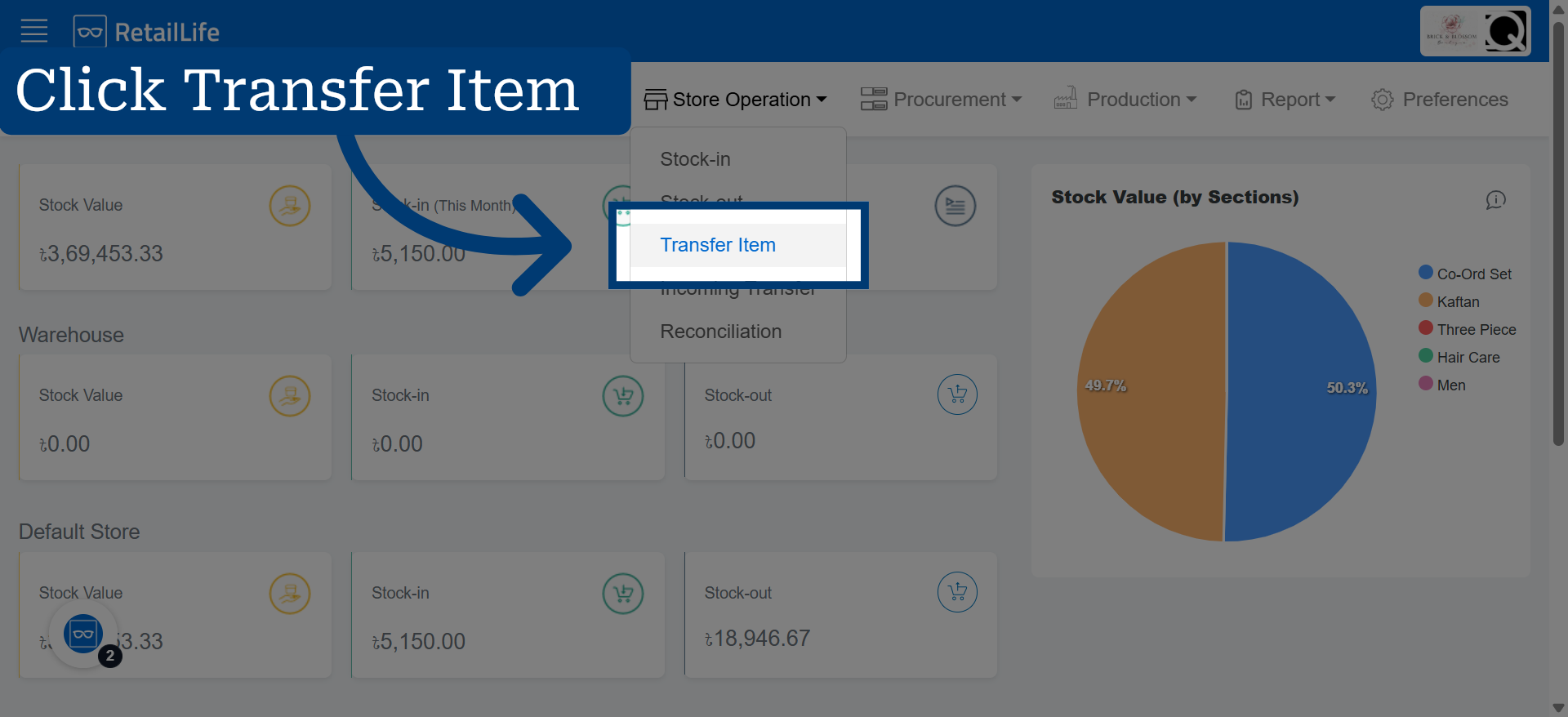
3. Navigate to Transfer Item
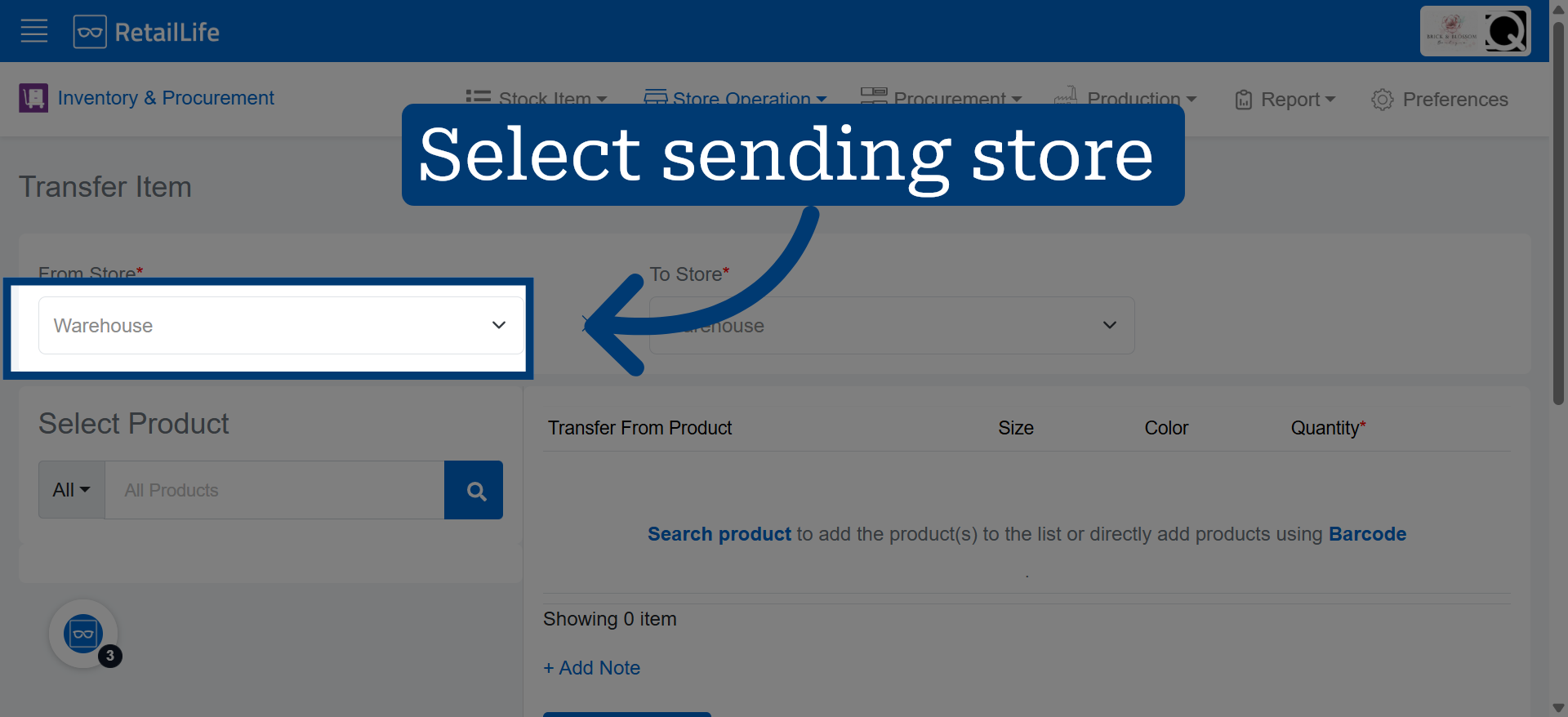
4. Select Sending Store
Select the store from which the products will be transferred. This defines the source location from where the products will be sent.
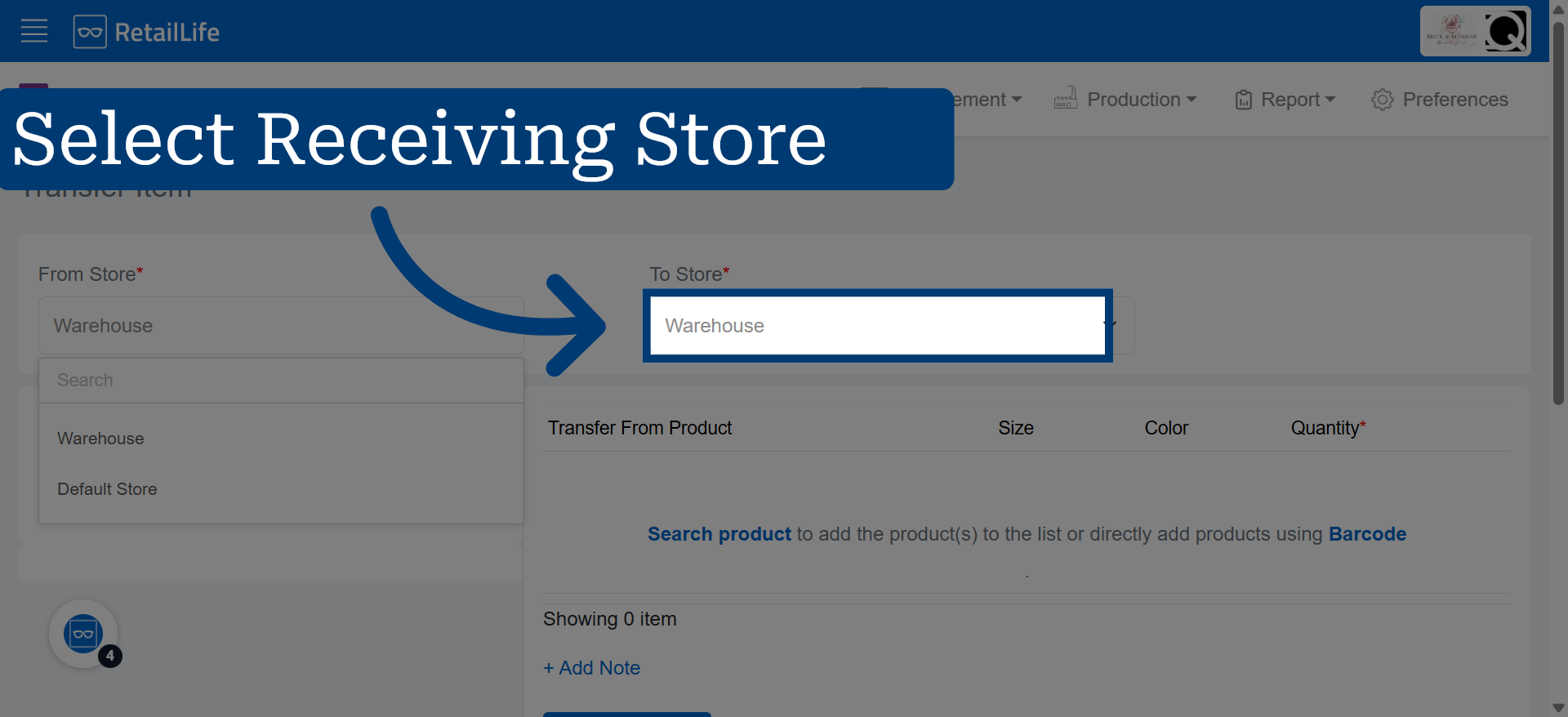
5. Select Receiving Store
Select the store that will receive the products. This defines the destination location where the products will be transferred.
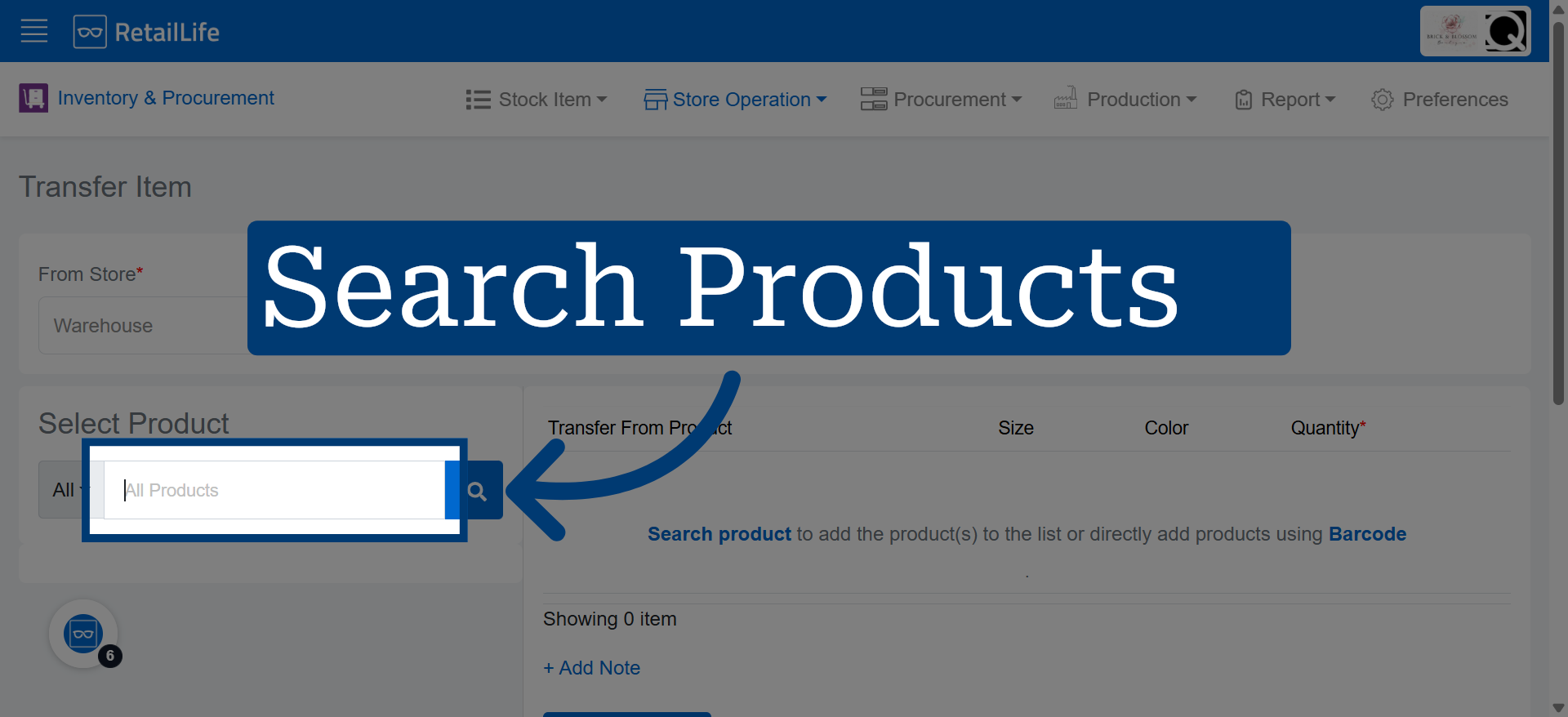
6. Search Products
Search for the products you want to transfer between stores.
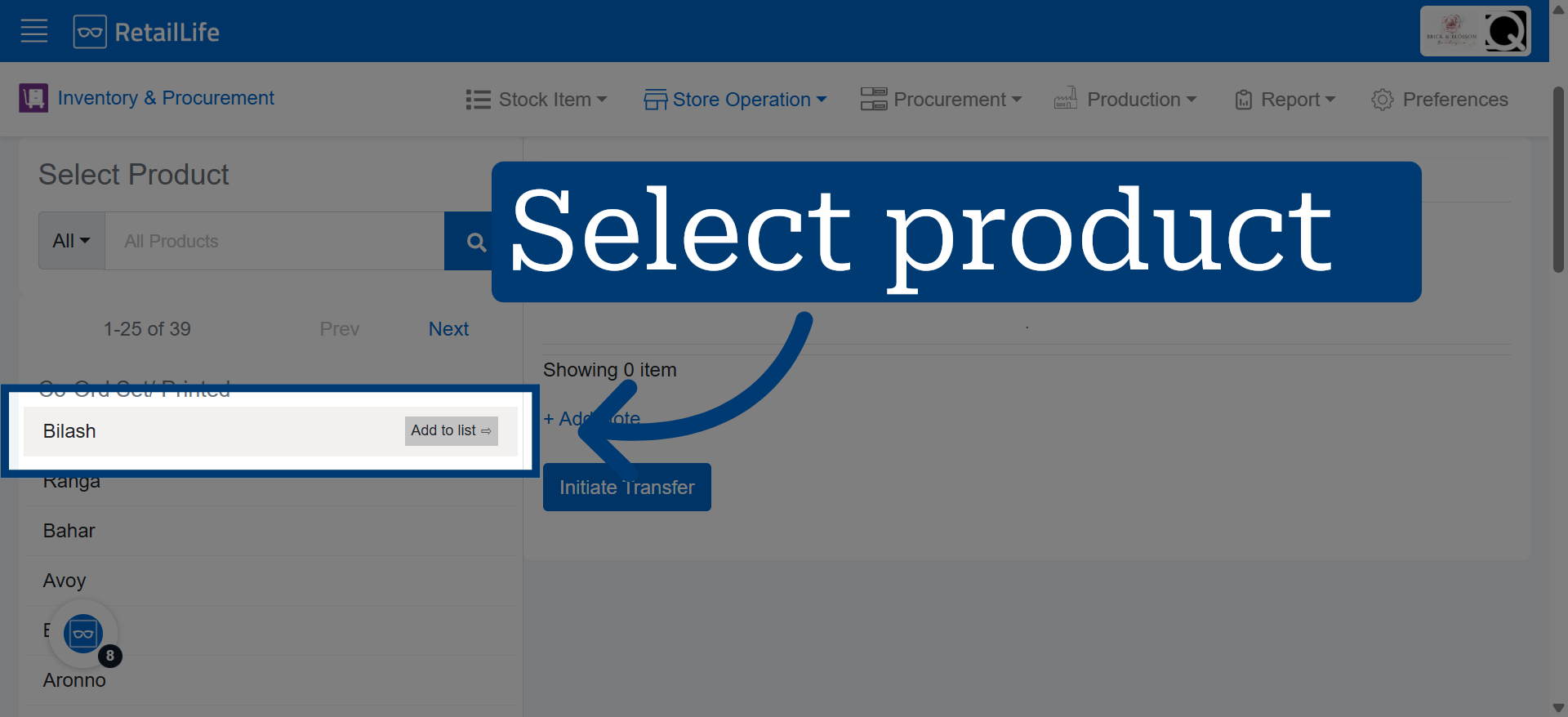
7. Select Receiving Store
Select the specific product for the transfer.
8. Enter Transfer Quantity
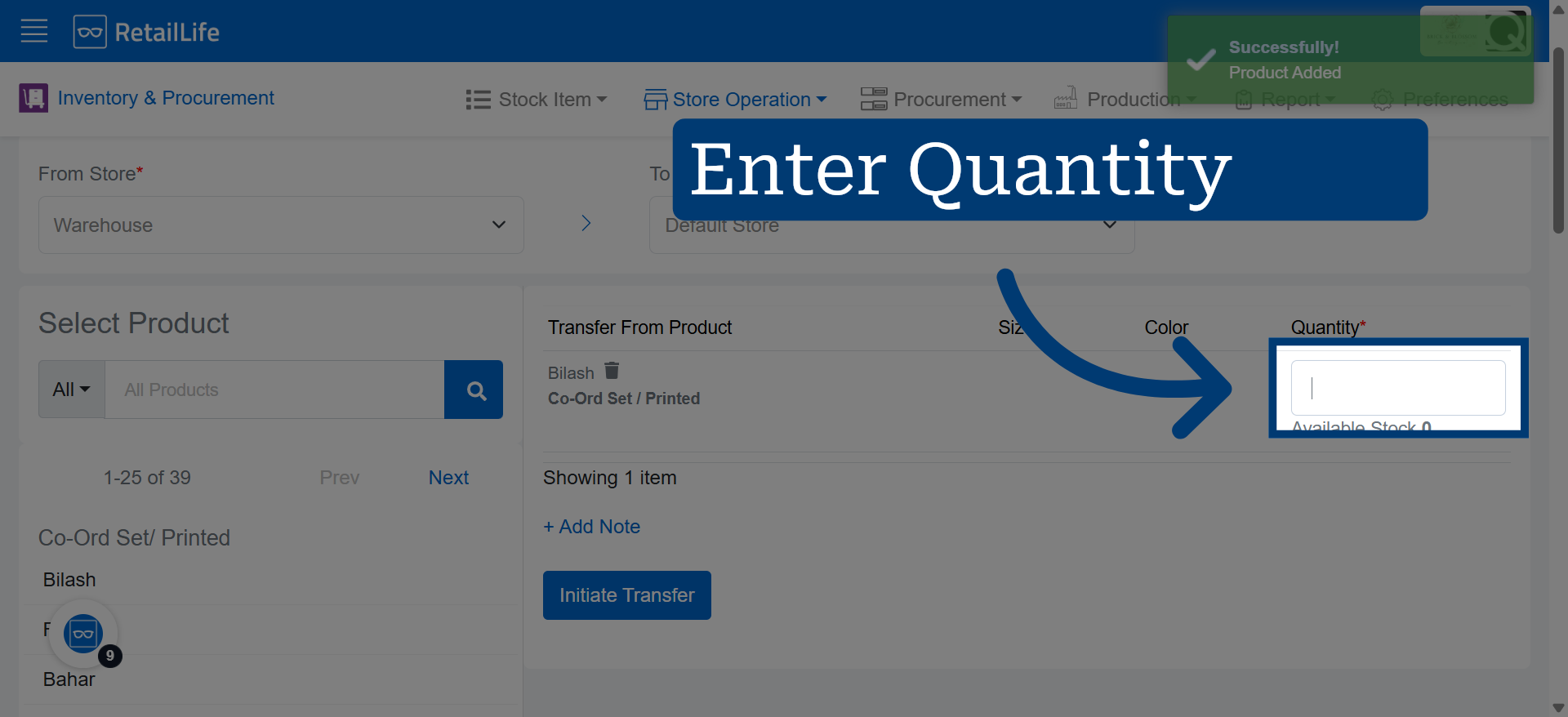
9. Select Receiving Store
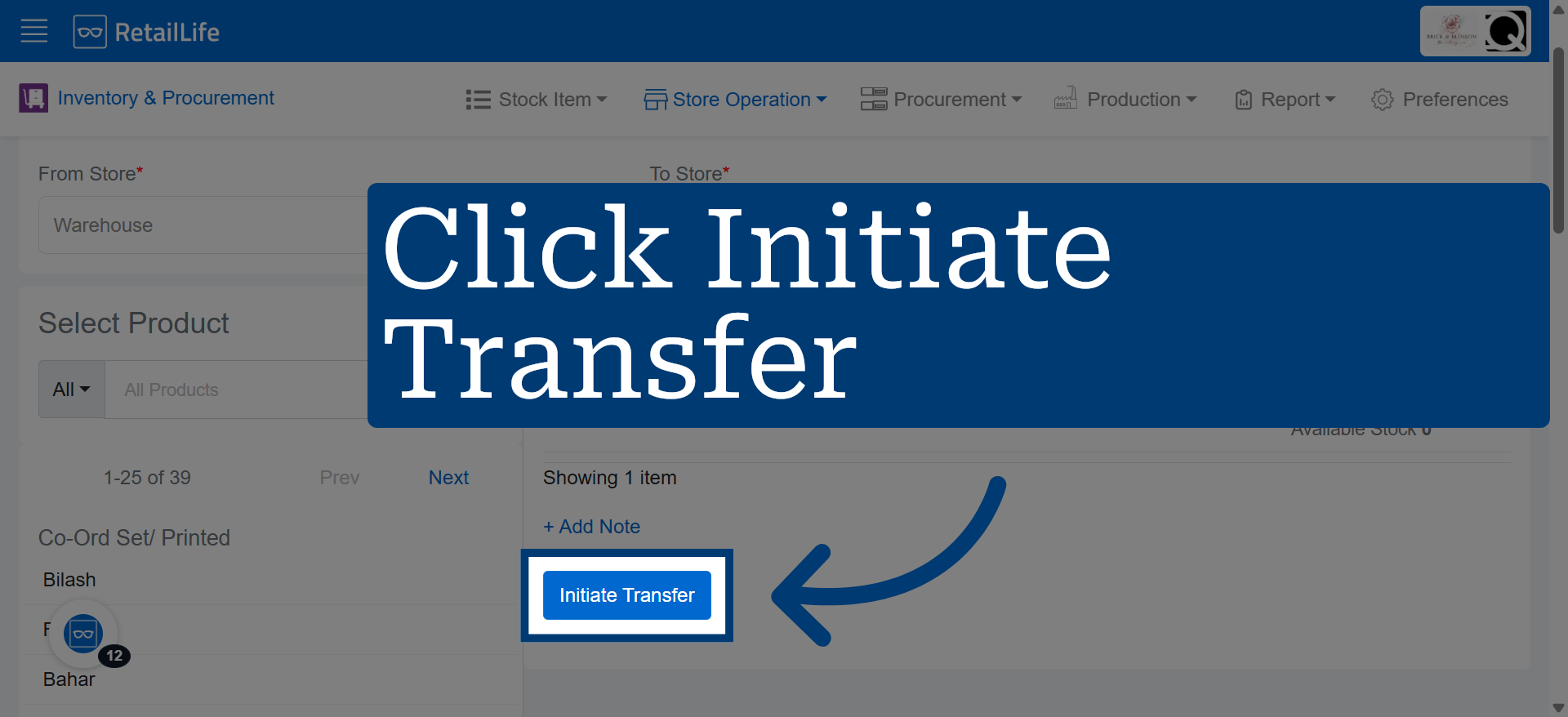
Click "Initiate Transfer" to start the process of moving the selected items to the destination store.