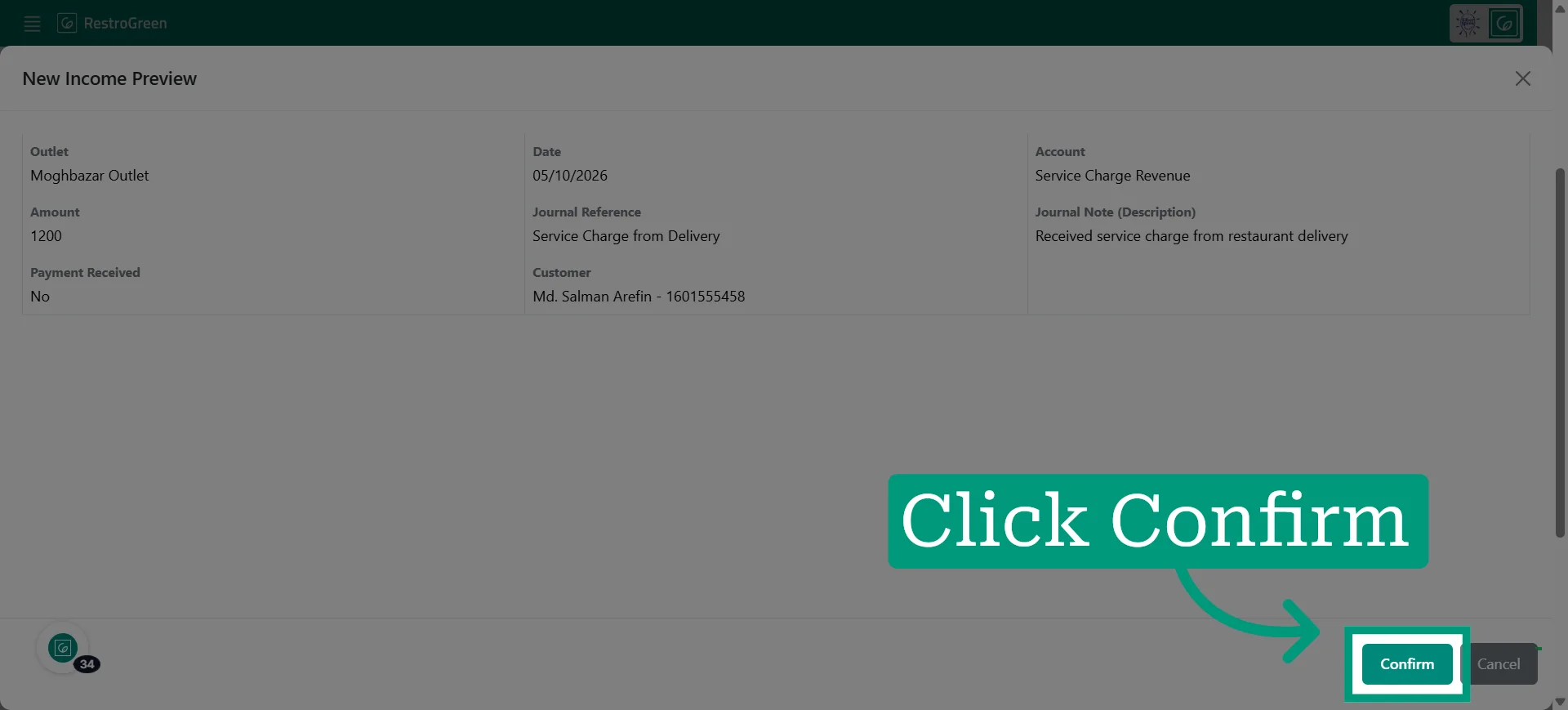
How to Entry New Income in RestroGreen
This tutorial guides you through recording new income in RestroGreen, including customer details,
payment status, journal information, and supporting documents.
Go to
restrogreen.quicklyservices.com
1. Go to the Business Portal
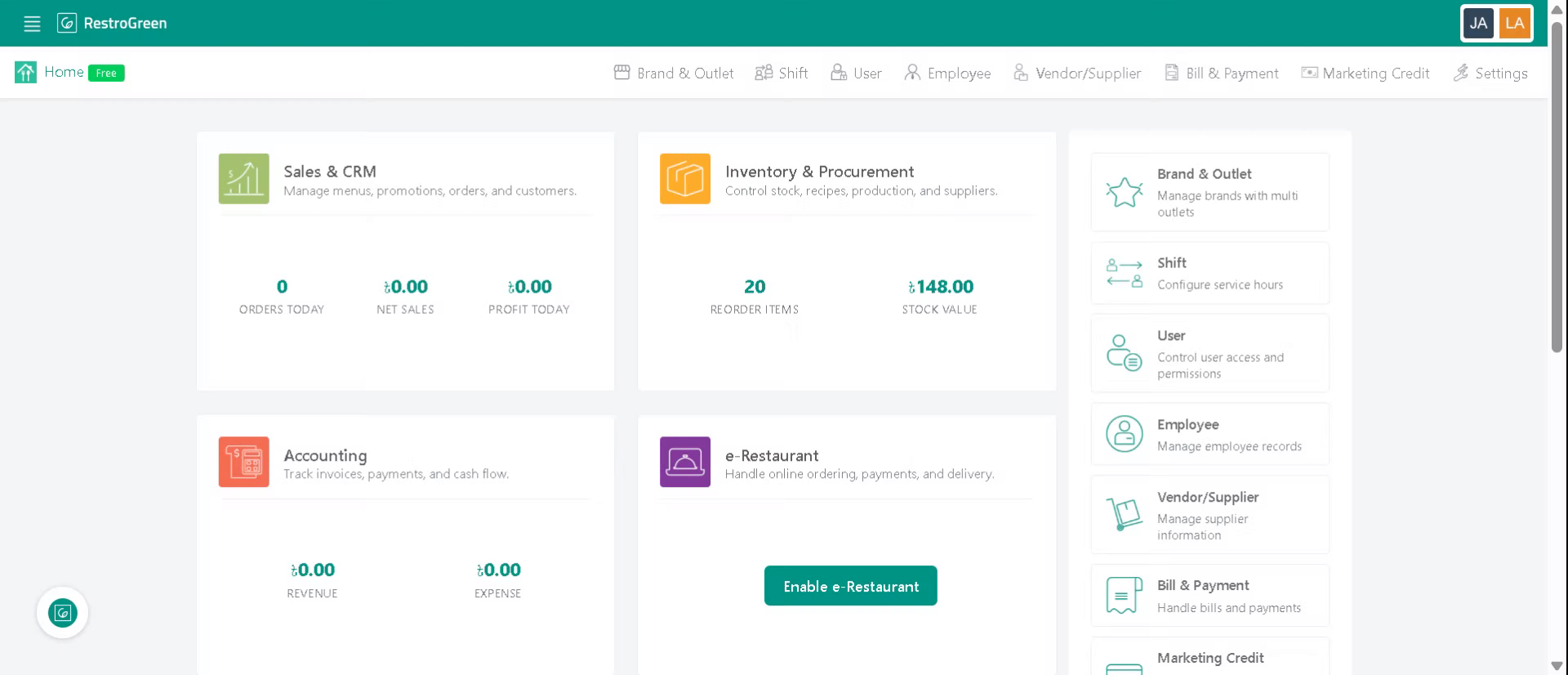
2. Click the Accounting module
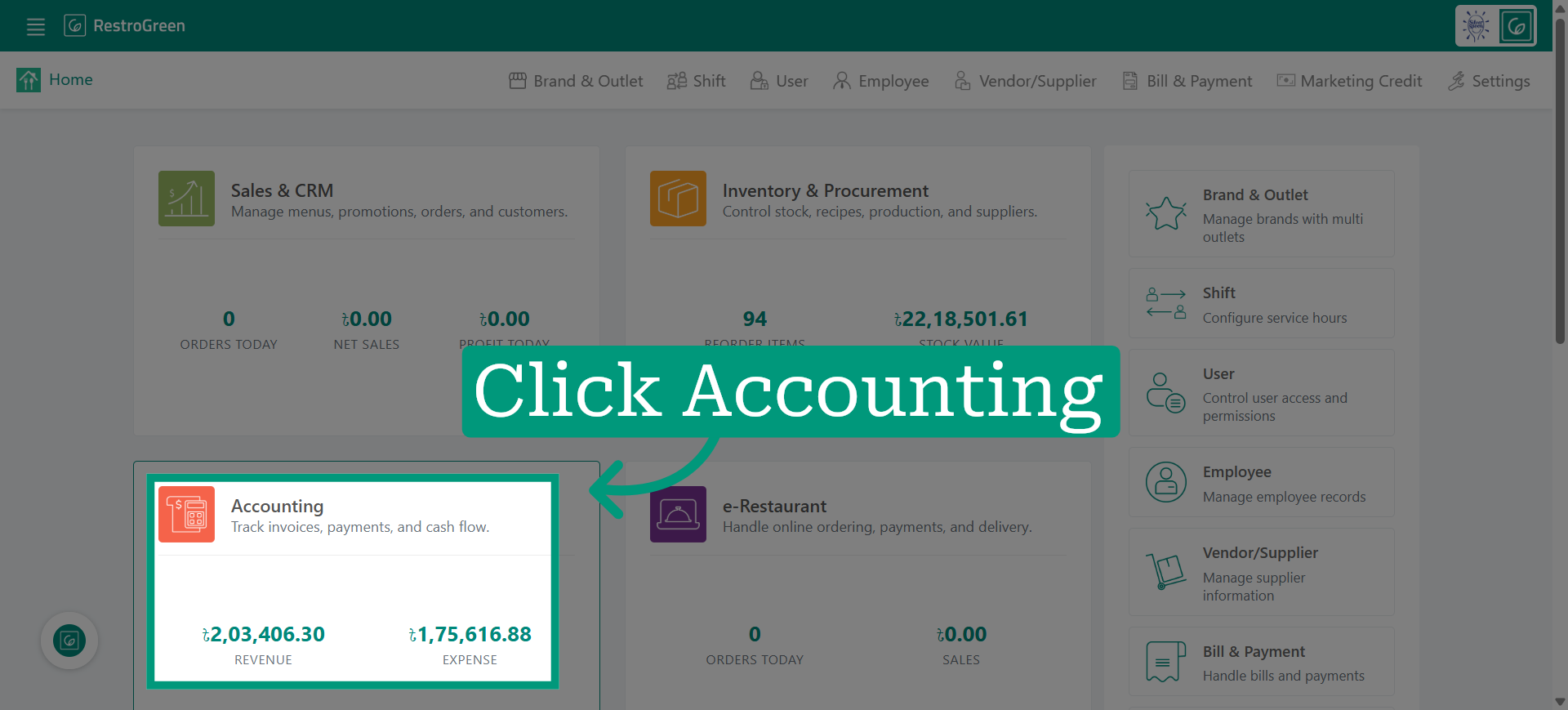
3. Click New Income from the Income dropdown menu
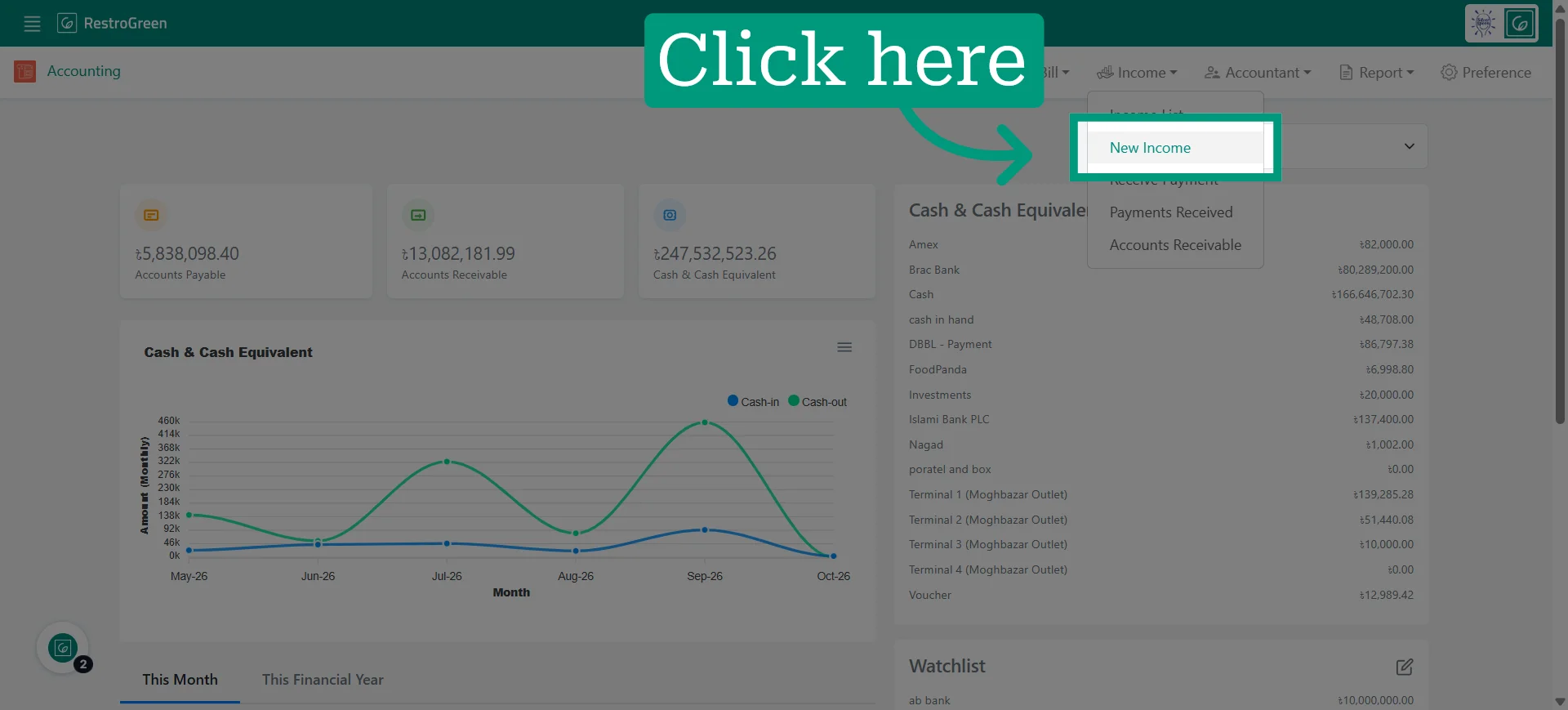
4. Specify the Outlet where the income is being recorded
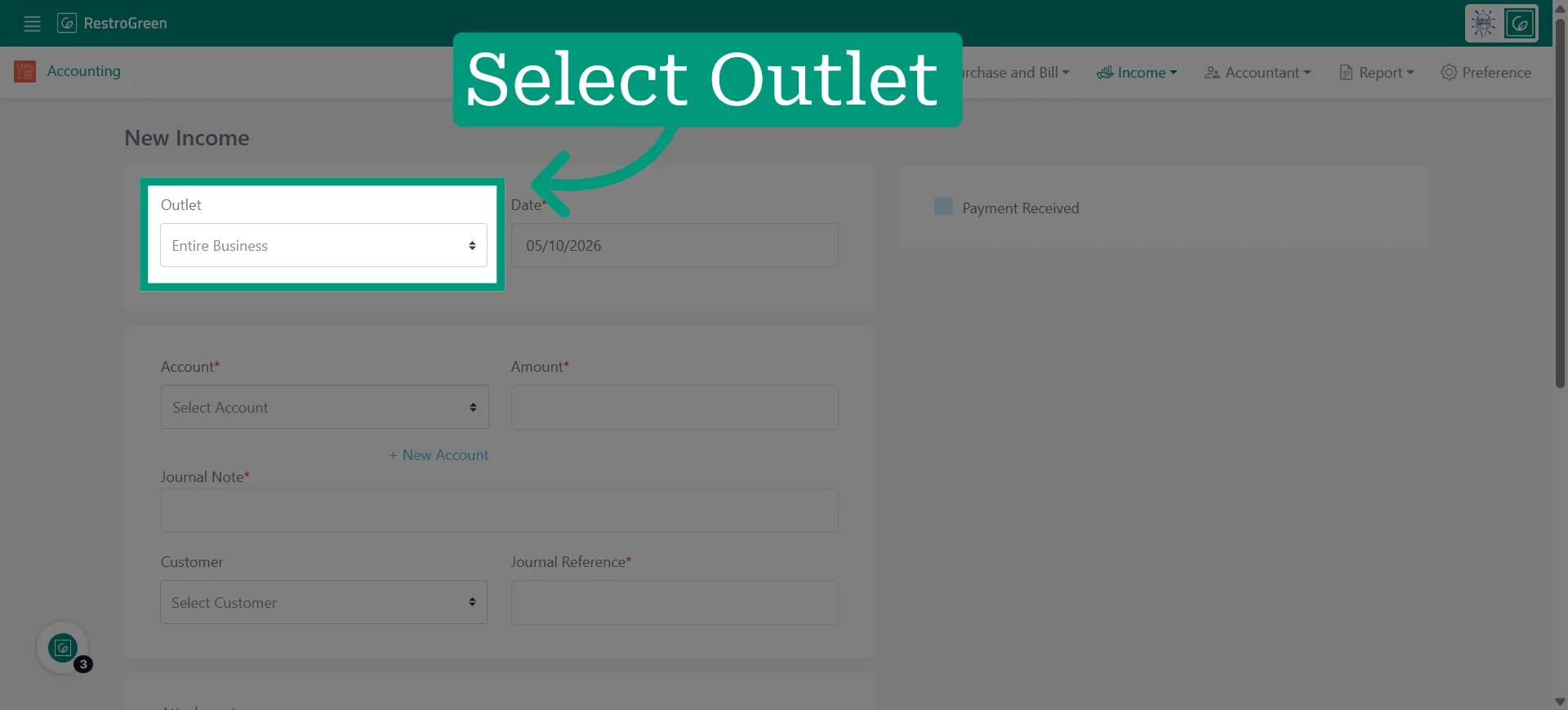
5. Specify the Date of the income entry
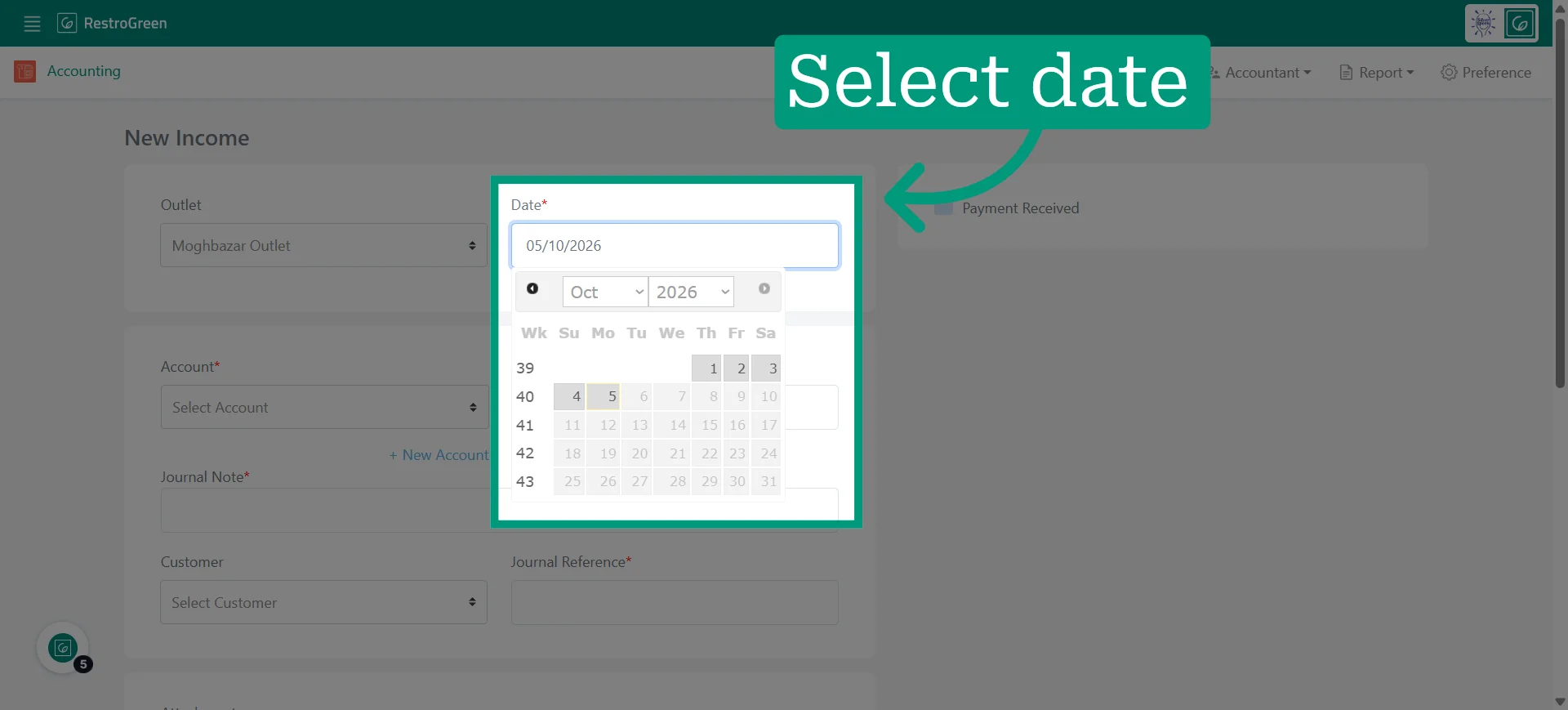
6. Assign the income to the correct financial account
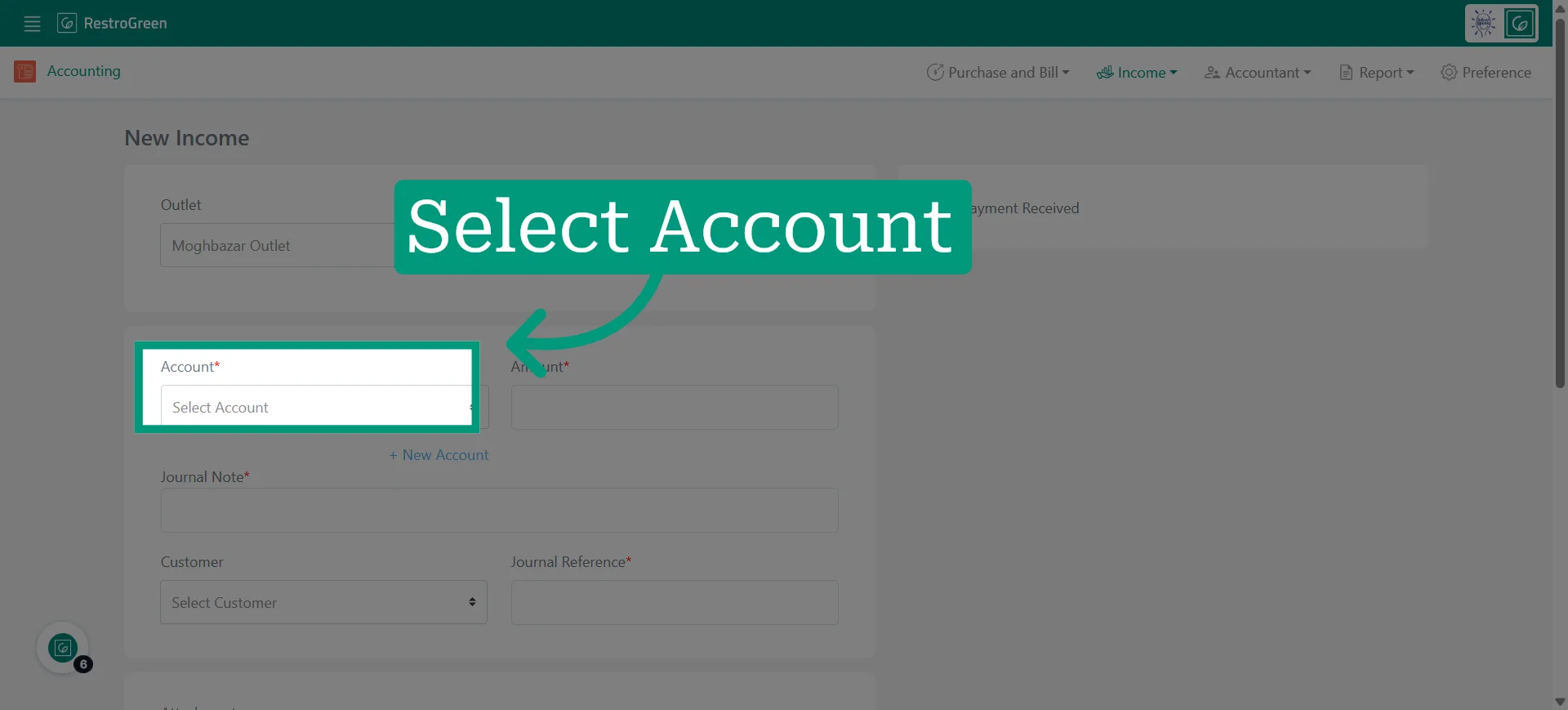
7. Enter the monetary value of the income received
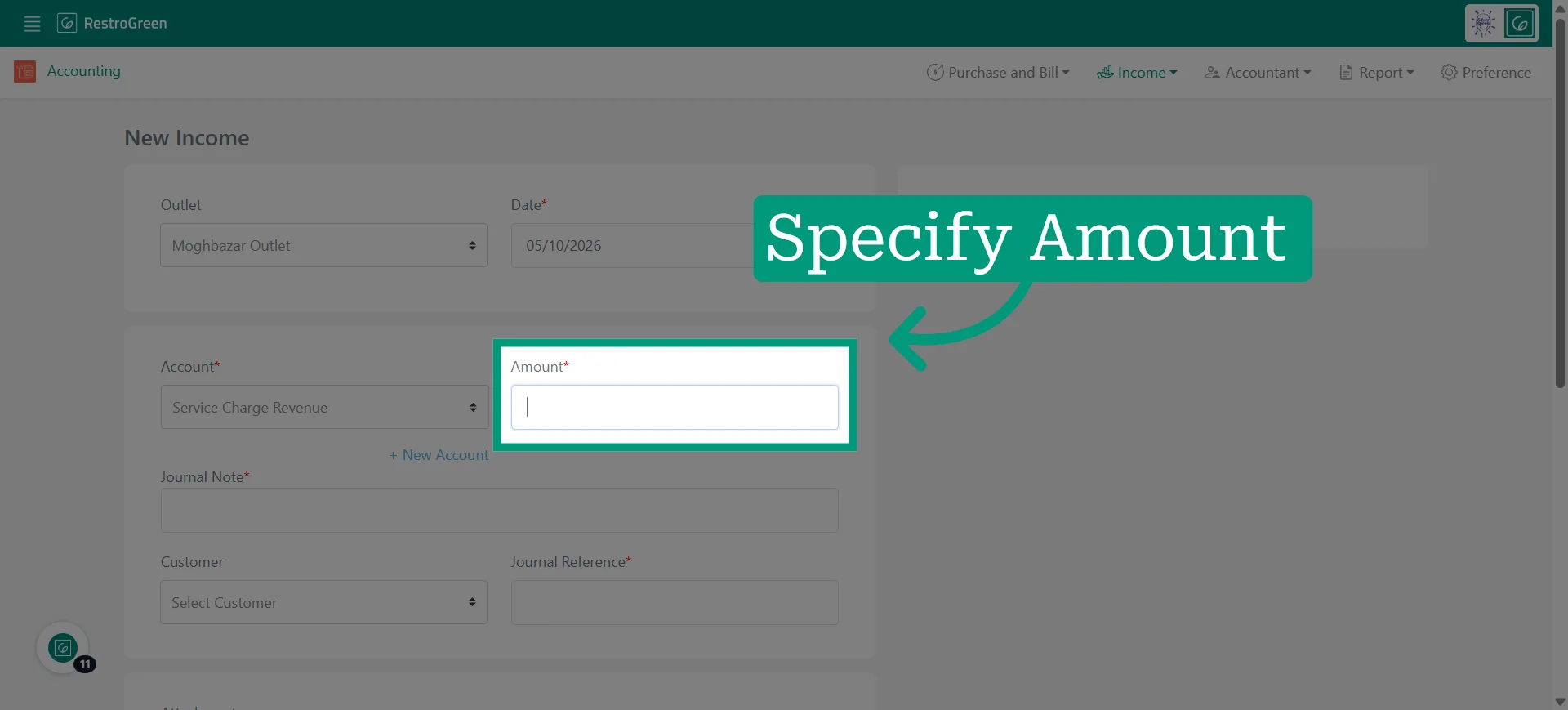
8. Add a Journal Note to provide additional details about the income
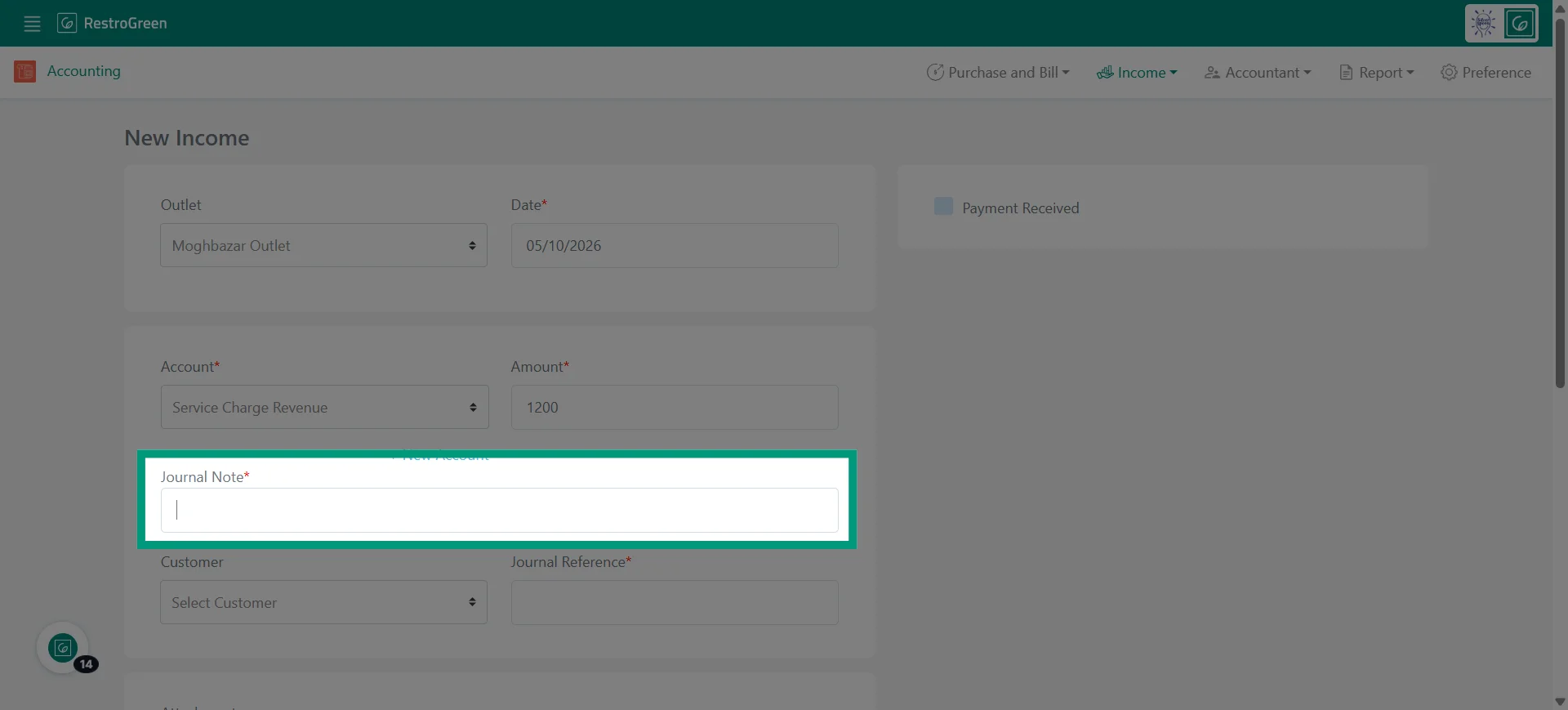
9. Specify the Customer associated with the income
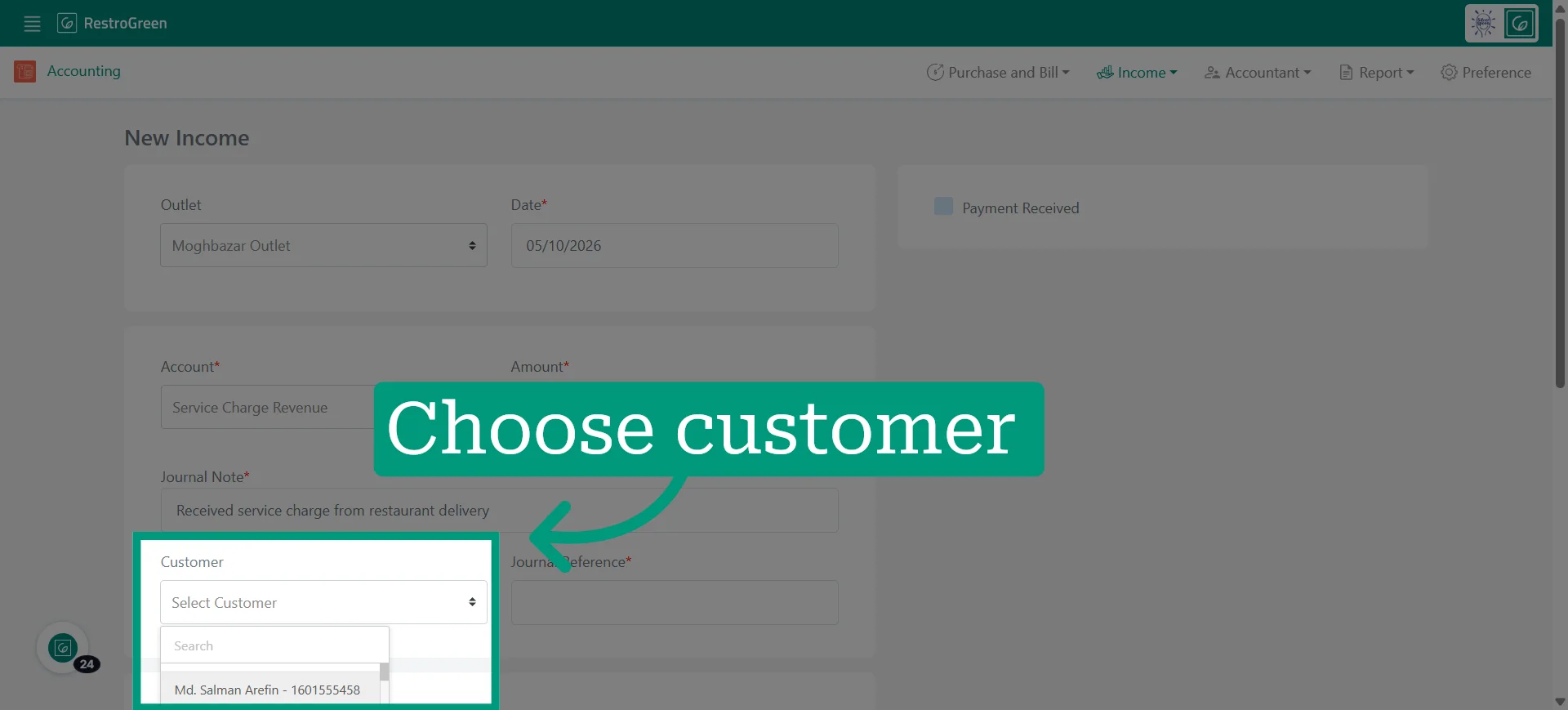
10. Add a Journal Reference for a unique identifier for the income transaction
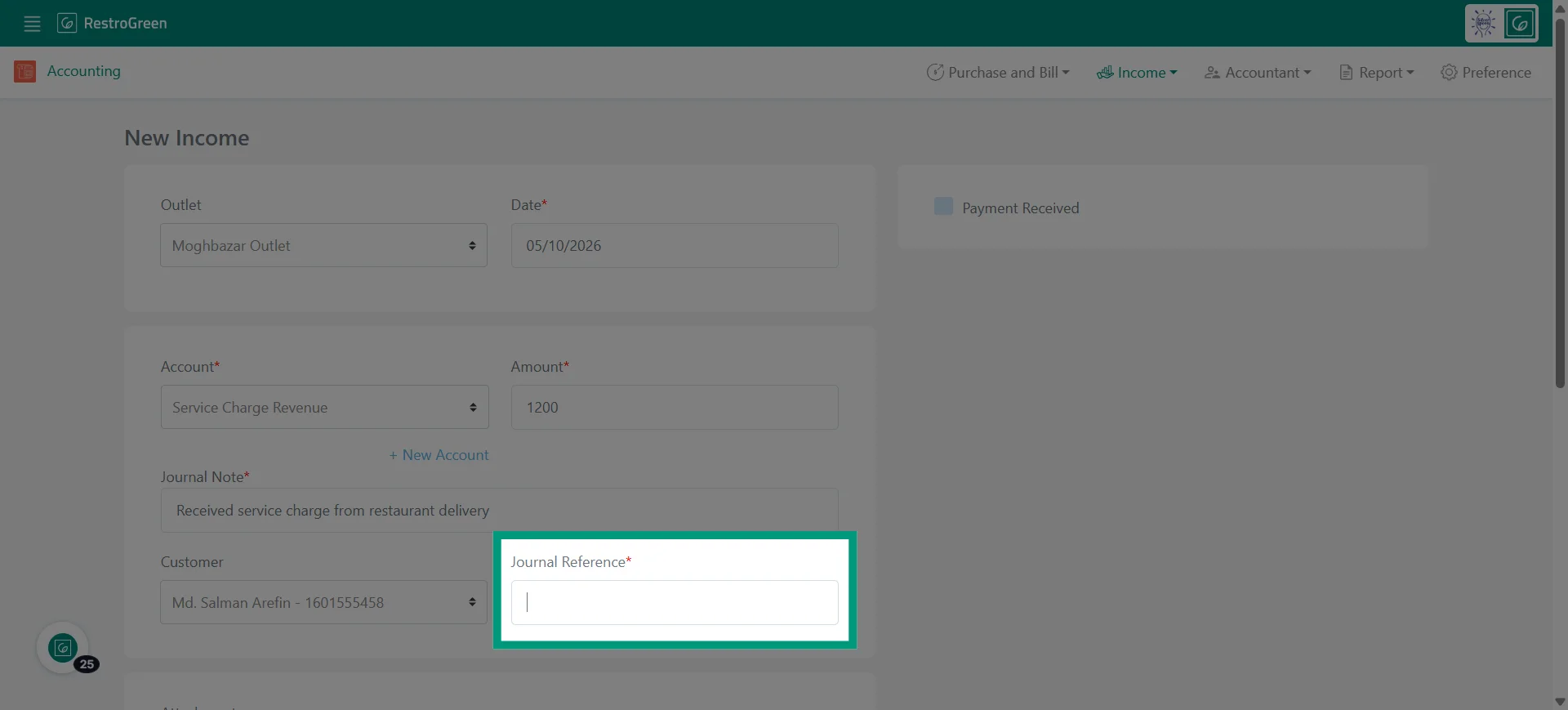
11. Upload an attachment to keep supporting documents with the income entry
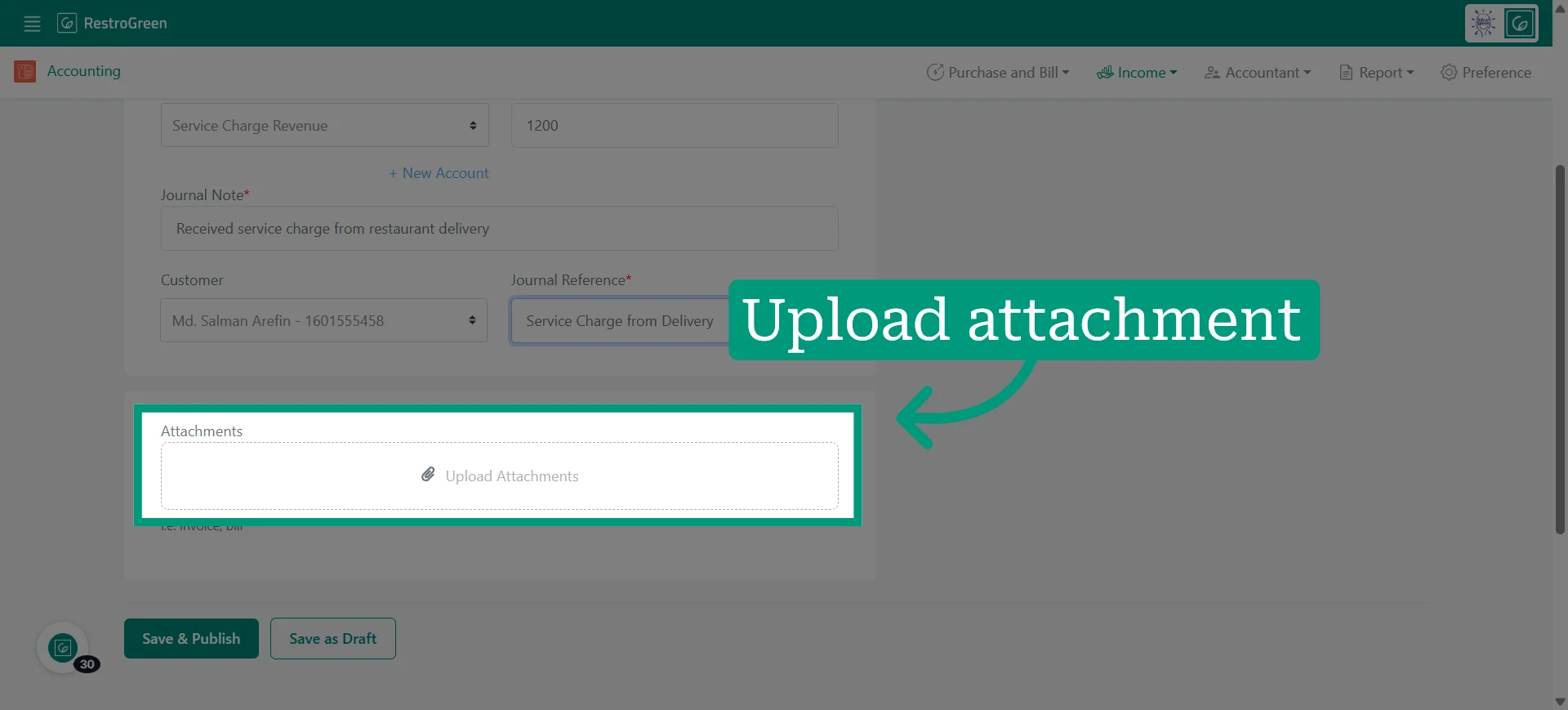
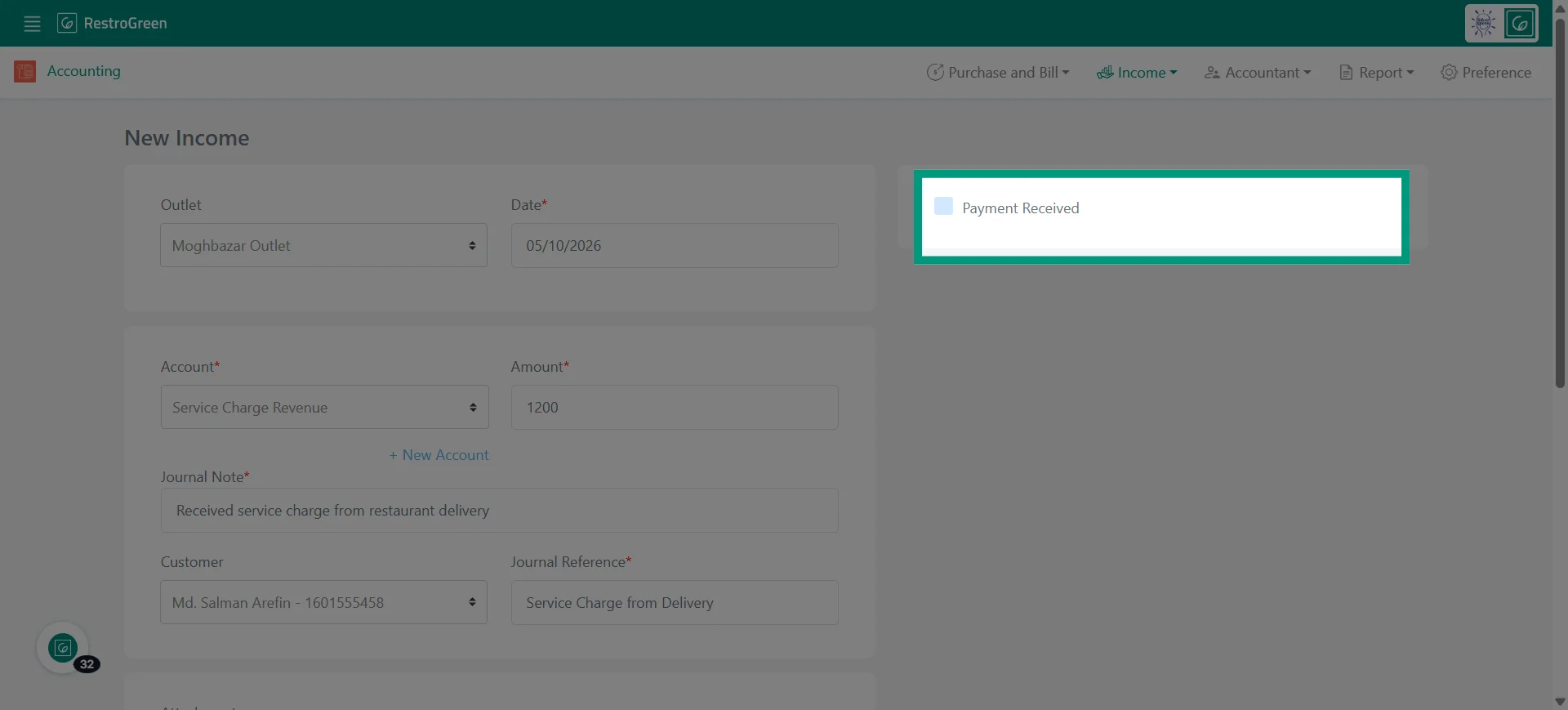
12. Select Payment Received if the customer is making the payment now
Otherwise, the amount will be recorded under Accounts Receivable.
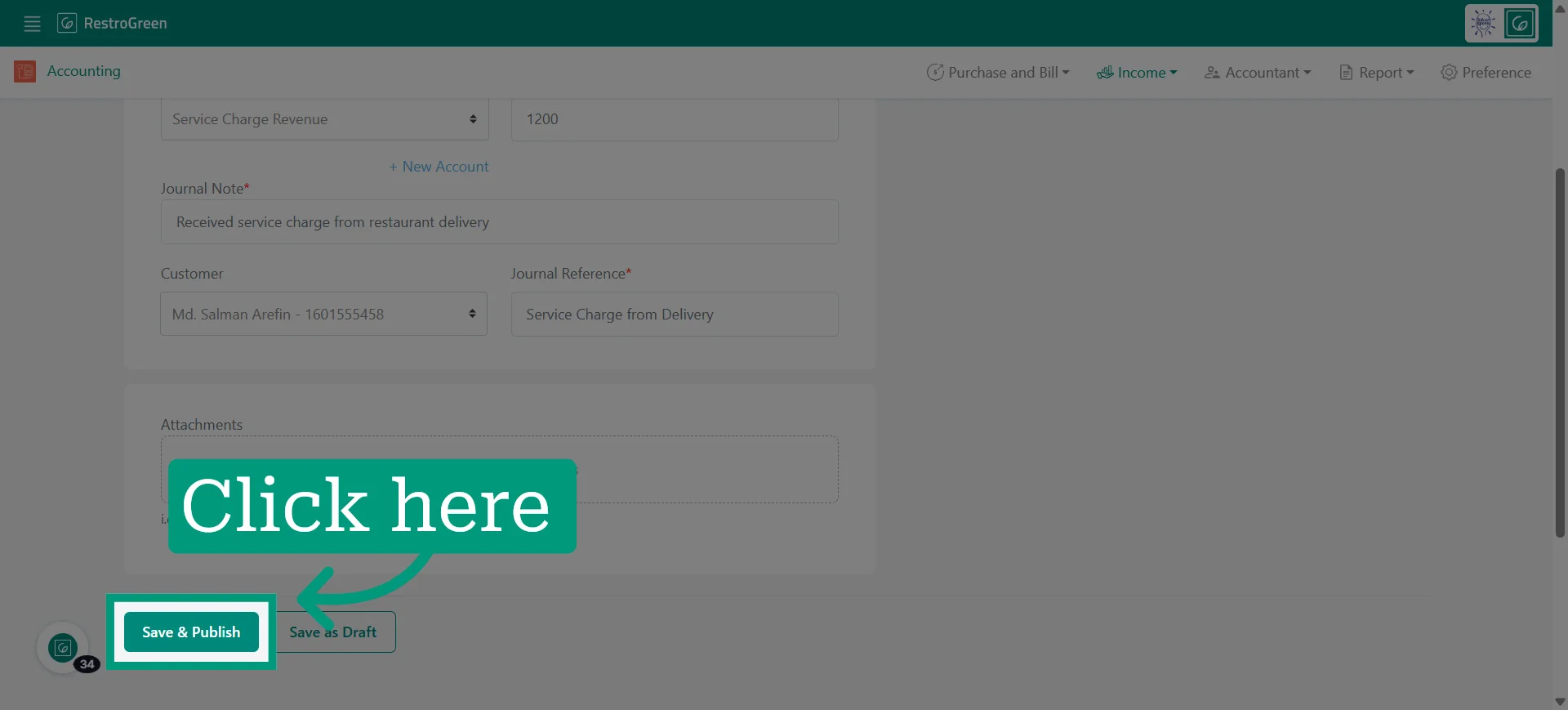
13. Click "Save and Publish" to save the income entry
14. Click "Confirm" to complete the transaction