How to Set Up Restaurant's Recurring Bills in RestroGreen
This tutorial guides you through setting up a recurring bill in the business portal to automate your
bills.
Go to
restrogreen.quicklyservices.com
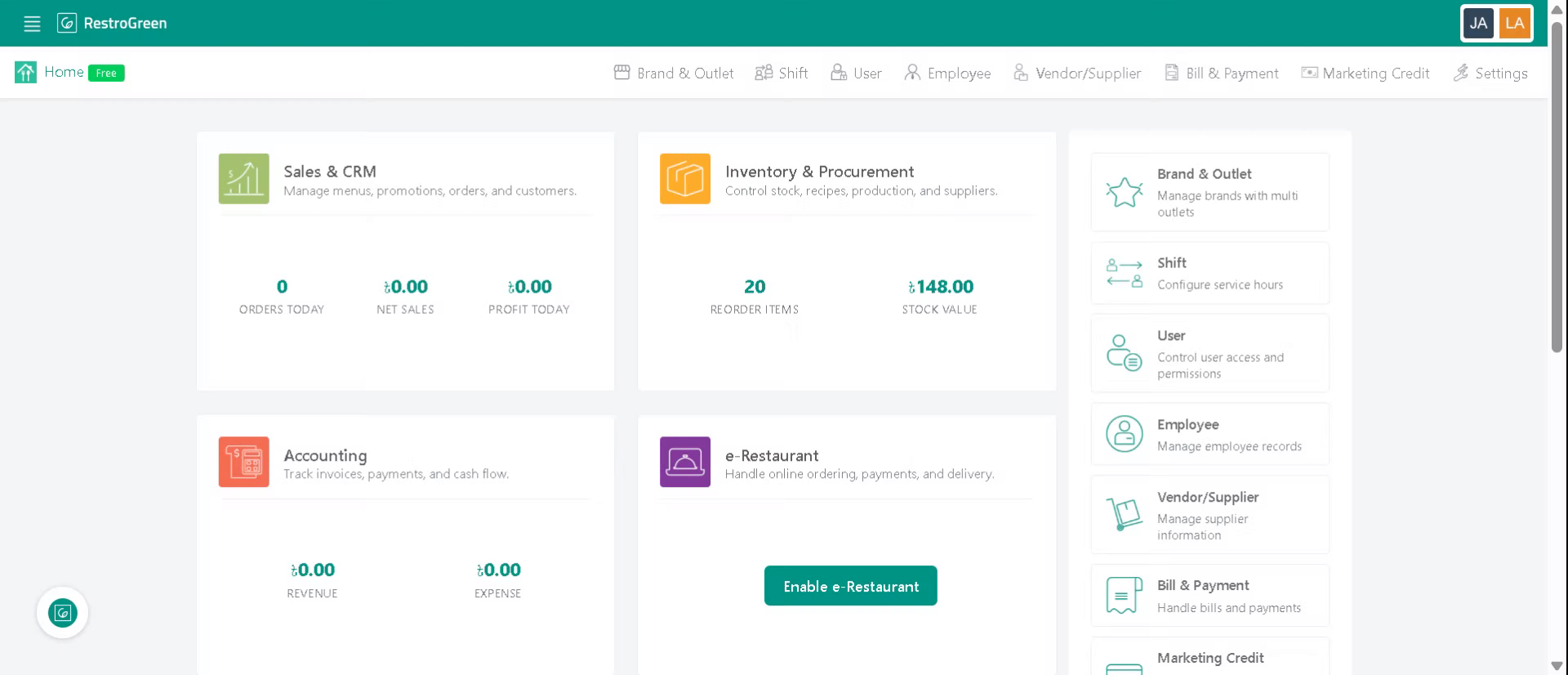
1. Login to Business Portal
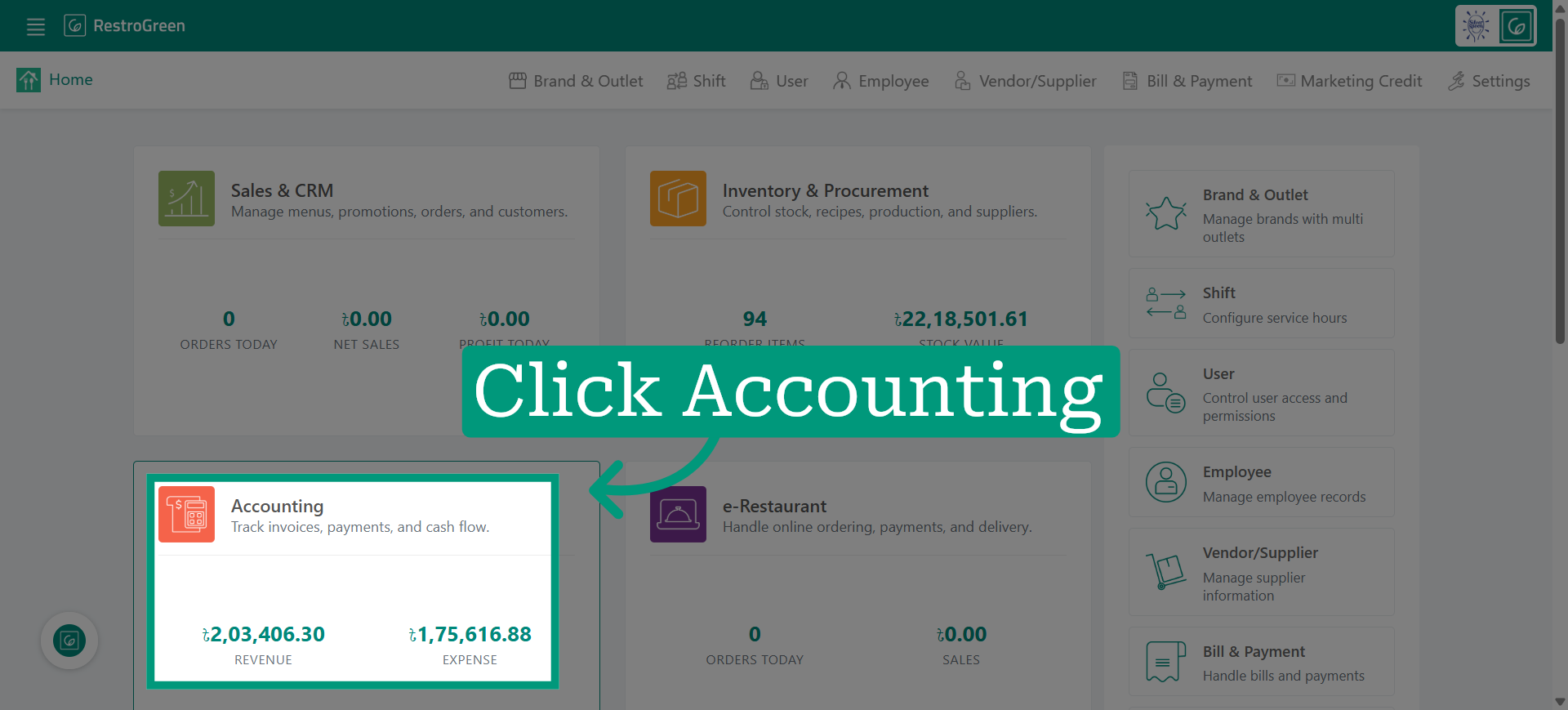
2. Click Accounting Module
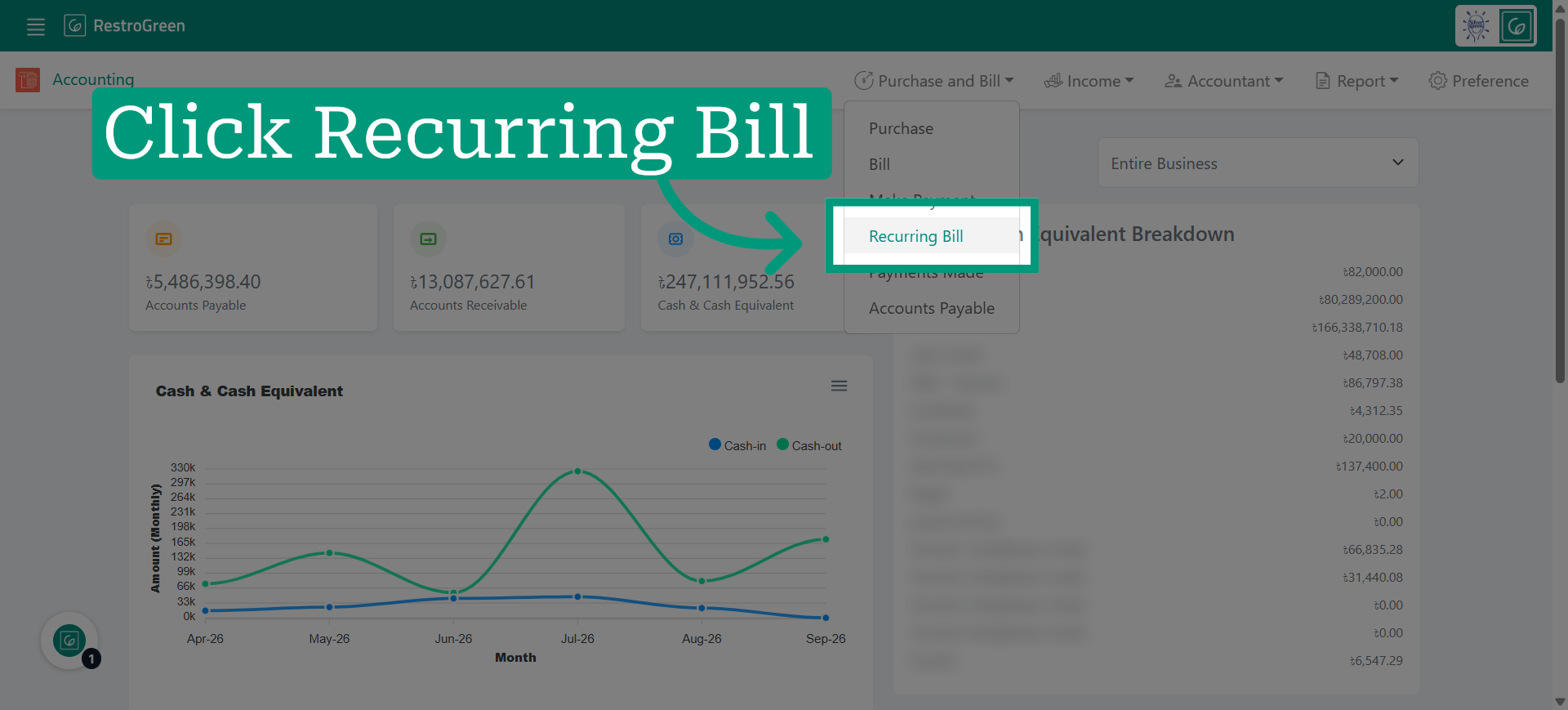
3. Click "Recurring Bill" from the dropdown menu
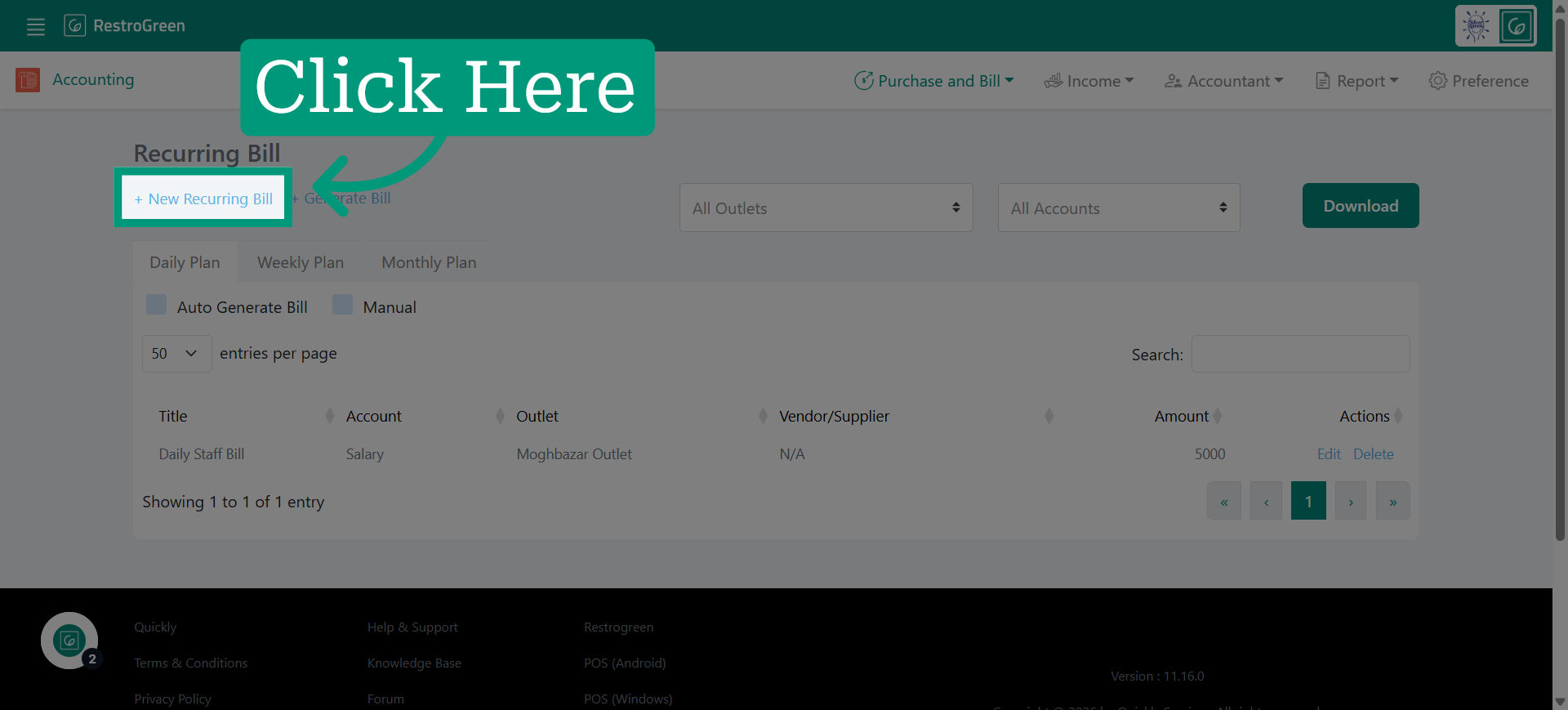
4. Click "New Recurring Bill" to initiate the bill creation
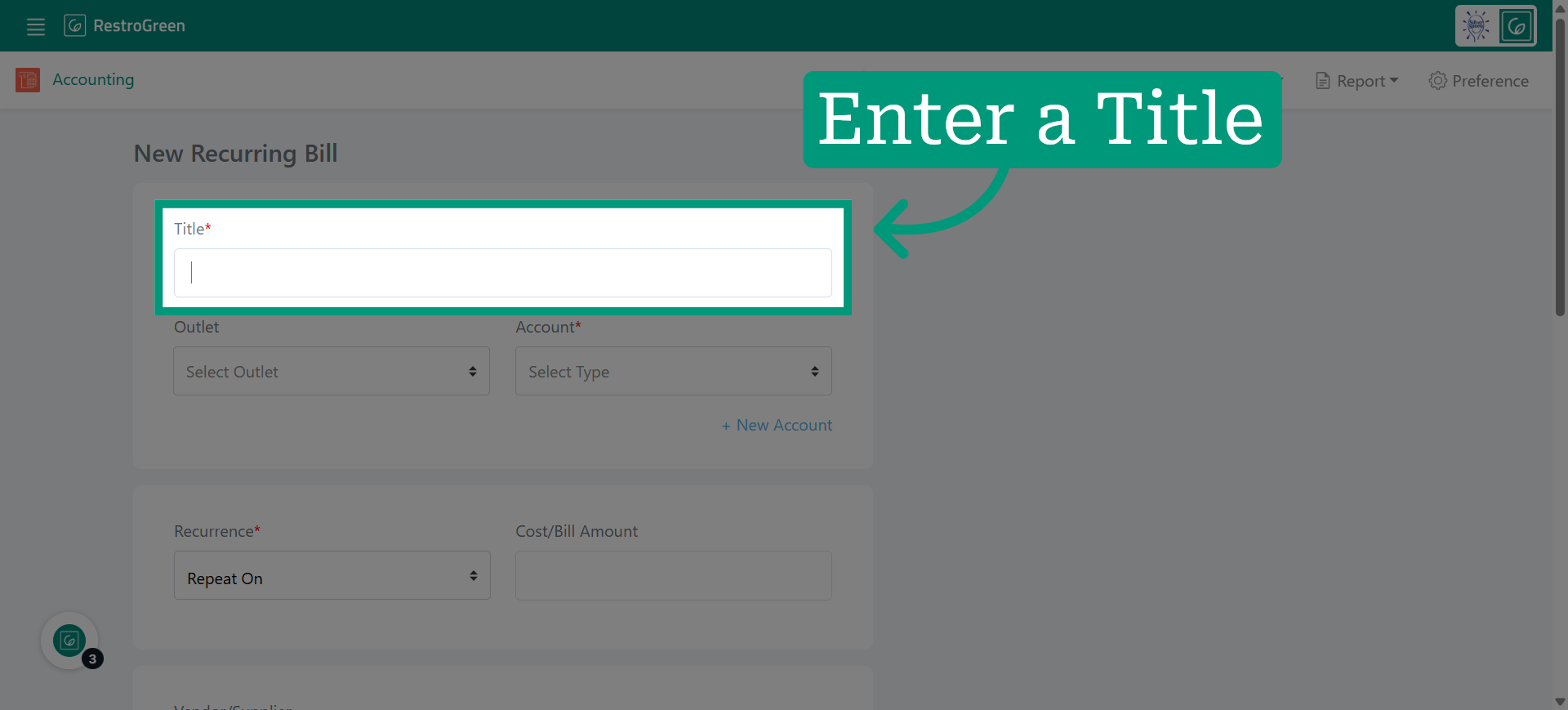
5. Type-in a name for this recurring bill
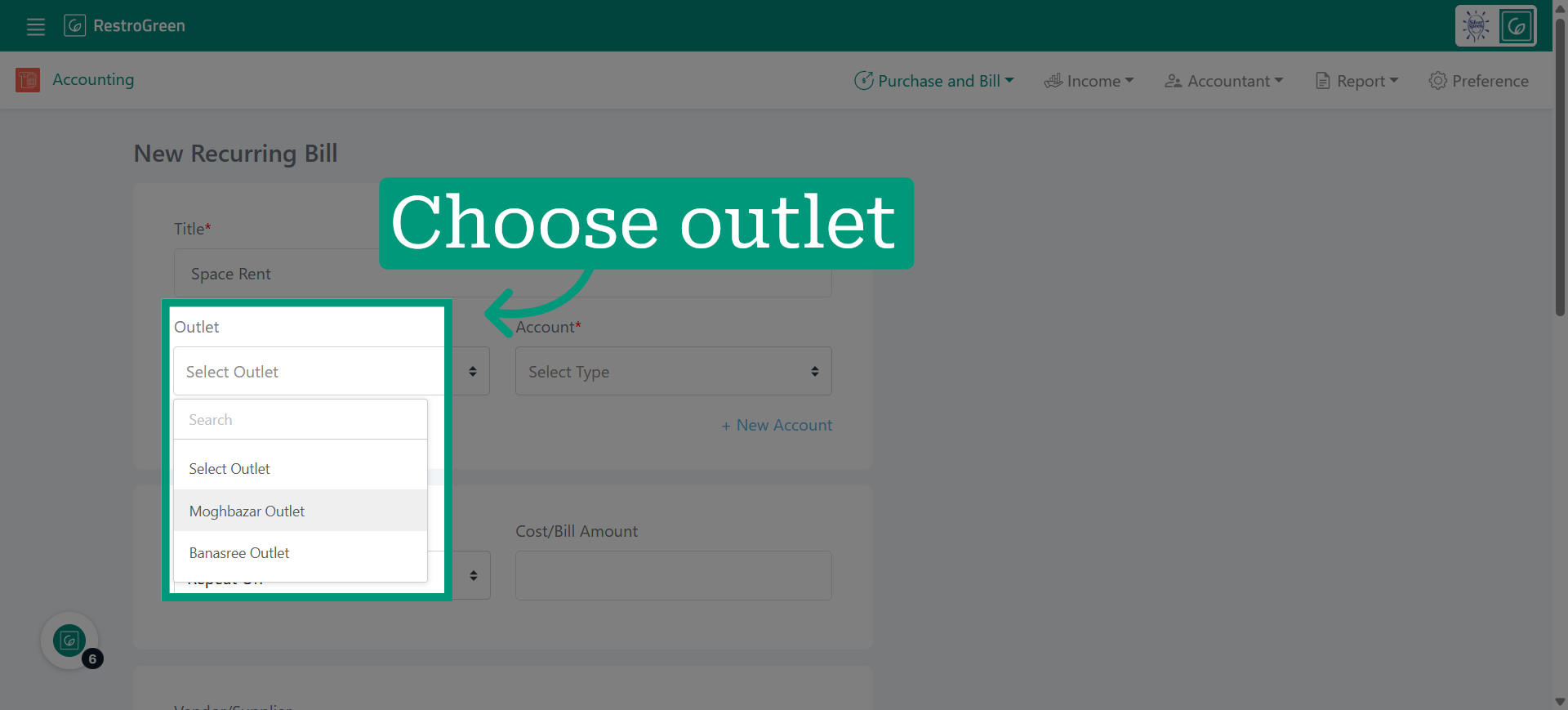
6. Specify the outlet where this recurring bill will be applied to
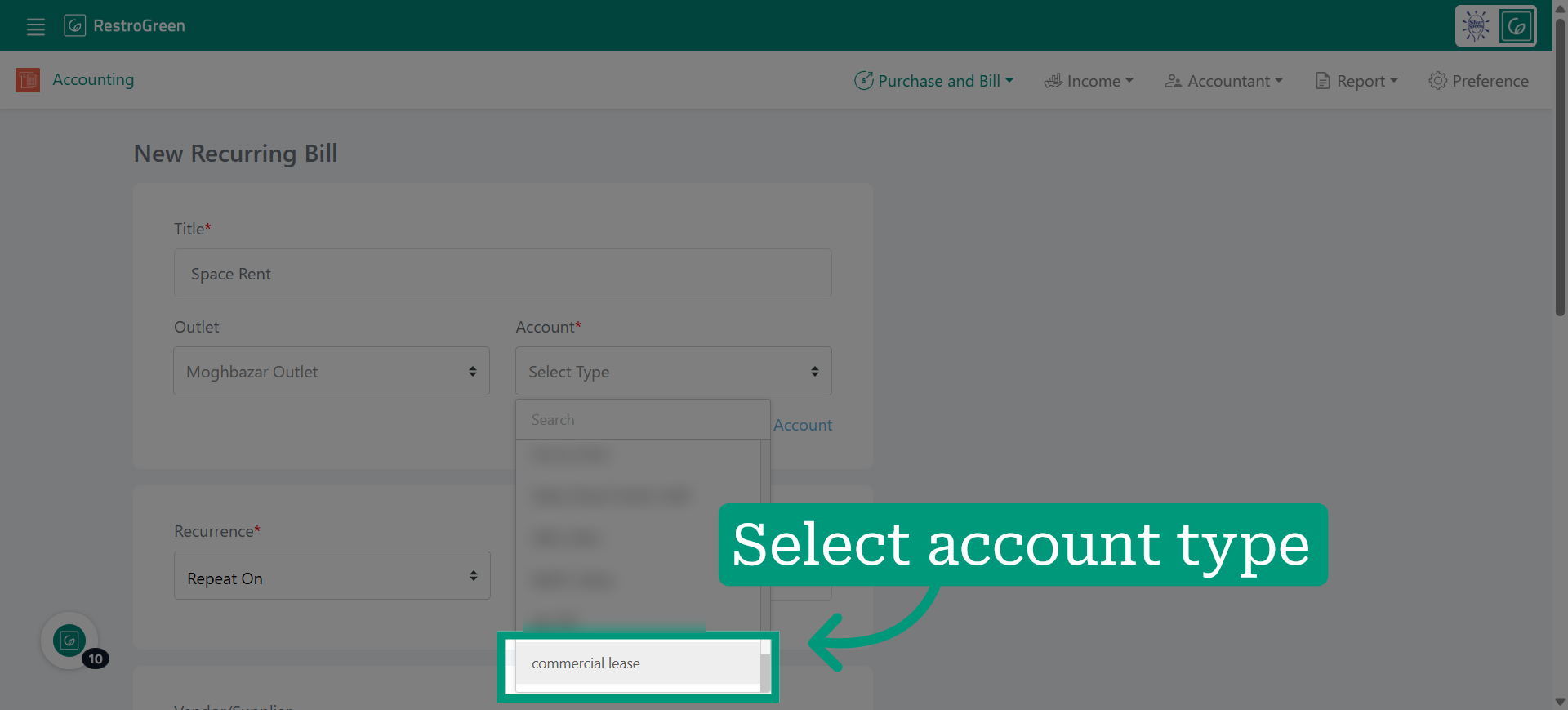
7. Select the appropriate account type from the Chart of Accounts for this bill
8. Define how often this recurring bill should be generated
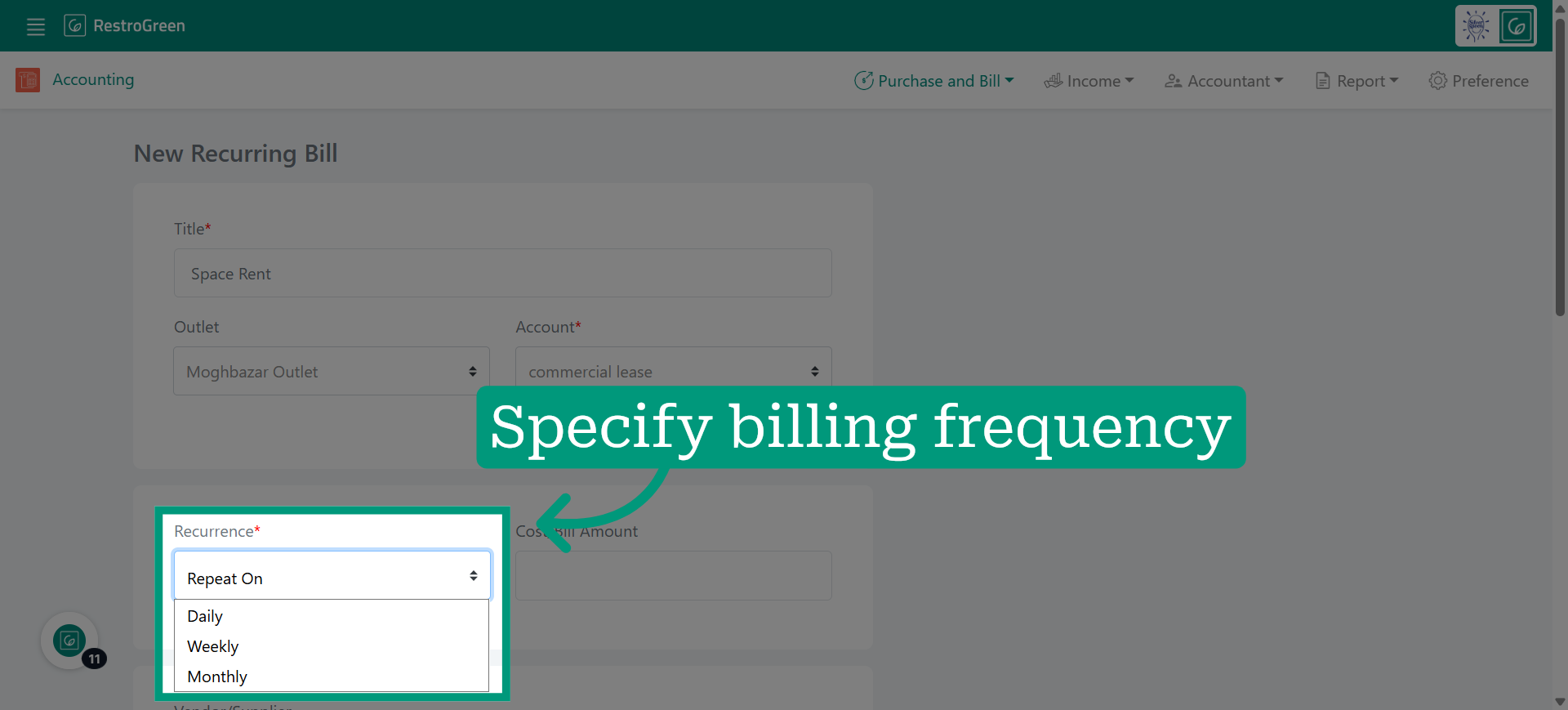
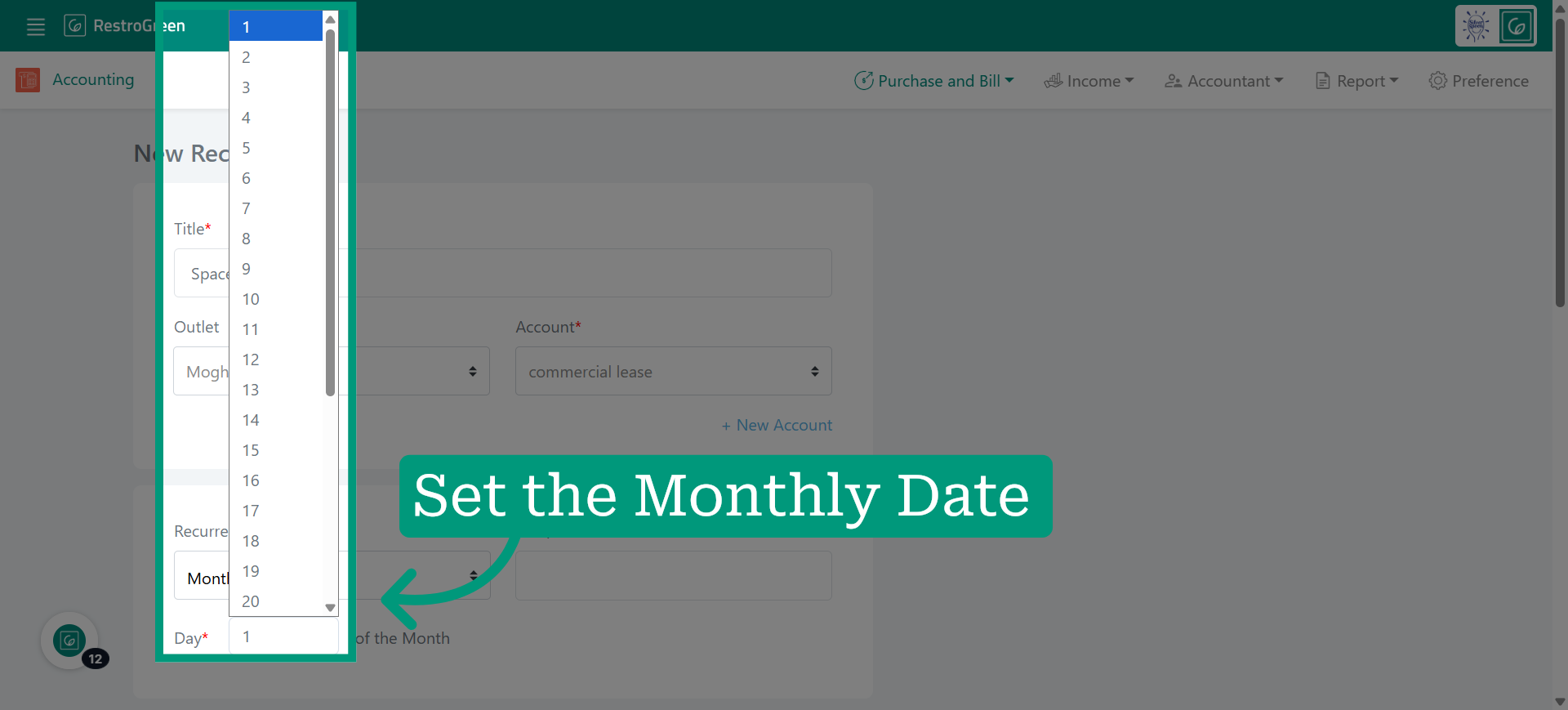
9. Select the day of each month the bill will be generated
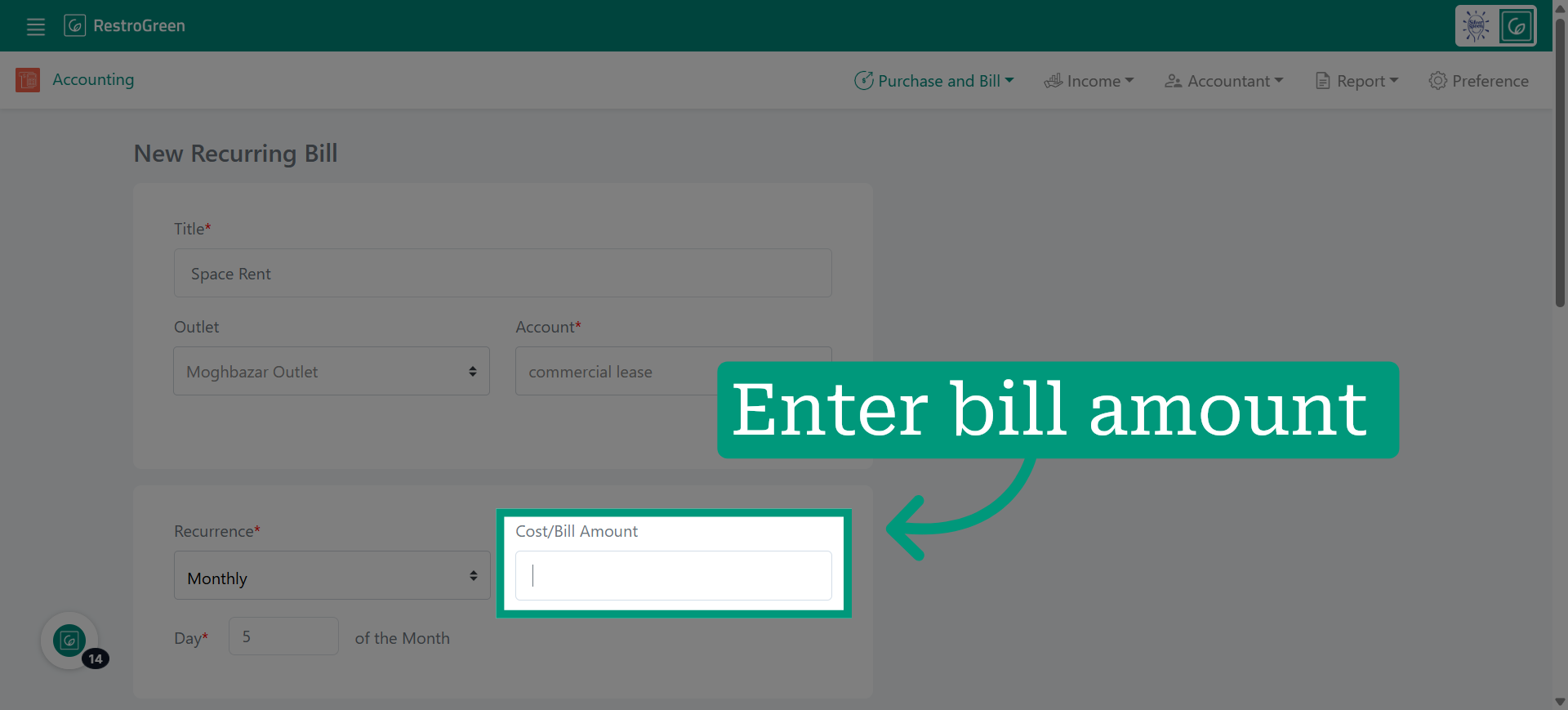
10. Input the amount for the recurring payment
11. Select the supplier to be paid for this bill
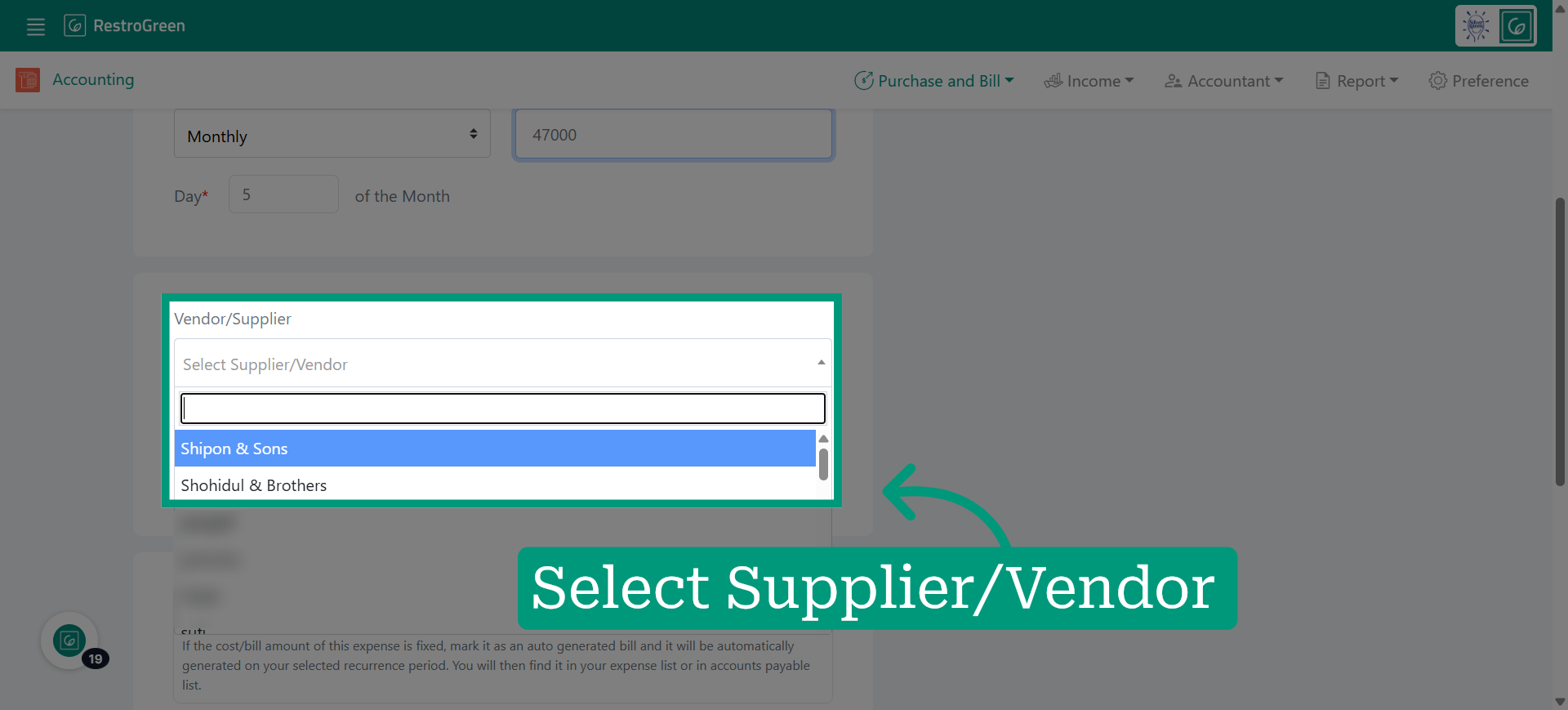
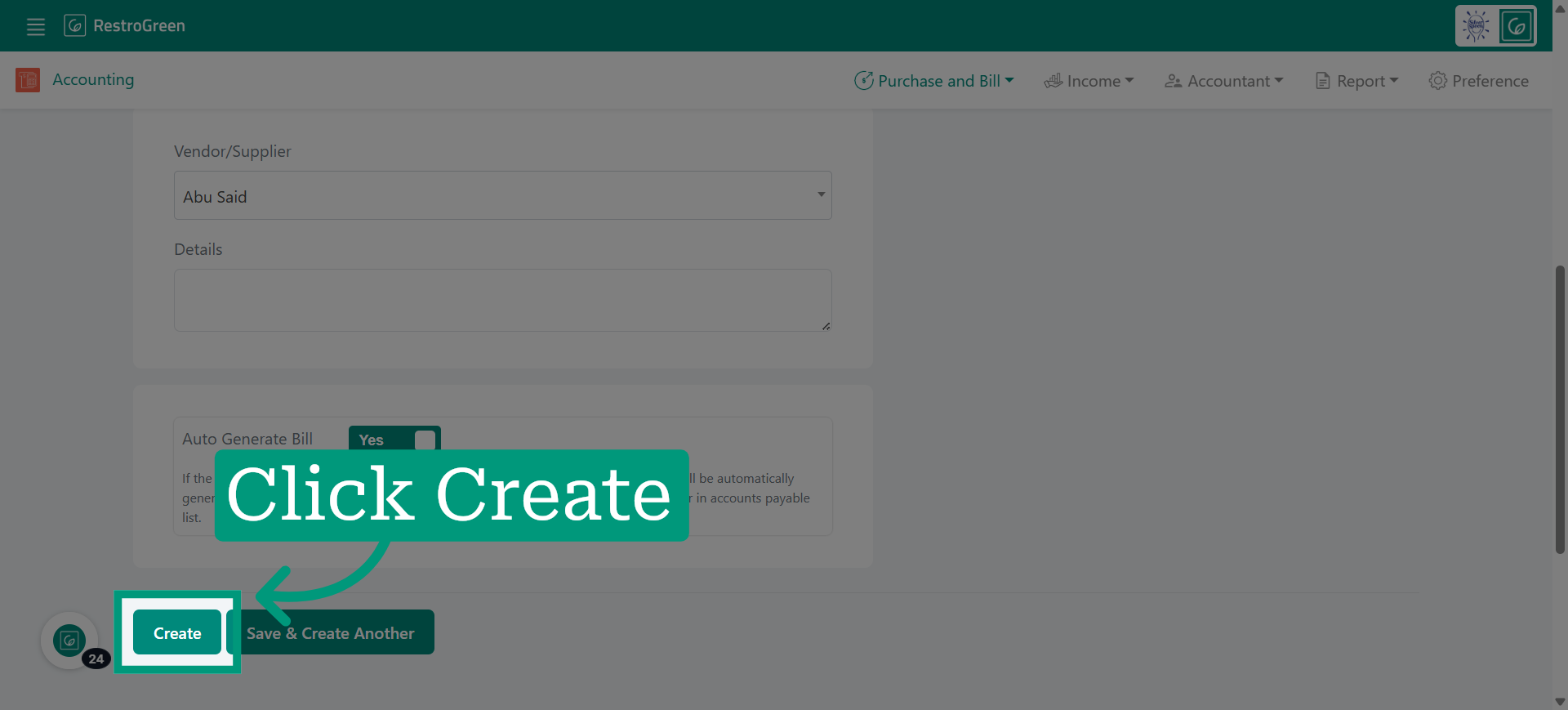
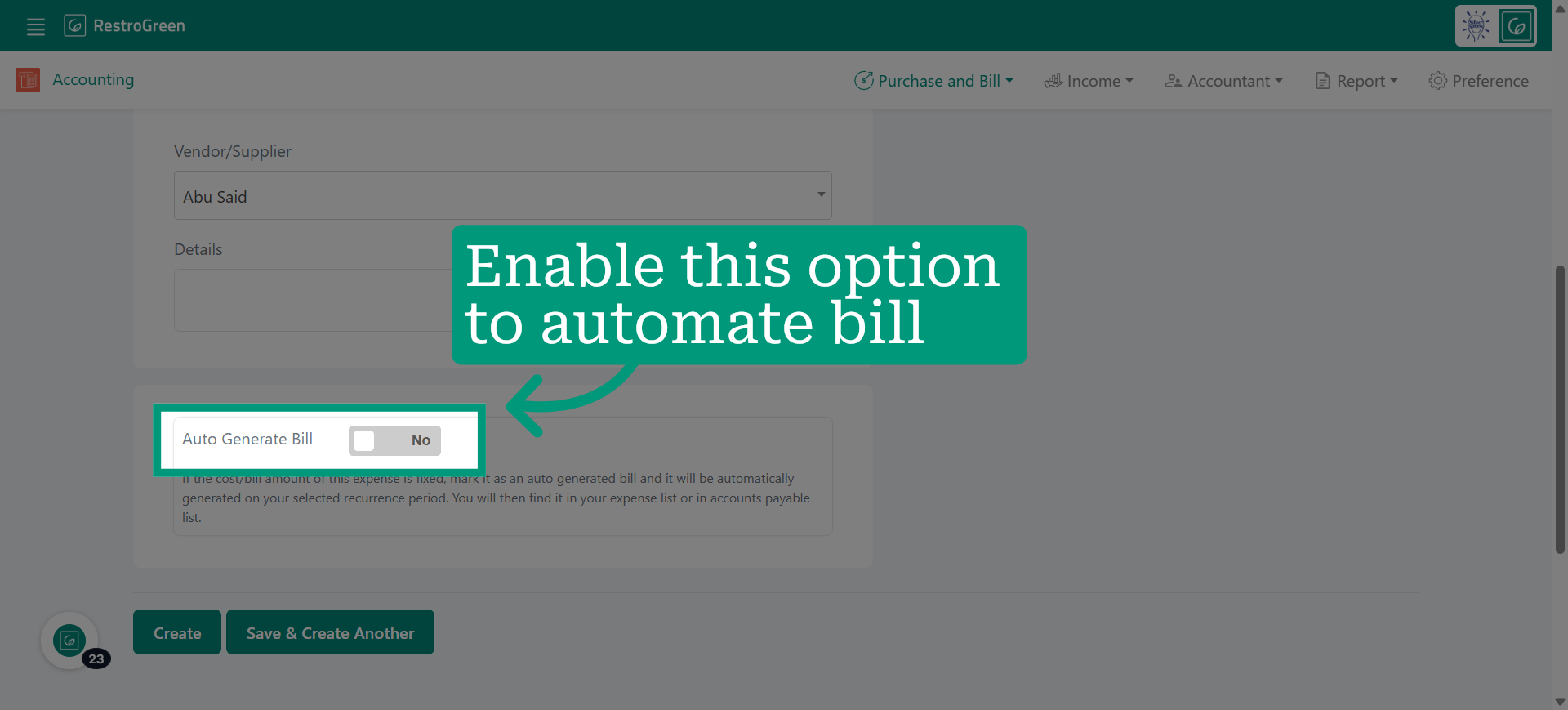
12. Enable the "Auto Generate Bill" option to have the bill generated automatically on the specified day
13. Click "Create" to finalize the setup