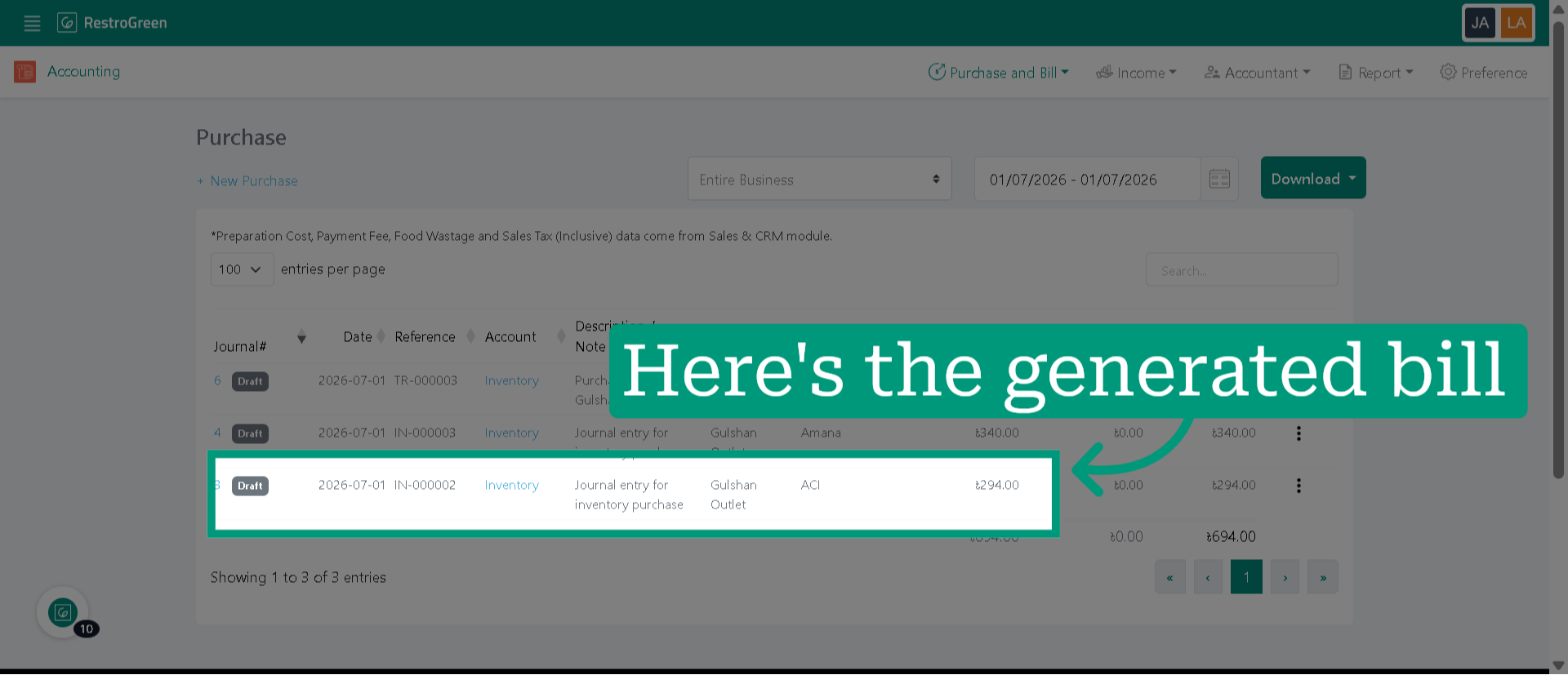
How to Generate Bill for Accounting from a Inventory Purchase in RestroGreen
This tutorial guides you through automating stock-in entries directly with accounting within the
RestroGreen Business Portal.
Go to
restrogreen.quicklyservices.com
1. Login to Business Portal
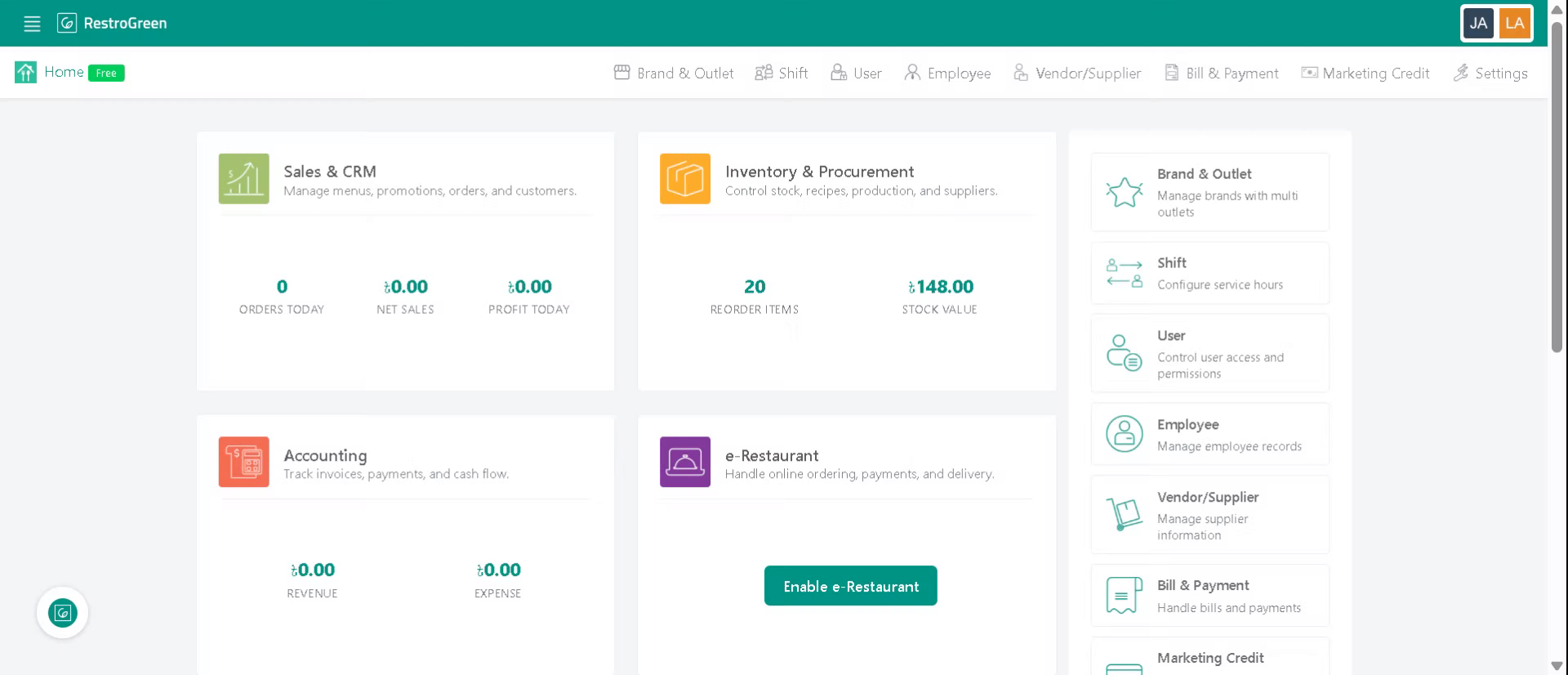
2. Access "Inventory & Procurement" Module
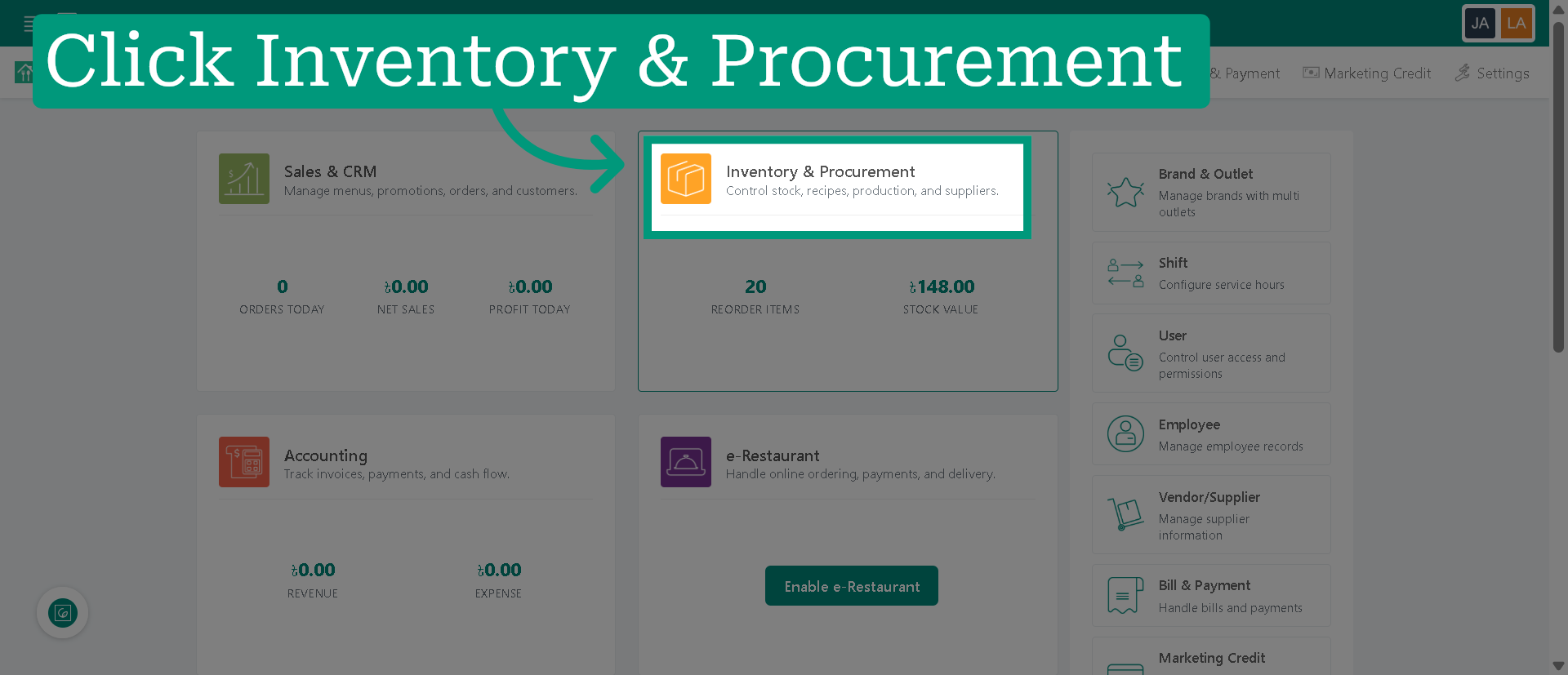
3. Click "New Stock-in" to begin new stock entry
4. Enter required information regarding the stock-in
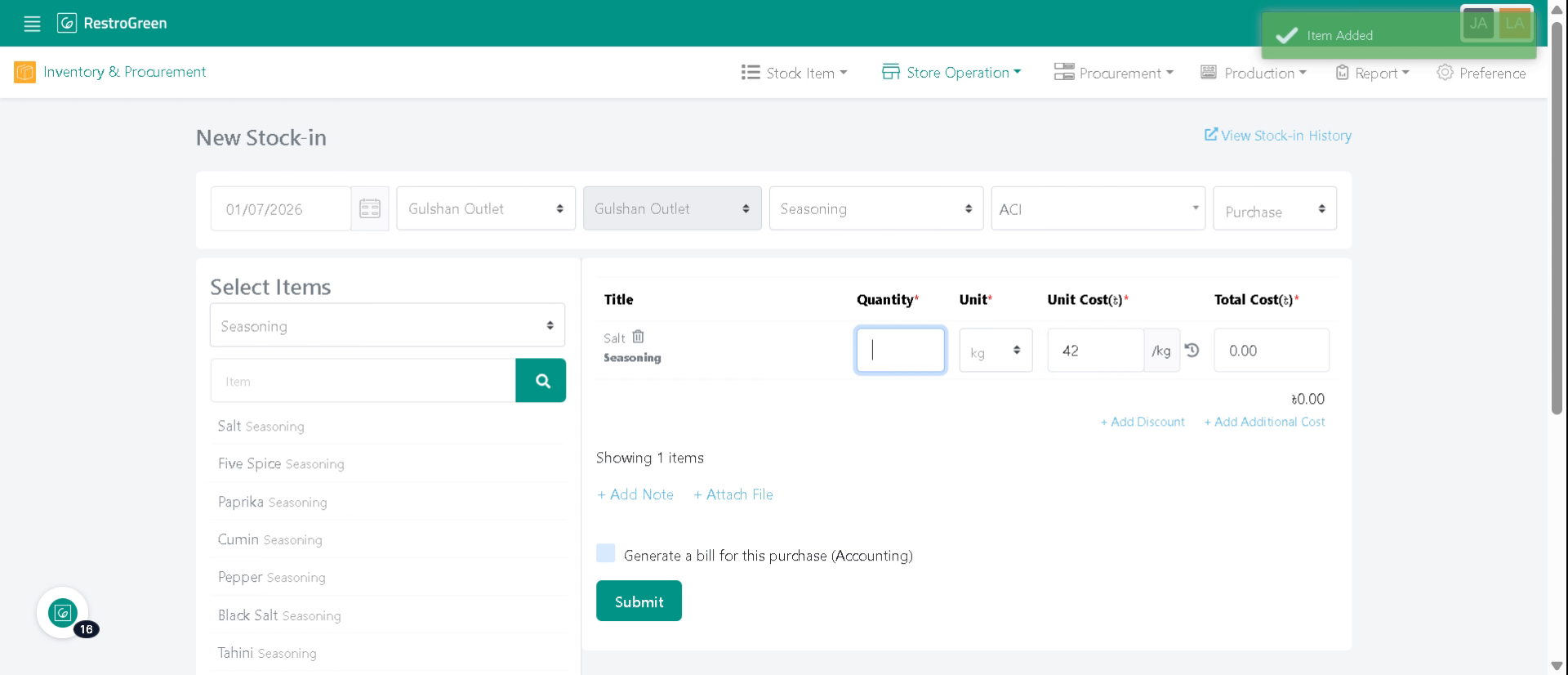
5. Enable bill generation to create an accounting record for the purchase
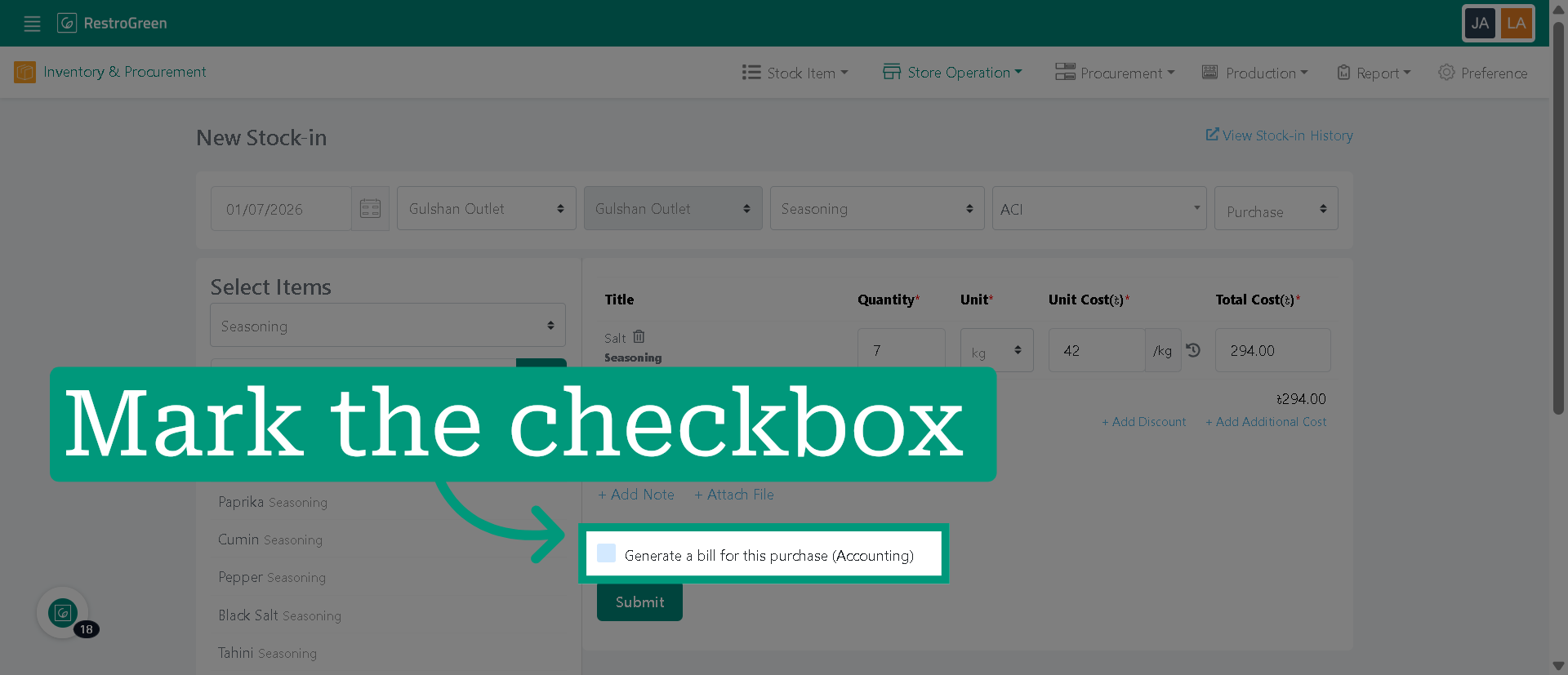
6. Click "Submit" to save the stock-in entry and bill in your accounting records
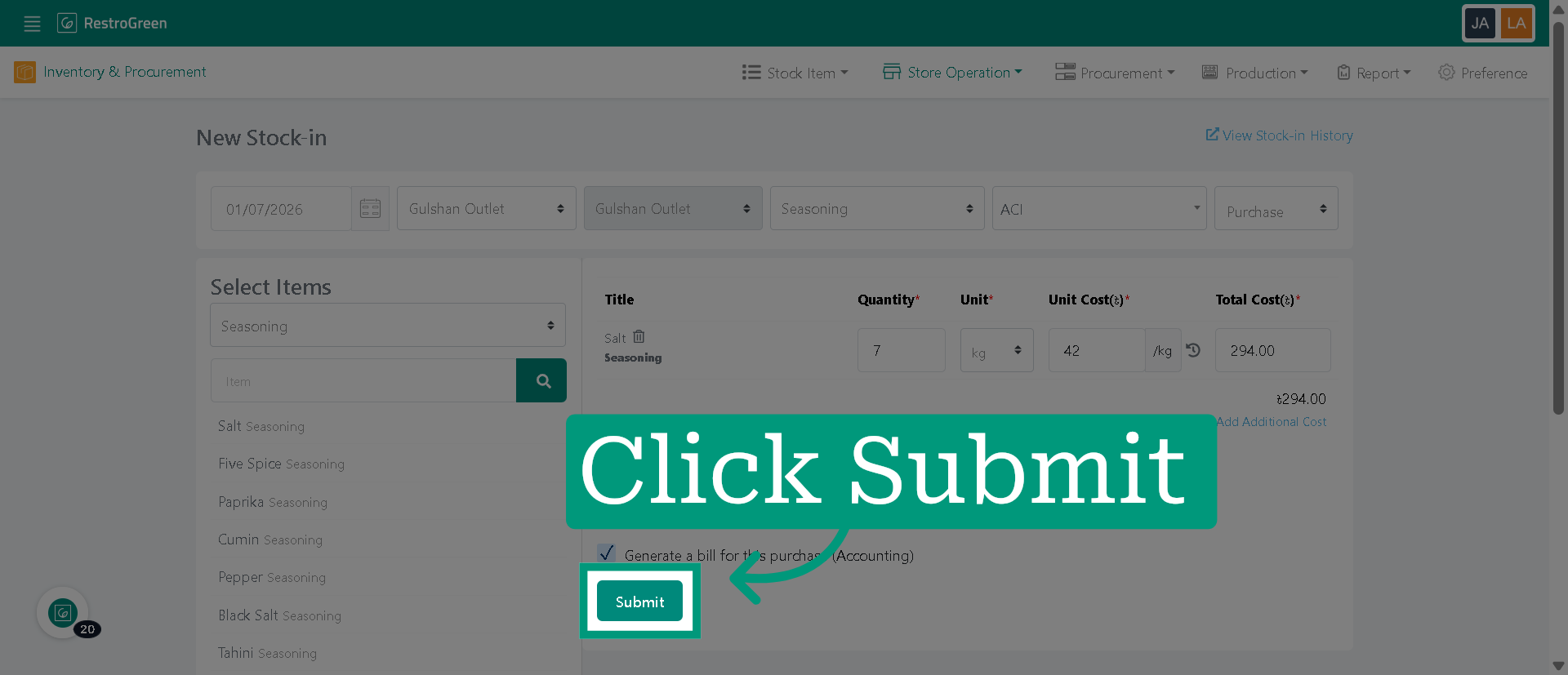
7. Go to "Accounting" Module
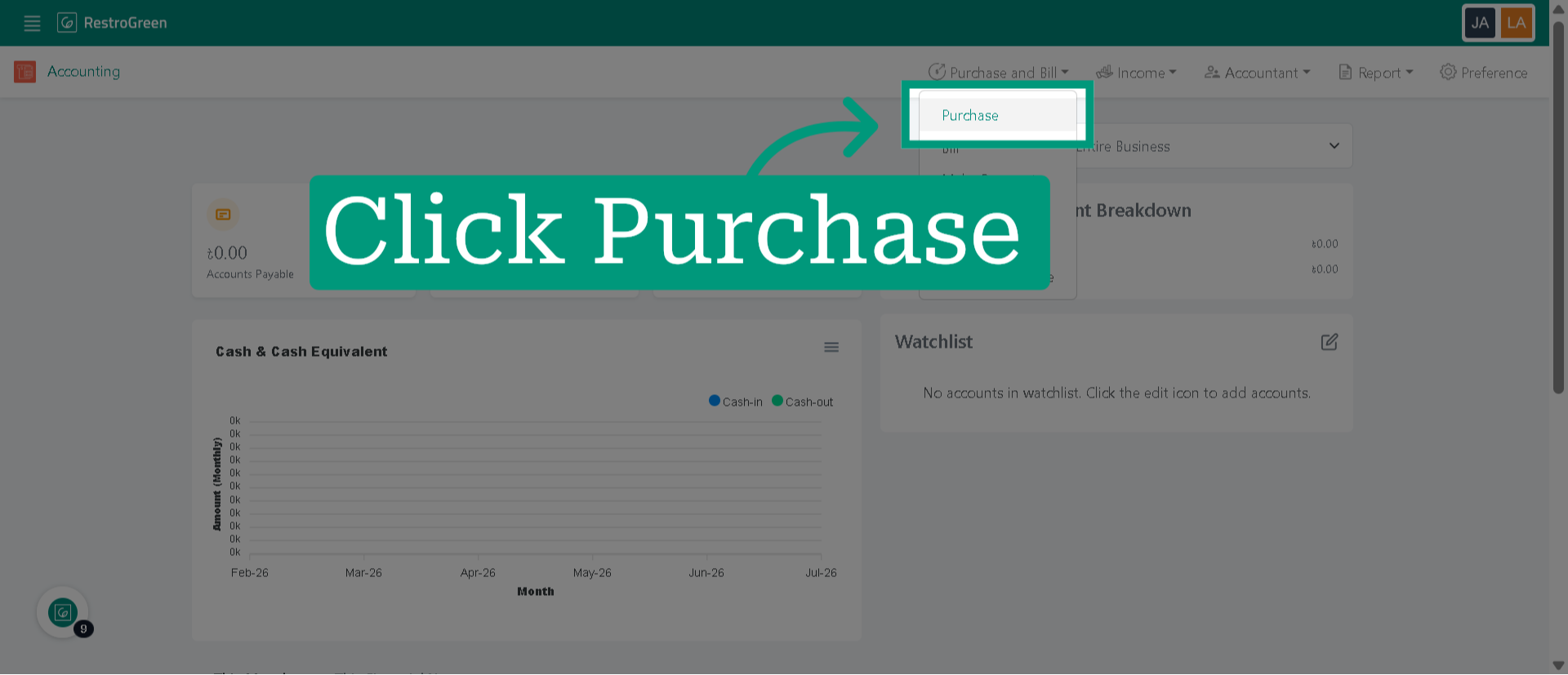
8. Click Purchase to view the current bills
9. The purchase is logged in your accounting records as soon as the stock-in entry is published