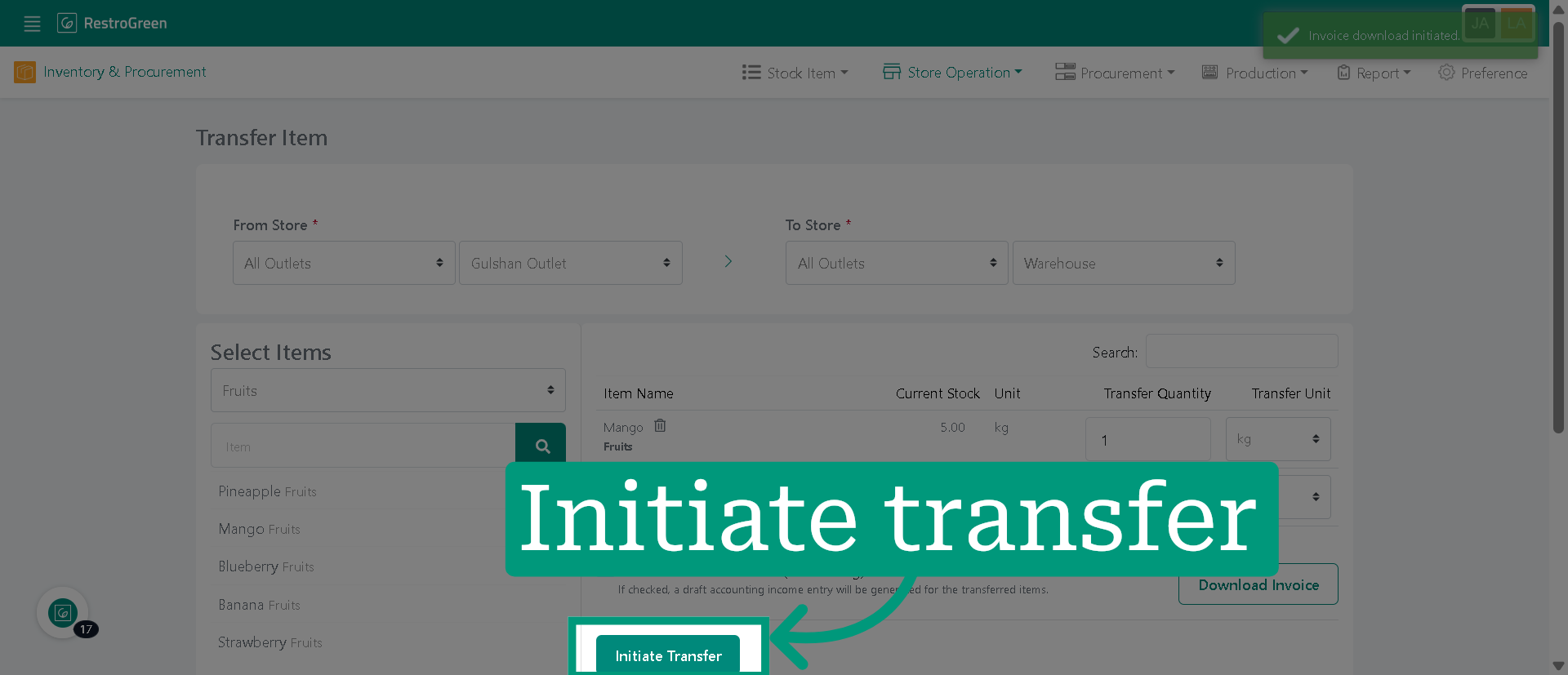
How to Generate Sales Invoice for Accounting from Stock Transfers in RestroGreen
This tutorial guides you through generating sales invoice for accounting records by initiating
inventory transfers between stores using the RestroGreen Business Portal.
Go to
restrogreen.quicklyservices.com
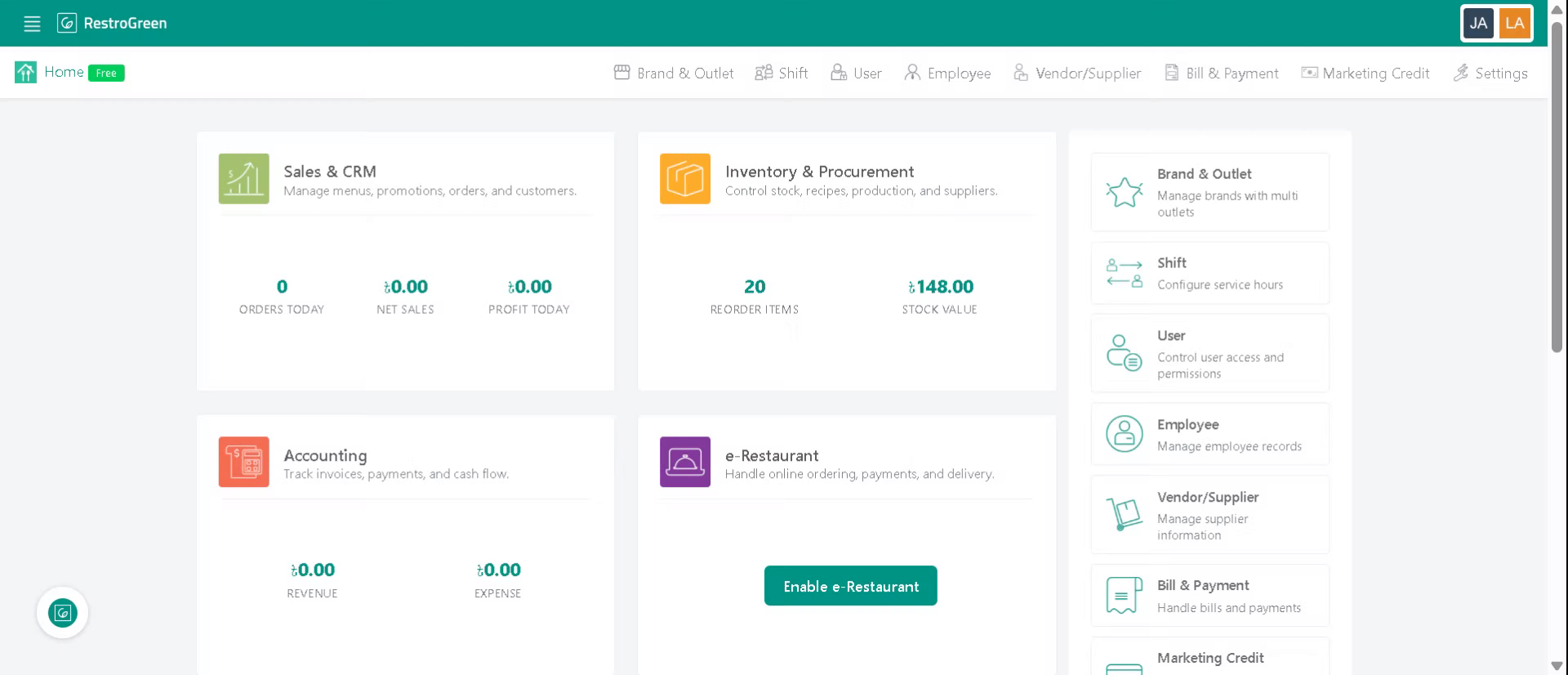
1. Login to Business Portal
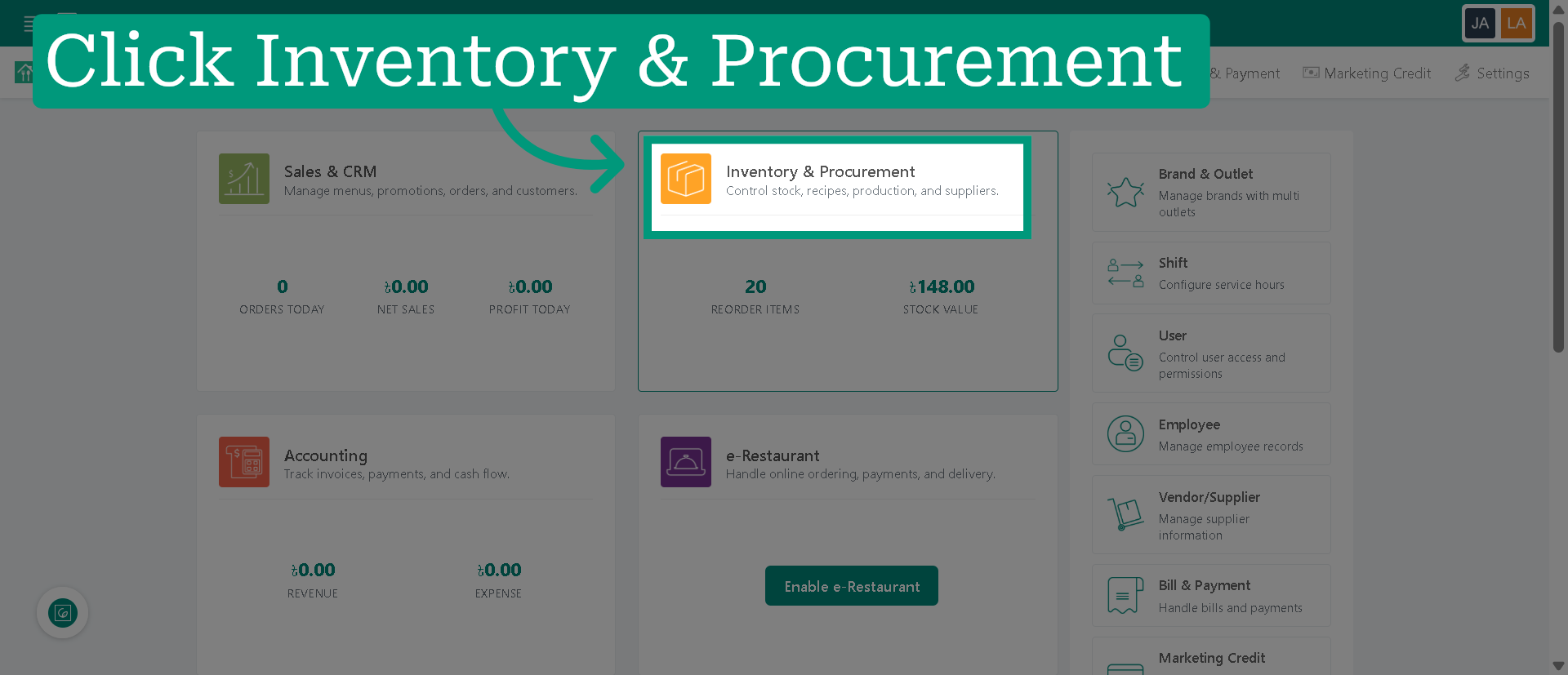
2. Access "Inventory & Procurement" Module
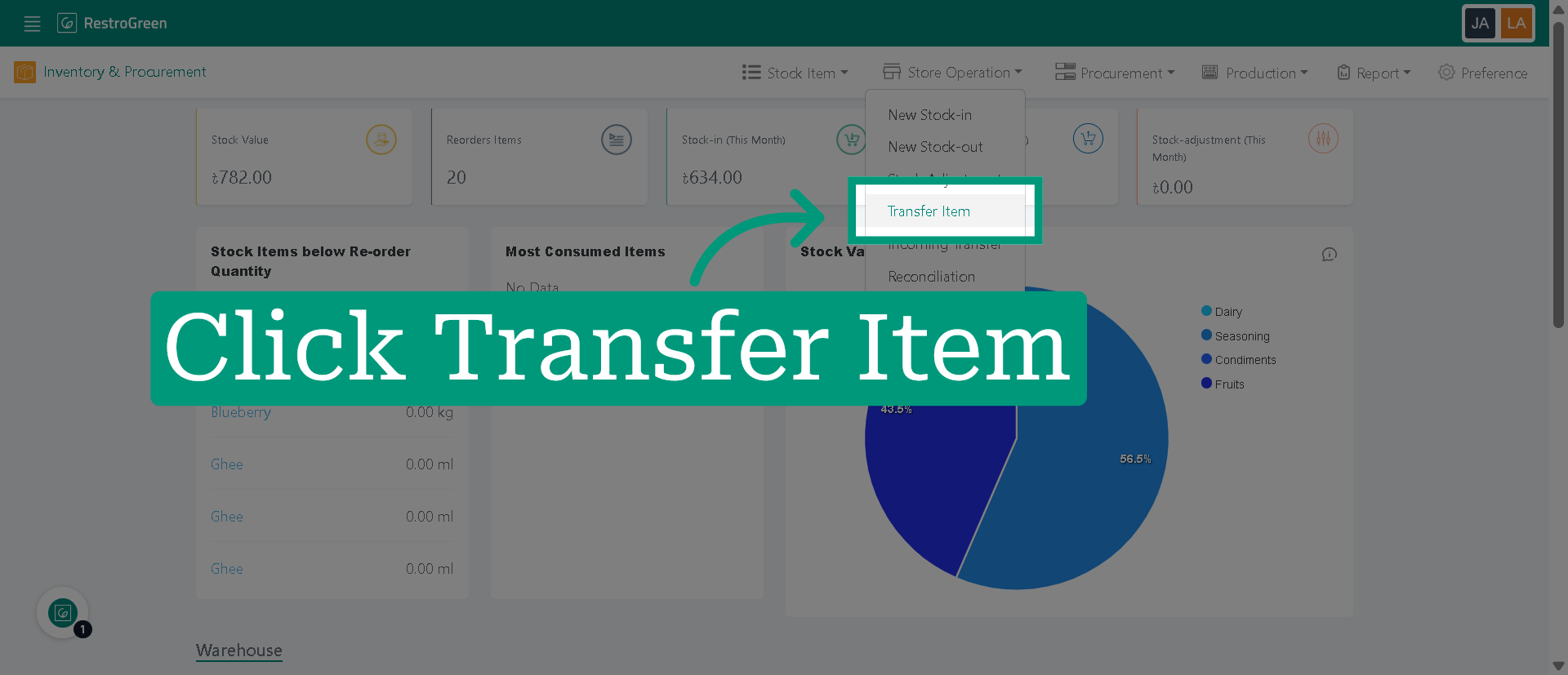
3. Click "Transfer Item" to begin the stock transfer process
4. Enter required details of the stock transfer
If you need help with a stock transfer, refer to the tutorial: "How to Transfer Stocks between Outlets in RestroGreen Business Portal"
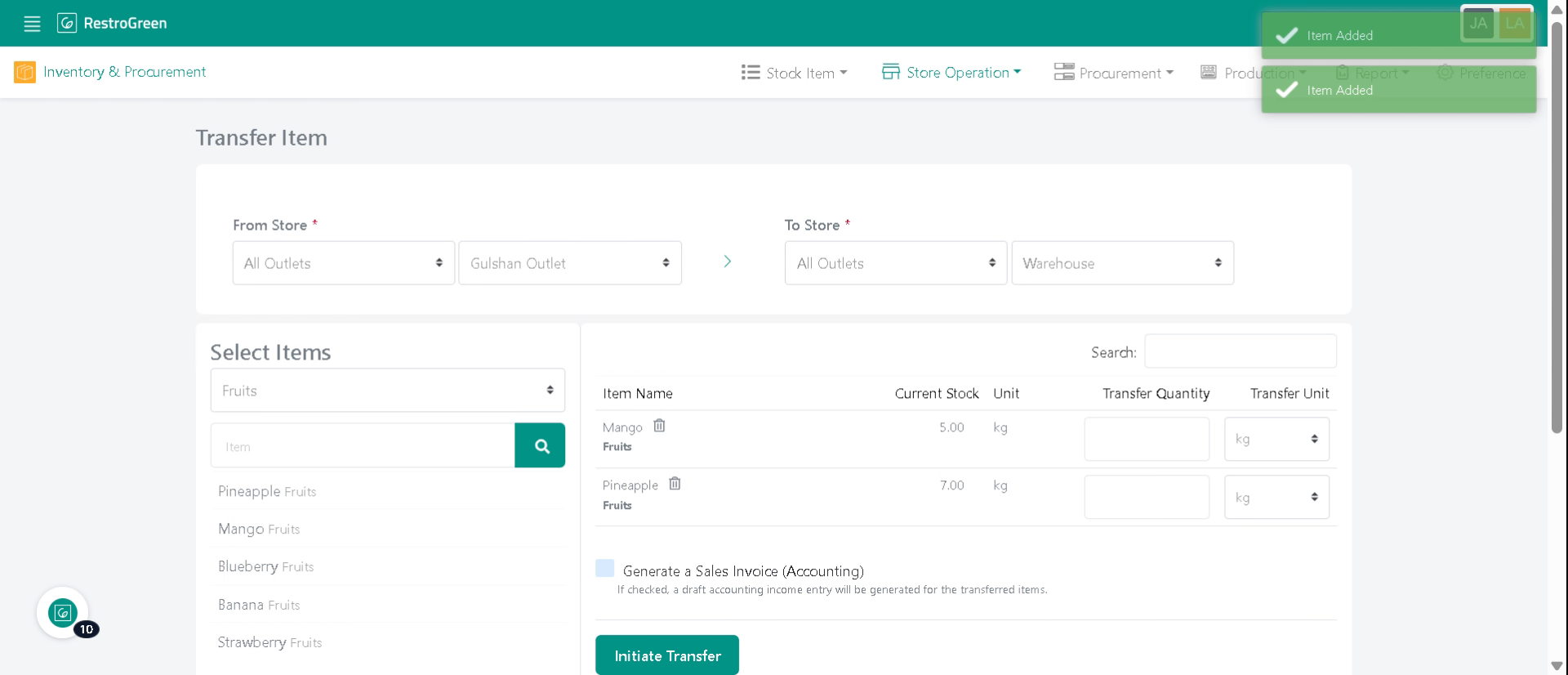
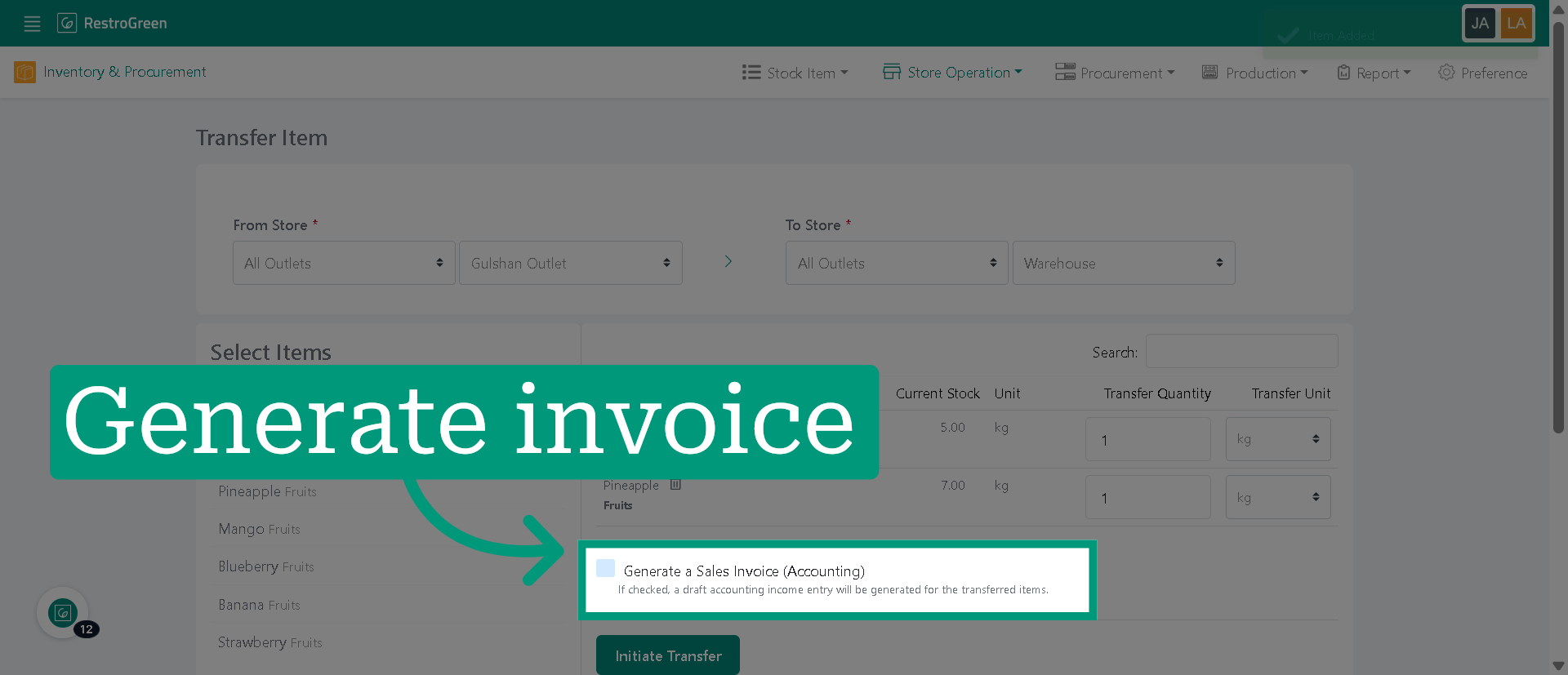
5. Enable invoice generation to create an accounting record for the transfer
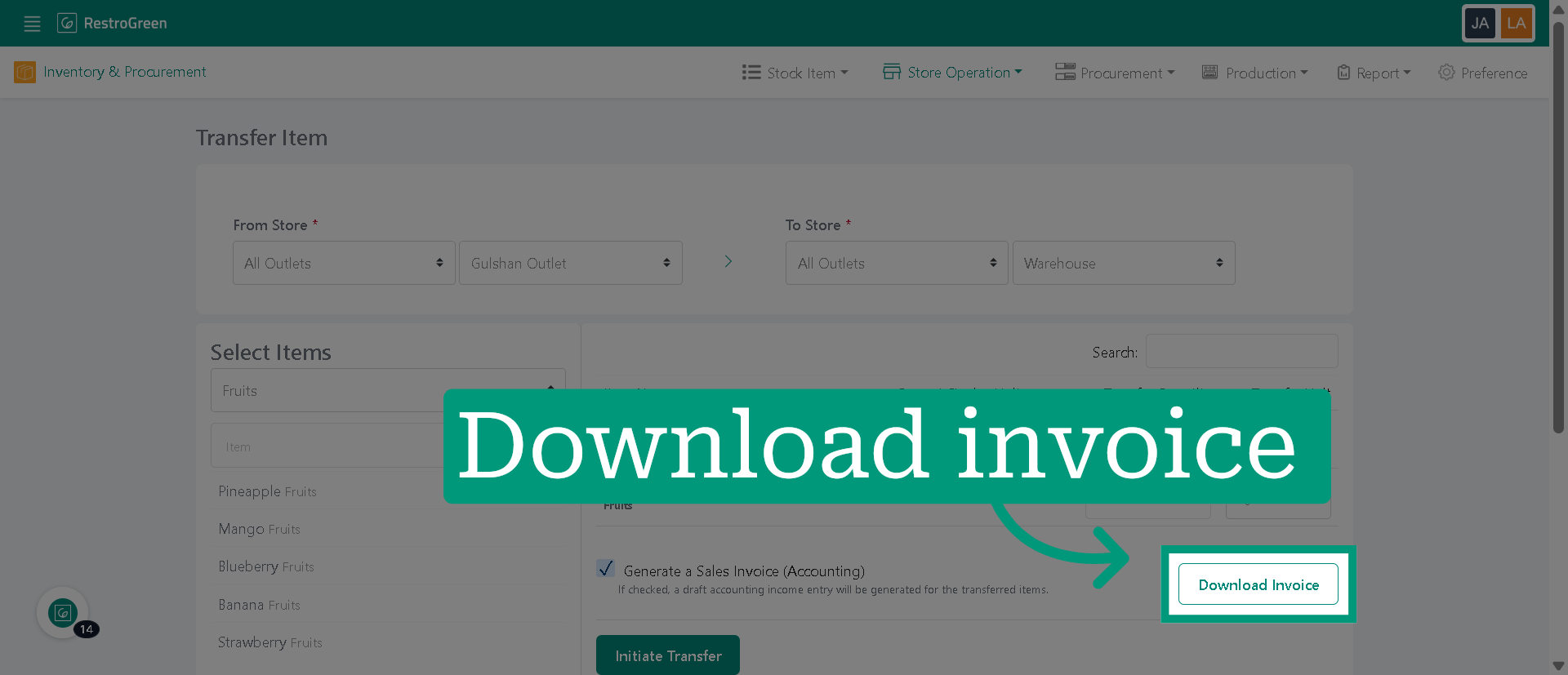
6. Click Download to save a copy of the generated sales invoice to your device
7. Click "Initiate Transfer" to start the transfer of selected items